 Kimi K3
Kimi K3 AI Dance Video Generator for reference-led character movement
Bring a movement reference and a character worth watching. The Kimi K3 AI Dance Video Generator uses MiniMax H3 reference mode for short performances from uploaded images or footage. Assign appearance and movement separately, then give the Kimi K3 AI Dance Video Generator one readable phrase rather than a complete routine.
Video workspace
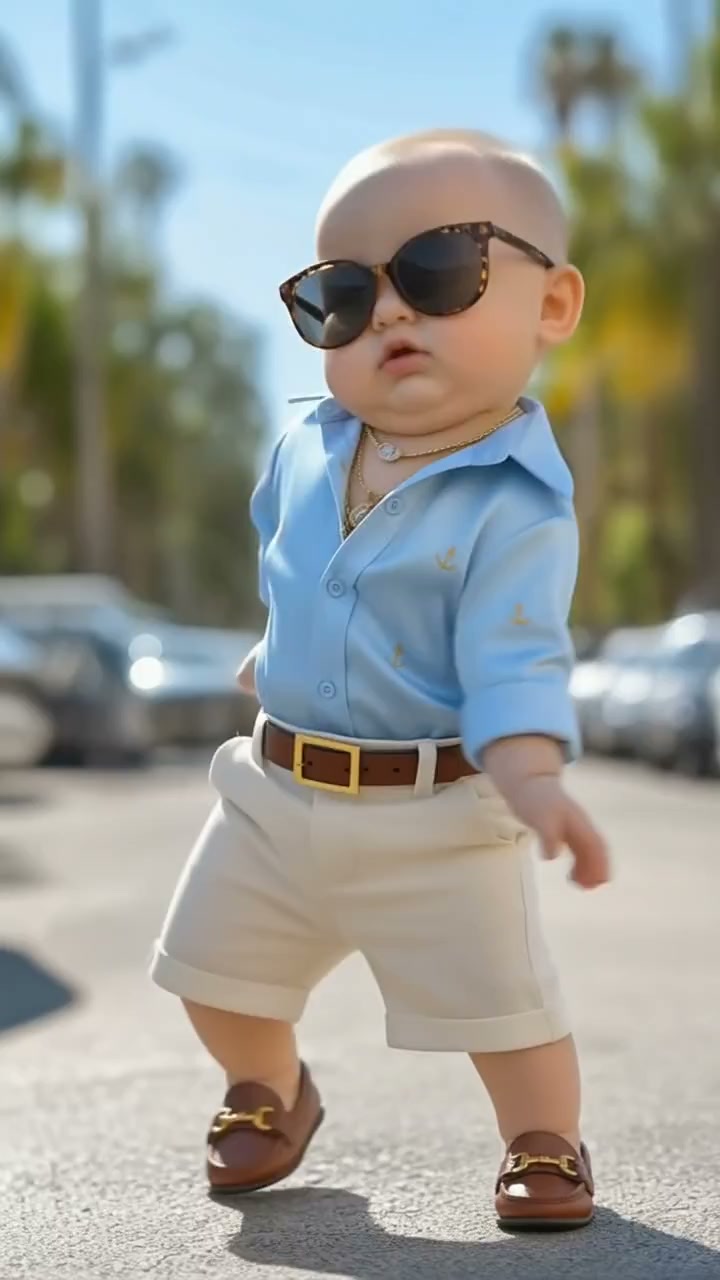
A playful reference-led dance
16/30View prompt
Use @Image 1 for the cartoon baby-style character’s appearance and @Video 1 for the same character’s dance movement. Create a cheerful five-second performance with light steps, readable arm gestures, and a balanced finish. Keep the rounded cartoon proportions, outfit, framing, and setting consistent with the references. Avoid adding another character, new props, or unrelated actions.
Introduction
Give the Kimi K3 AI Dance Video Generator one dance phrase
Build the Kimi K3 AI Dance Video Generator brief around one complete phrase, with a visible starting pose and balanced finish.
Choose the expressive moment
A side step, a relaxed arm sweep, and a final pause can communicate a playful mood. Give the Kimi K3 AI Dance Video Generator that compact phrase rather than several contrasting routines.
Start with visual material
Upload a character image, a movement video, or both. The Kimi K3 AI Dance Video Generator requires at least one image or video; audio alone is not a starting point.
Set a short performance window
MiniMax H3 reference mode starts at 2K and five seconds, with durations from five to fifteen seconds. Keep the first Kimi K3 AI Dance Video Generator request focused on one phrase. Extend the time when the movement genuinely needs room, not simply to add more events.
How to use
How to use the Kimi K3 AI Dance Video Generator
- Input
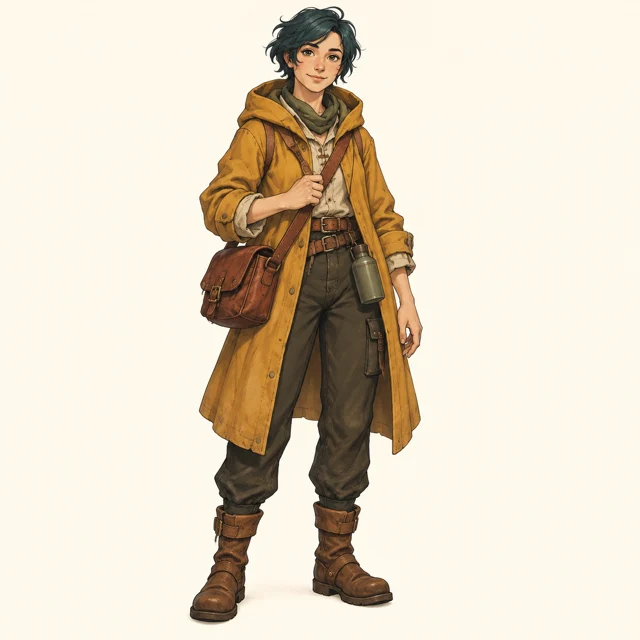 Reference image 1Reference video 2STEP 1
Choose visual references
Select MiniMax H3 reference mode in the Kimi K3 AI Dance Video Generator and upload a character image, movement video, or both.
- Example settingsMiniMax H32K5sPromptOutputSTEP 2
Assign the performance roles
Tell the Kimi K3 AI Dance Video Generator which file defines appearance and which defines movement, then describe framing and the final pose.
- Illustrative preview
Character appearance comes from the image; the dance phrase comes from the reference clip.
STEP 3Create a short phrase
Start the Kimi K3 AI Dance Video Generator at five seconds and 2K, check the displayed credits, and generate one readable performance.
- STEP 4
Watch the complete motion
Review Kimi K3 AI Dance Video Generator footwork, overlapping limbs, character details, and sound before refining the phrase or downloading your chosen clip.
Features
Organize Kimi K3 AI Dance Video Generator references by role
Give each Kimi K3 AI Dance Video Generator reference a specific role: character appearance, dance movement, setting, or sound.
Identify the character source
Use a clear, authorized character image for appearance, clothing, and proportions. Tell the Kimi K3 AI Dance Video Generator that this image supplies the performer, while another file supplies movement. Check that the reference shows enough of the body to support the intended framing.
- Choose clothing whose main shapes remain readable during a turn.
- Keep Kimi K3 AI Dance Video Generator character details separate from choreography instructions.
Select an unobstructed movement reference
Favor footage where the body, feet, and main gestures remain visible. A crowded group performance makes it harder to identify the intended dancer. Tell the Kimi K3 AI Dance Video Generator which performer and short movement phrase to use, rather than asking it to interpret every person equally.
Keep additional uploads purposeful
The reference workspace accepts up to nine images, three videos, and three audio files. These limits are not a recommended target. Add a file to the Kimi K3 AI Dance Video Generator only when it clarifies appearance, movement, or sound without contradicting a source already assigned.
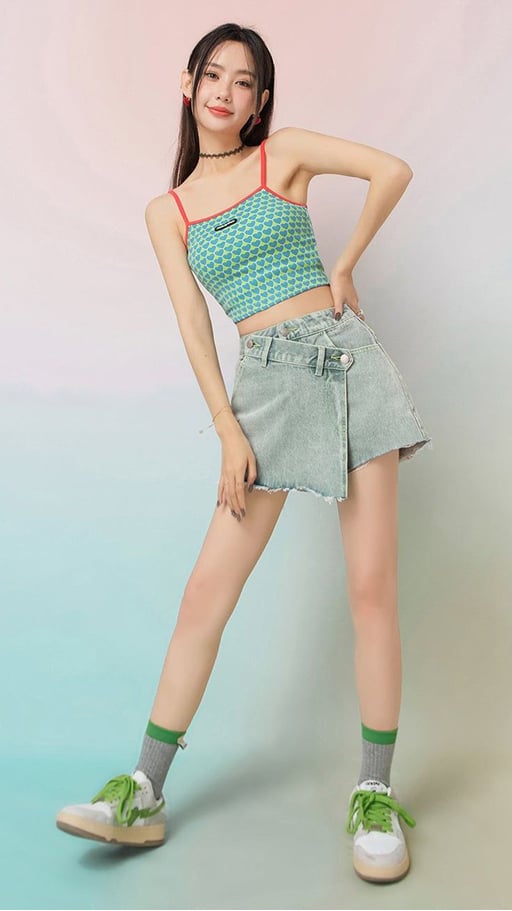
Stage Kimi K3 AI Dance Video Generator motion for clarity
Direct the Kimi K3 AI Dance Video Generator around balance and floor contact, keeping important limbs visible throughout the chosen movement.
Keep the feet inside the frame
Leave room below the shoes and beside outstretched arms. Ask the Kimi K3 AI Dance Video Generator for full-body framing when footwork carries the phrase. Cropped ankles or hands can conceal the very details needed to judge whether the movement makes sense.
- Leave space in the direction of the largest step.
- Review Kimi K3 AI Dance Video Generator foot placement throughout the whole phrase.
Describe weight and direction
Specify a gentle shift onto one leg before the other foot moves outward. Give the Kimi K3 AI Dance Video Generator ordinary physical directions instead of relying only on an energetic mood.
Allow clothing to follow the gesture
A loose sleeve can trail an arm sweep, while a light jacket settles after a turn. Keep these effects secondary in the Kimi K3 AI Dance Video Generator brief. Excessive fabric movement can obscure the limbs, change the costume, or distract from a simple piece of footwork.
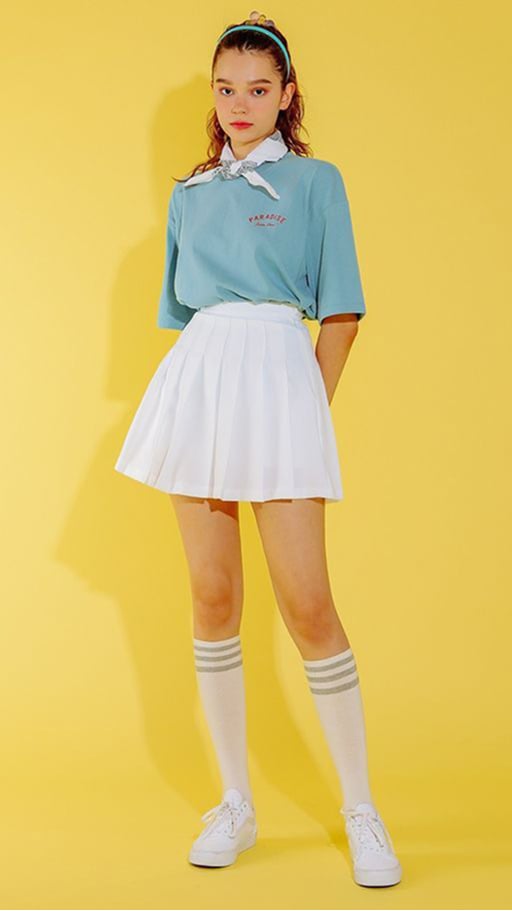
Give the Kimi K3 AI Dance Video Generator a stable stage
Use the Kimi K3 AI Dance Video Generator camera to clarify the performance, with a visible floor and room for the largest gesture.
Start with a steady viewpoint
A fixed full-body view is a useful first direction for comparing a reference phrase. Ask the Kimi K3 AI Dance Video Generator to keep the dancer large enough to read while leaving movement margins. A rapid orbit can make a straightforward step unexpectedly difficult to evaluate.
- Keep the floor visible around the supporting foot.
- Give the Kimi K3 AI Dance Video Generator one camera instruction at a time.
Separate the performer from the background
Choose a background with quieter detail than the costume and clear contrast around the limbs. The Kimi K3 AI Dance Video Generator does not need a crowded stage to create atmosphere.
Plan a natural stopping position
Describe the final pose and a brief moment of stillness after the movement. This gives the Kimi K3 AI Dance Video Generator a sensible destination. A phrase that settles into balance is easier to reuse than a clip ending halfway through a turn or with one foot suspended.
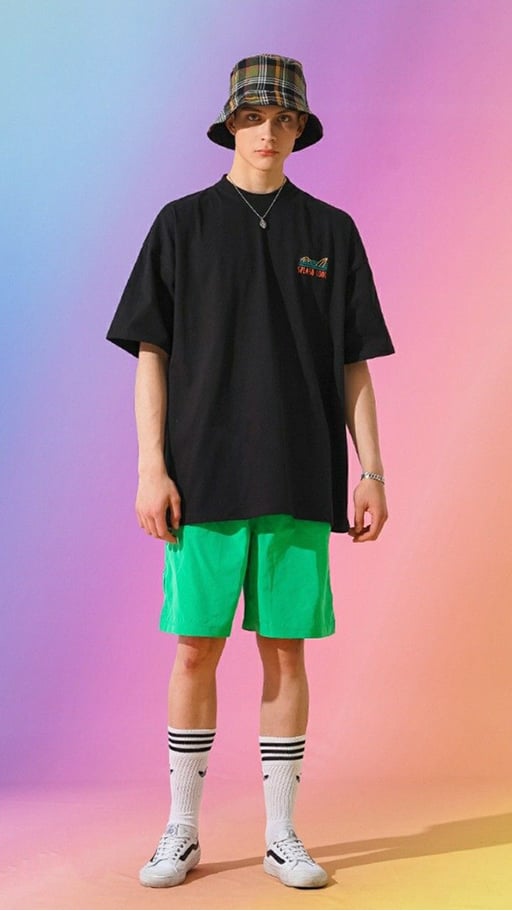
Guide Kimi K3 AI Dance Video Generator rhythm with references
Give the Kimi K3 AI Dance Video Generator a readable rhythm while treating audio as guidance, not a guarantee of exact synchronization.
Identify the role of an audio file
An authorized audio reference can suggest a relaxed pulse or a stronger rhythmic feel. Tell the Kimi K3 AI Dance Video Generator how it should relate to the movement. Keep an image or video in the request, since an audio file cannot supply the required visual input.
Describe rhythm in visible language
Request a measured side step followed by a quicker arm sweep and a pause. This gives the Kimi K3 AI Dance Video Generator an observable rhythm to attempt. Avoid making the concept depend on a foot landing at an exact musical instant that you cannot guarantee beforehand.
Keep the routine coherent when muted
Watch the candidate without sound to assess the body phrase, then listen with the picture. Kimi K3 AI Dance Video Generator review should establish both an understandable movement sequence and suitable sound, rather than accepting confusing motion because the music feels energetic.
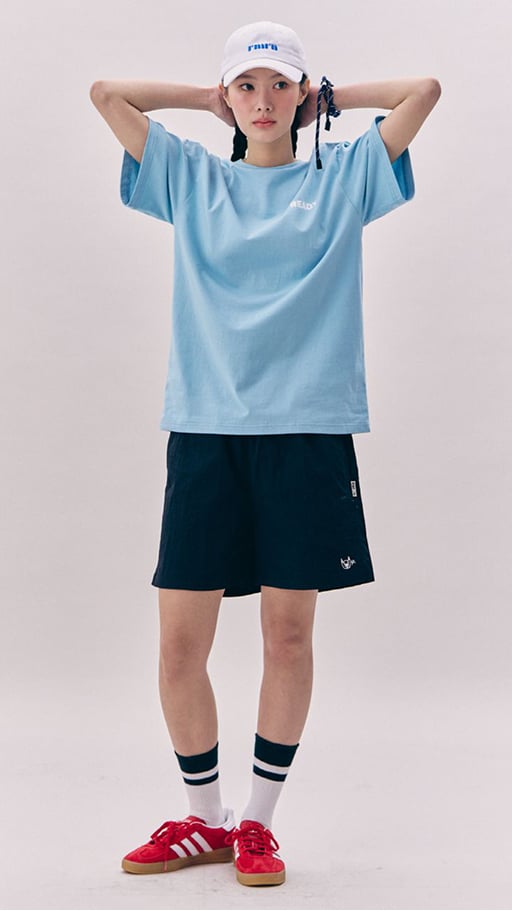
Review Kimi K3 AI Dance Video Generator continuity before sharing
Compare Kimi K3 AI Dance Video Generator candidates for completed movement, coherent character details, and a useful relationship between performance and sound.
Inspect changes during crossings
Look closely when arms cross the torso, legs overlap, or the performer turns away. The Kimi K3 AI Dance Video Generator may reinterpret hands, faces, or costume details at those moments.
Revise one performance problem
If the feet slide, simplify the steps or ask for a slower weight shift. If framing is tight, widen it. Give the Kimi K3 AI Dance Video Generator one targeted correction, keeping the successful character and setting decisions so the next comparison remains useful.
Keep the selected phrase with its brief
Save the chosen source roles and movement description beside your approved clip. Check the displayed credits before each Kimi K3 AI Dance Video Generator request.
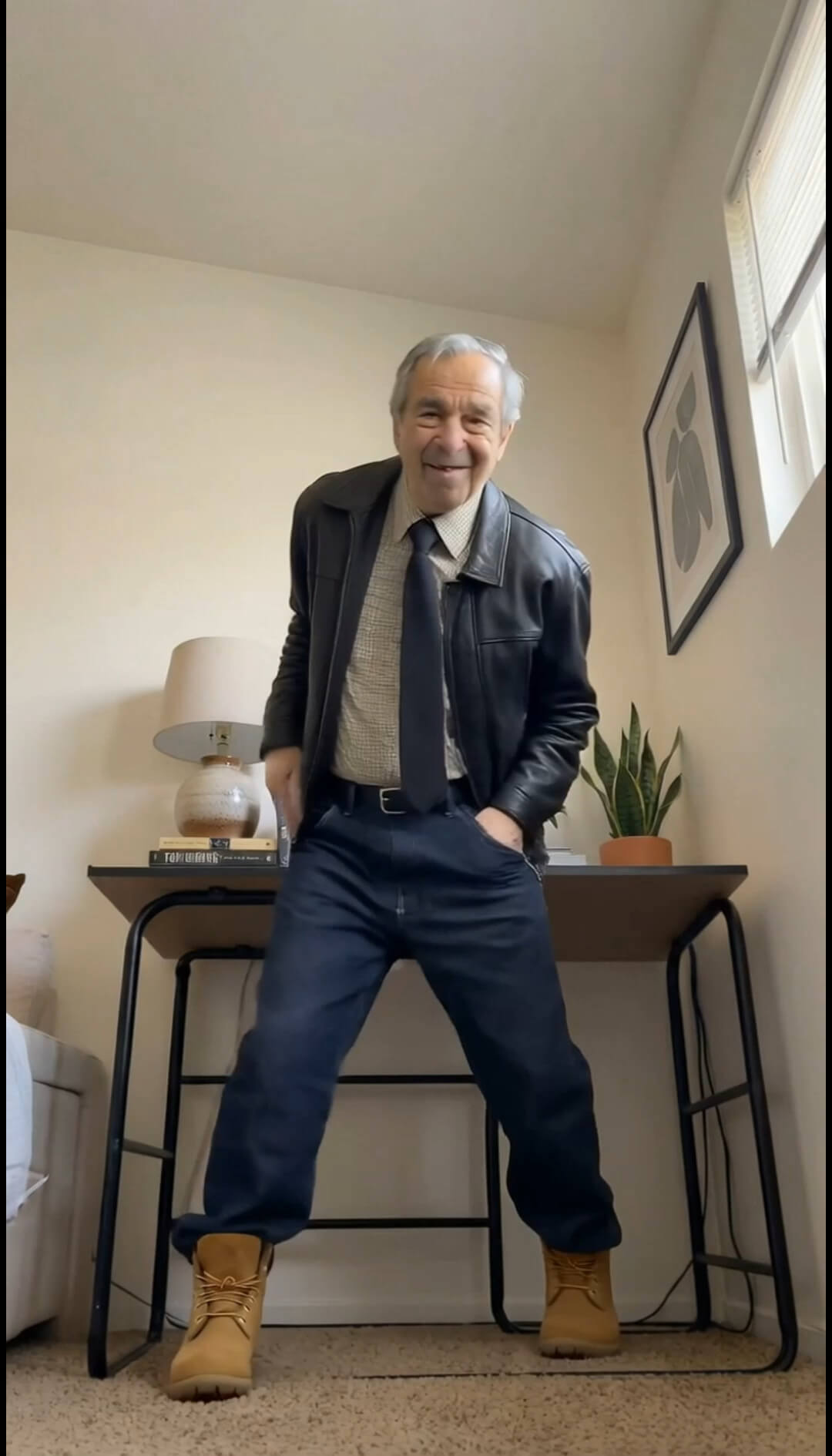
Example prompts
Character image with a dance reference
Use @Image 1 for the authorized character appearance and outfit. Use @Video 1 for one short dance phrase: a side step, gentle arm sweep, and balanced pause. Generate a five-second interpretation with full-body framing, visible feet, a steady camera, and clear floor contact. Keep the background secondary and aim to retain recognizable character details. No additional dancers or text.
Simplify the supplied performance
Use @Video 1 as the movement and subject reference. Create a five-second version of one visible phrase with a slower weight shift and a short settled ending. Keep the same intended performer, outfit, and general setting, with the whole body inside the frame. Use a steady viewpoint and subdued surroundings. Prioritize readable footwork over extra gestures; no captions or new people.
User reviews
Kimi K3 video creator feedback.
Kimi K3 creator reviews

Illustrative workflow: plan an original game title sequence with simple shapes, readable words and timed visual beats. Inspect the animation before adding it to a larger game presentation.

Illustrative workflow: turn a short explanation into a diagram that reveals one idea at a time. Compare Sketch and Motion treatments, then keep the version that communicates the subject clearly.

Illustrative workflow: place an approved product picture beside short benefit text. Assemble a simple graphic product story and review the composition at the intended screen size.

Illustrative workflow: create a portrait opening with one headline, a small set of colors and a quiet final hold. Export the selected scene and add separate sound during editing when needed.

Illustrative workflow: revise one visual decision in a saved animation, such as the closing pause or label placement. Compare saved versions before exporting the selected result.

Illustrative workflow: build a silent graphic sequence to explain the structure of a presentation. These examples describe possible uses; they are not verified customer testimonials or promised outcomes.
Kimi K3 Pricing and Credit Plans
Cancel anytime
Lite
50% off0.025 / credit
Billed $ yearly179· Save $179.8
Video Models



Image Models



- Includes Kimi K3.1 and all premium models
- Up to 1 batch generation task
- Standard generation speed
- Standard generation success rate
- Standard customer support
- Commercial Use License
Standard
50% off0.017 / credit
Billed $ yearly299· Save $299.8
Video Models
Image Models
- Includes Kimi K3.1 and all premium models
- Up to 4 batch generation tasks
- Priority processing speed
- High generation success rate
- Priority customer support
- Commercial Use License
Pro
50% off0.014 / credit
Billed $ yearly599· Save $599.8
Video Models
Image Models
- Includes Kimi K3.1 and all premium models
- Up to 10 batch generation tasks
- Fastest generation speed
- High generation success rate
- Dedicated account manager
- Commercial Use License
Max
50% off0.012 / credit
Billed $ yearly1,199· Save $1,199.8
Video Models
Image Models
- Includes Kimi K3.1 and all premium models
- Up to 10 batch generation tasks
- Fastest generation speed
- High generation success rate
- Dedicated account manager
- Commercial Use License
Pay safely and securely with























FAQ
Frequently asked questions
Can the Kimi K3 AI Dance Video Generator use a character photo?
Yes. Upload an authorized character or adult portrait reference and describe the movement. A separate video can guide the choreography. Choose adequate body visibility rather than expecting a close face crop to establish full-body details.
Does the Kimi K3 AI Dance Video Generator accept music alone?
No. The request needs at least one image or video. You may include audio as supporting reference material, but it does not replace the visual source needed to establish the performer, scene, or movement.
Will every step match the movement reference exactly?
The Kimi K3 AI Dance Video Generator interprets your references rather than guaranteeing exact choreography transfer. Compare timing, balance, foot contact, and limb direction. A simple, visible phrase gives you a clearer standard for review than a complicated routine with frequent obstructions.
Can I make a complete dance routine in one request?
The Kimi K3 AI Dance Video Generator produces a short scene within the five-to-fifteen-second range. Develop individual phrases and assemble selected results separately when you need a longer routine. This workspace is not a timeline for editing choreography across an entire song.
How should I use several reference files?
Assign a clear role to each Kimi K3 AI Dance Video Generator reference: performer, movement, setting, or sound. Stay within nine images, three videos, and three audio files, and prefer fewer files when they already explain the desired result clearly.
CTA
Give the Kimi K3 AI Dance Video Generator a clear phrase
Choose your performer and one clear phrase. Review the settings and displayed credits, then compare the complete performance with your intended movement.
Create a dance concept