 Kimi K3
Kimi K3 gridcraft — Organize data and calculate spreadsheets
Open Kimi K3 gridcraft directly in your browser. Bring an existing file, make your changes, and sign in when you are ready to save or export a private copy.
Office workspace
Introduction
Kimi K3 gridcraft: A spreadsheet you can work in
Use Kimi K3 gridcraft to organize data and calculate spreadsheets with a focused, editable workflow. A spreadsheet editor with an Excel-style ribbon, formula bar, sheet tabs, charts, and a Rust calculation engine. It is useful for budgets, sales summaries, gradebooks, and structured tables that need formulas rather than manual totals. Keep an untouched source copy while you inspect the result. A short representative file is a useful first check before committing a complex project to a new editor. Check the exported file in its destination application before sharing it with your collaborators.
Kimi K3 gridcraft: Open a workbook
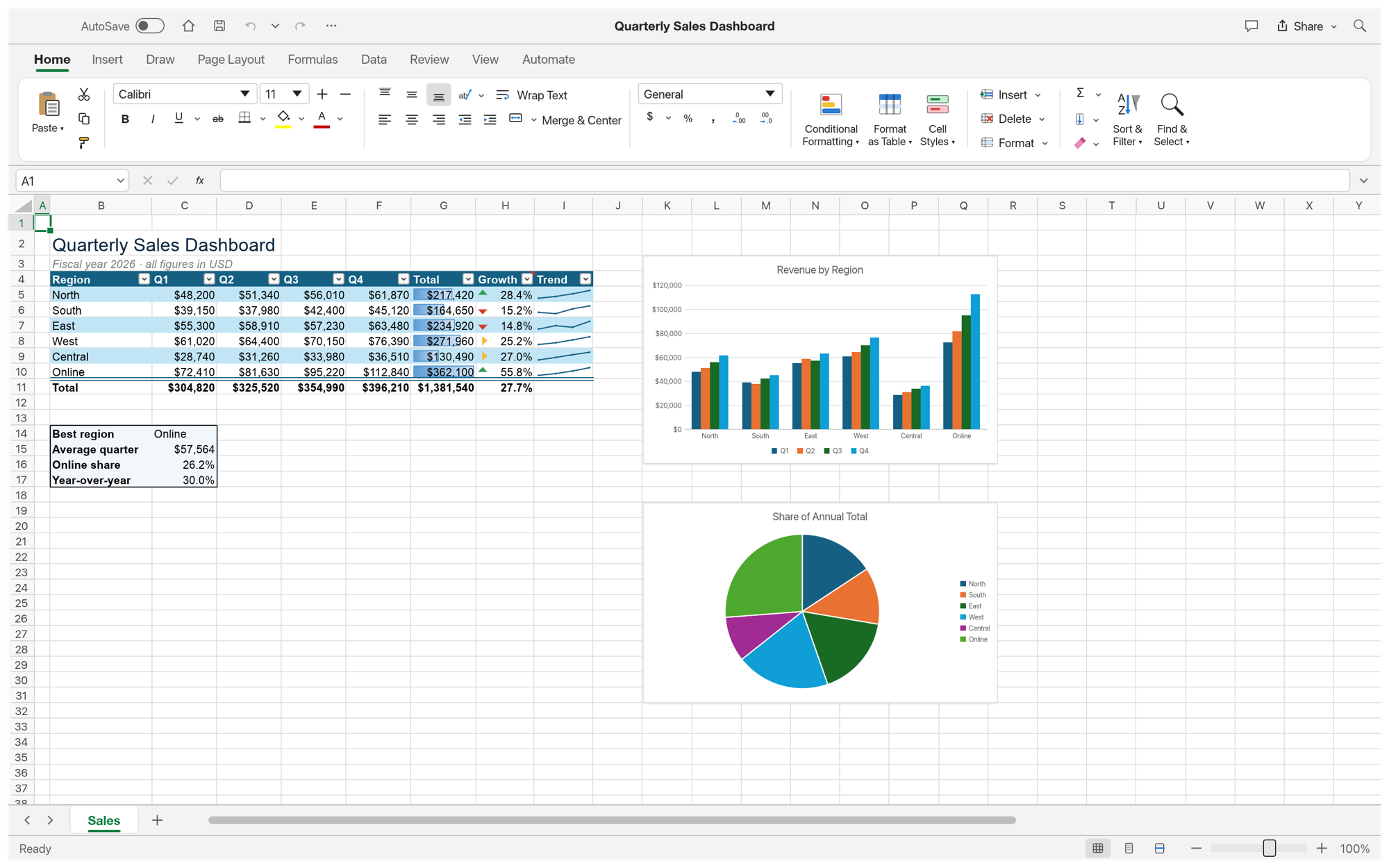
In Kimi K3 gridcraft, start a workbook or load an XLSX file. Review its sheets, labels, and dimensions before changing formulas or formatting. Review the surrounding content after each substantial change. The most useful check is whether another person can understand the result without seeing the steps that produced it.
Kimi K3 gridcraft: Navigate a large grid
In Kimi K3 gridcraft, use the formula bar and sheet tabs to move through data. The virtualized grid concentrates rendering on the visible region. Choose a file name that describes the purpose and version of the work. This makes later review easier when several related copies exist in your private file library.
Kimi K3 gridcraft: Keep inputs recognizable
In Kimi K3 gridcraft, separate labels, entered values, and calculated results. A predictable layout makes a workbook easier to inspect and reuse. Work through one concrete task at a time, then inspect the result in the format your reader will receive. An editable source and a reading copy serve different purposes.
How to use
How to use Kimi K3 gridcraft
- STEP 1
Open the workspace
Choose the GridCraft workspace and open a supported file using the editor menu. Start with a small representative document.
- STEP 2
Make your changes
Use the editor controls to adjust the content, review nearby sections, and check that the result still matches your intended task.
- STEP 3
Sign in to continue
When you save or export, sign in with your account. Your pending file remains in this browser while you complete authentication.
- STEP 4
Save and inspect
Save a private copy, check the recorded result in your files, and inspect the downloaded output before sharing it with another person.
Features
Kimi K3 gridcraft: Formulas and dependable checks
Use Kimi K3 gridcraft to organize data and calculate spreadsheets with a focused, editable workflow. Review the surrounding content after each substantial change. The most useful check is whether another person can understand the result without seeing the steps that produced it.
Kimi K3 gridcraft: Calculate from inputs
In Kimi K3 gridcraft, the engine implements a broad worksheet function library and dependency-based recalculation. Check the functions used by your particular workbook. Choose a file name that describes the purpose and version of the work. This makes later review easier when several related copies exist in your private file library.
Read a formula
In Kimi K3 gridcraft, inspect references and operators before filling a formula into adjacent cells. A shifted reference can change the meaning of a total. Work through one concrete task at a time, then inspect the result in the format your reader will receive. An editable source and a reading copy serve different purposes.
Validate a result
In Kimi K3 gridcraft, compare important calculations with a small known example. File compatibility and function depth still require testing on real data. The browser workspace is available before sign-in. Account authentication is required when you want the site to retain a saved result or provide an exported download.
Kimi K3 gridcraft: Tables and clear formatting
Use Kimi K3 gridcraft to organize data and calculate spreadsheets with a focused, editable workflow. Choose a file name that describes the purpose and version of the work. This makes later review easier when several related copies exist in your private file library.
Format a budget
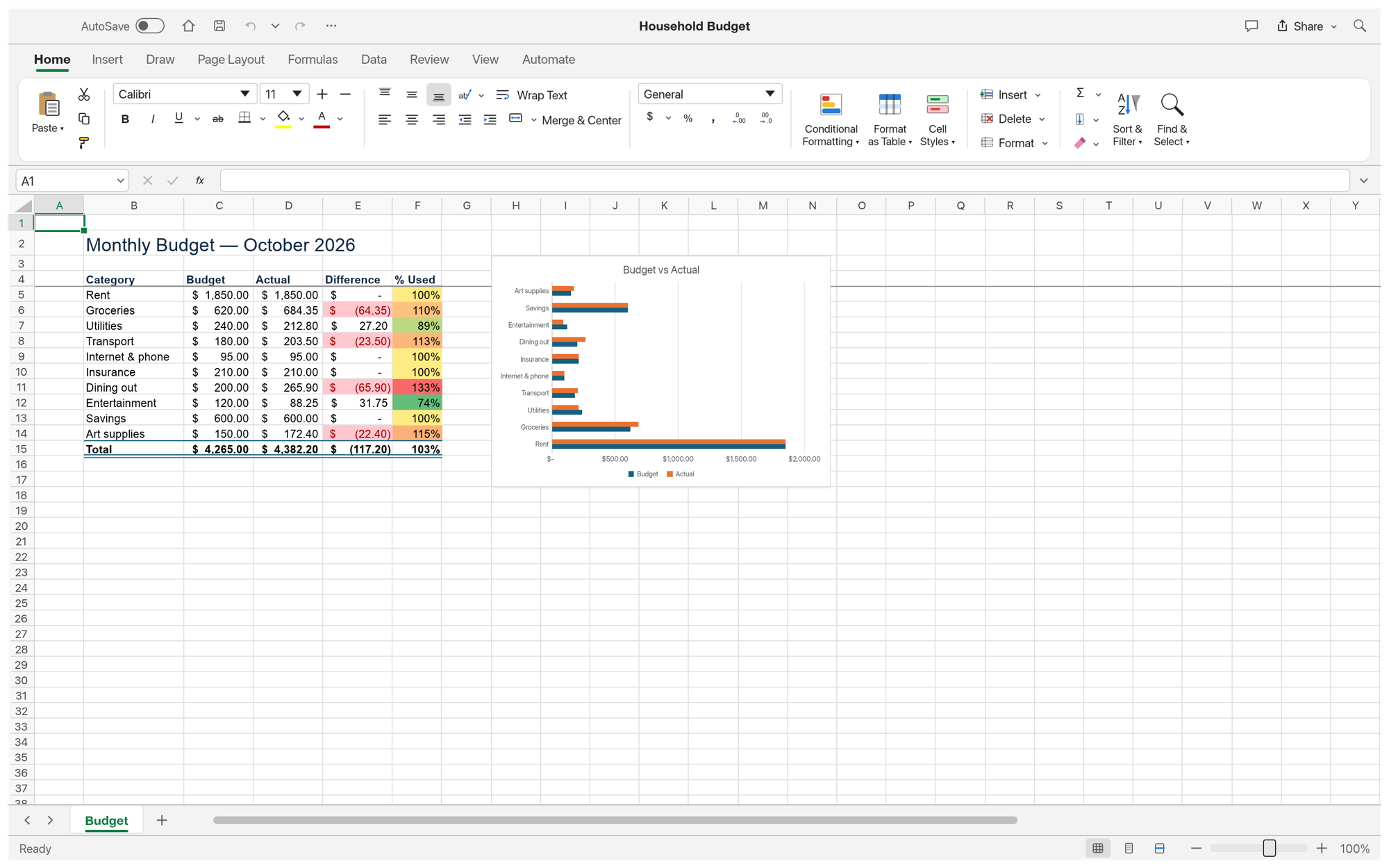
In Kimi K3 gridcraft, use number formats for currency, percentages, and dates. Match each format to the meaning of the underlying values. Work through one concrete task at a time, then inspect the result in the format your reader will receive. An editable source and a reading copy serve different purposes.
Highlight a pattern
In Kimi K3 gridcraft, conditional formatting can make unusual values easier to spot. Choose rules that support a specific question about the data. The browser workspace is available before sign-in. Account authentication is required when you want the site to retain a saved result or provide an exported download.
Work with structured rows
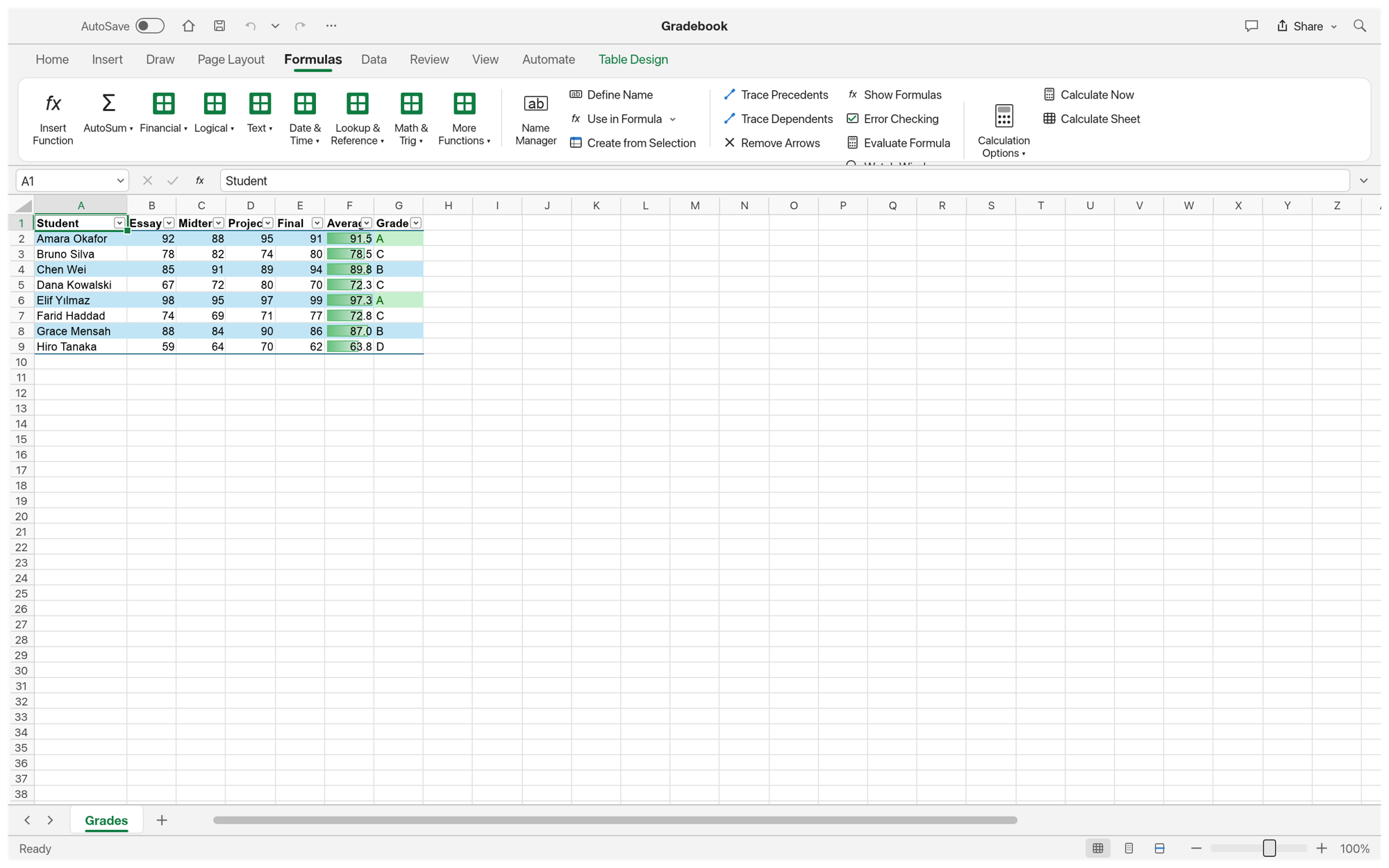
In Kimi K3 gridcraft, use tables, sorting, and filtering to focus on relevant records. Keep a source copy before making broad changes. Complex imported files deserve extra attention. Compare layout, text, values, and supported objects with the source before treating an exported copy as the final version.
Kimi K3 gridcraft: Charts and data summaries
Use Kimi K3 gridcraft to organize data and calculate spreadsheets with a focused, editable workflow. Work through one concrete task at a time, then inspect the result in the format your reader will receive. An editable source and a reading copy serve different purposes.
Choose a useful chart
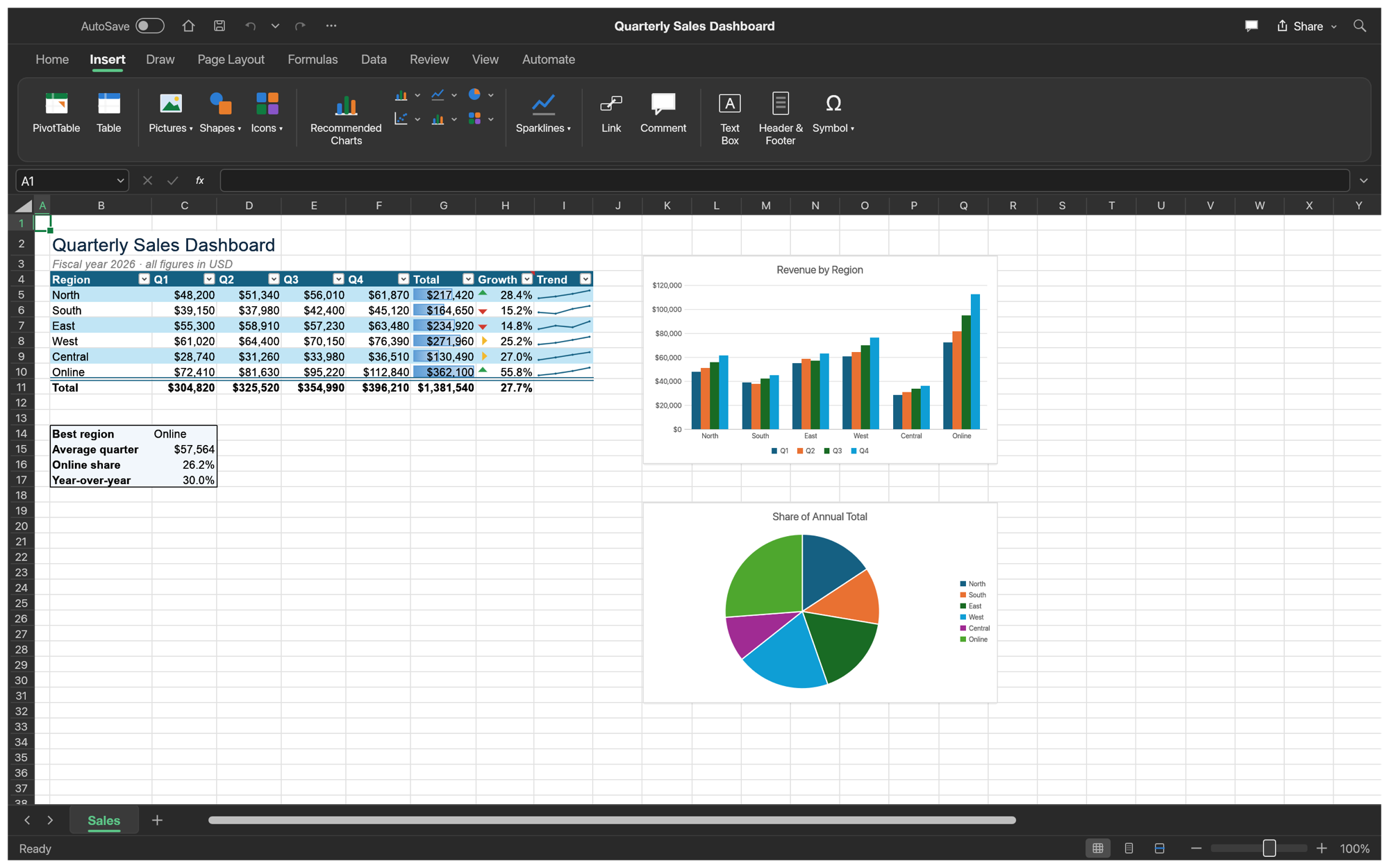
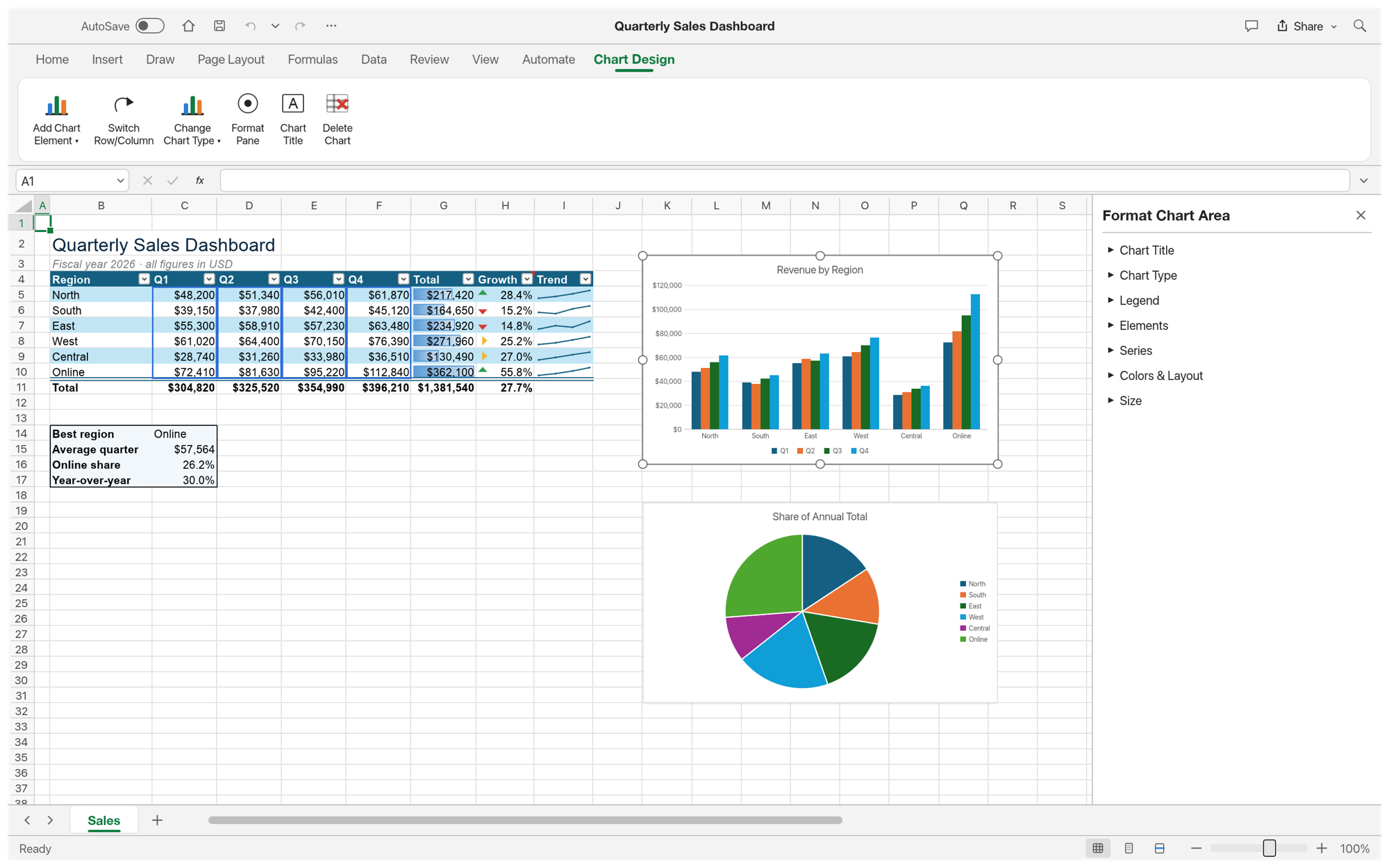
In Kimi K3 gridcraft, select a chart that fits the comparison. Review the source range and labels before interpreting the visual result.
Summarize repeated categories
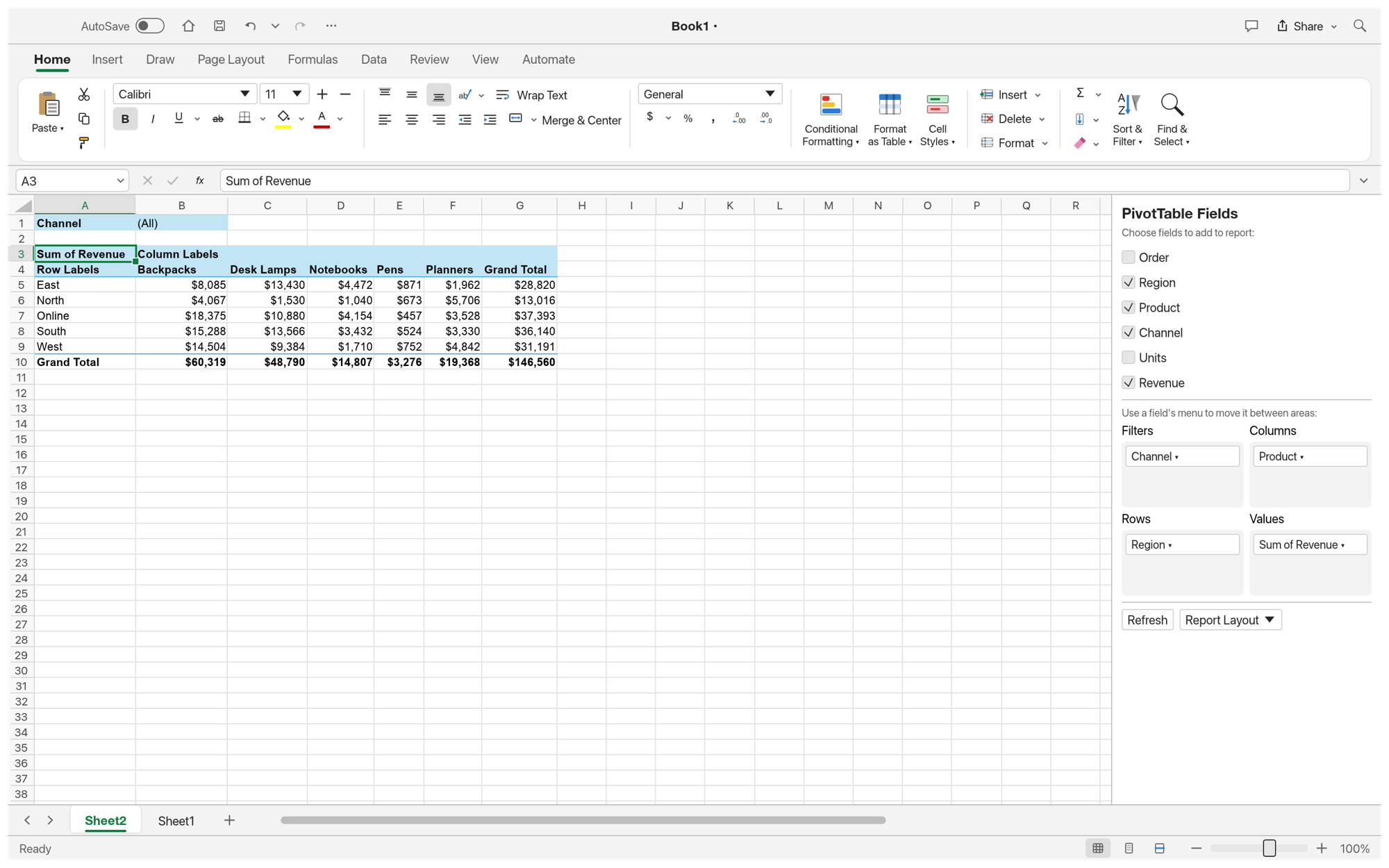
In Kimi K3 gridcraft, pivot table tools can summarize a worksheet by fields. Inspect the selected aggregation and filters so the summary answers your question.
Check the picture
In Kimi K3 gridcraft, look for missing categories, misleading scales, and unexpected blanks. A chart should remain understandable when shared without the workbook.
Kimi K3 gridcraft: Workbook files and saved results
Use Kimi K3 gridcraft to organize data and calculate spreadsheets with a focused, editable workflow. The browser workspace is available before sign-in. Account authentication is required when you want the site to retain a saved result or provide an exported download.
Exchange XLSX files
In Kimi K3 gridcraft, open and save supported workbook content in XLSX format. Keep the original when checking charts, formulas, and imported formatting.
Export a reading copy
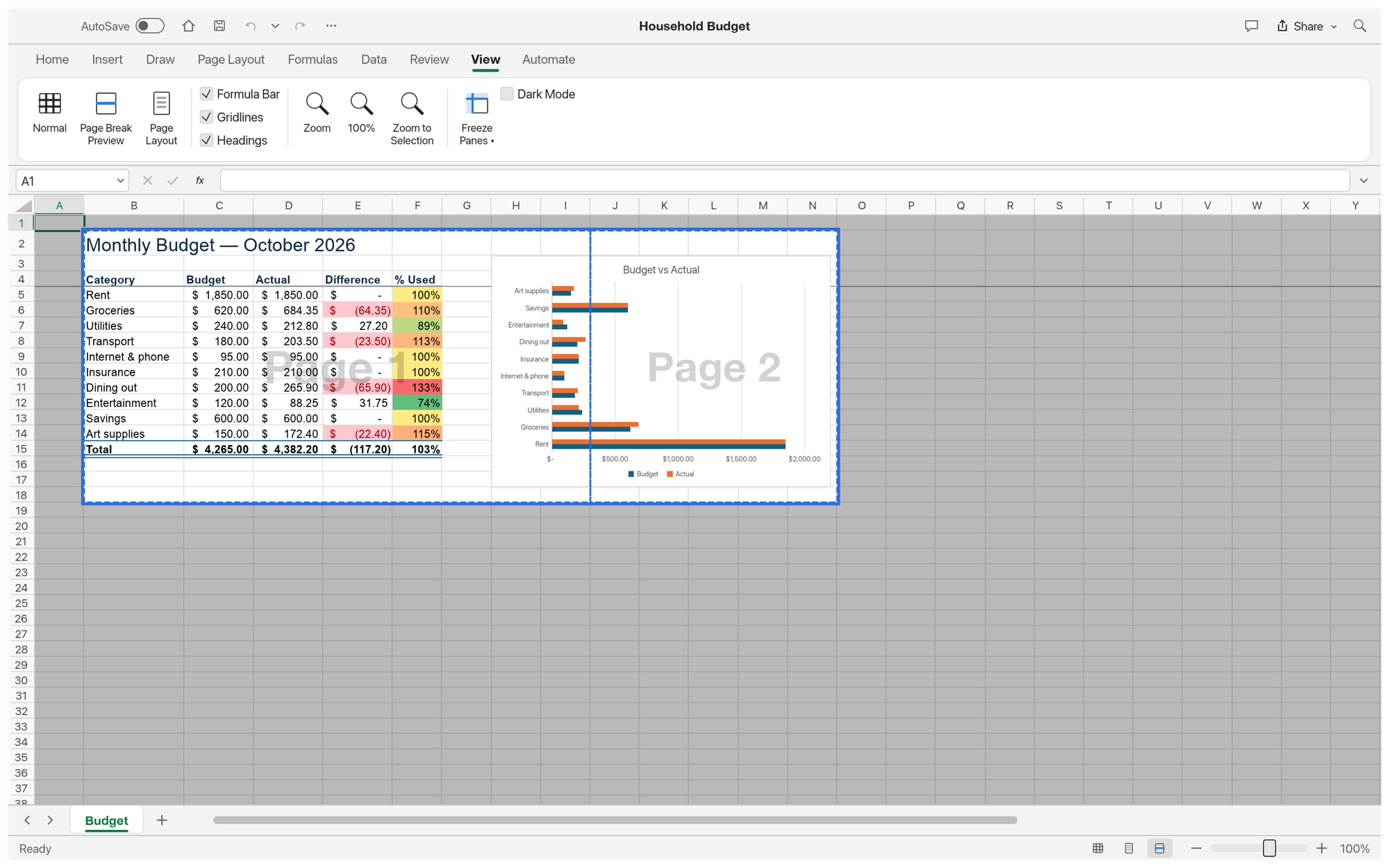
In Kimi K3 gridcraft, review print areas and page breaks before exporting a PDF. Wide sheets often need deliberate page settings.
Save to your account
In Kimi K3 gridcraft, signing in connects a saved workbook to your private file library. Each completed save is also available in backend AI Tasks.
Kimi K3 gridcraft: Everyday spreadsheet projects
Use Kimi K3 gridcraft to organize data and calculate spreadsheets with a focused, editable workflow. Complex imported files deserve extra attention. Compare layout, text, values, and supported objects with the source before treating an exported copy as the final version.
Plan a monthly budget
In Kimi K3 gridcraft, enter planned and actual spending in separate columns. Use formulas for differences and review the totals against a known sample.
Review sales records
In Kimi K3 gridcraft, keep dates, regions, and amounts in consistent columns. Filter records and build a summary before selecting a chart.
Prepare a reusable sheet
In Kimi K3 gridcraft, document the inputs and calculations in plain language. Test a new row before treating the sheet as a repeatable template.
User reviews
Kimi K3 video creator feedback.
Kimi K3 creator reviews

Illustrative workflow: plan an original game title sequence with simple shapes, readable words and timed visual beats. Inspect the animation before adding it to a larger game presentation.

Illustrative workflow: turn a short explanation into a diagram that reveals one idea at a time. Compare Sketch and Motion treatments, then keep the version that communicates the subject clearly.

Illustrative workflow: place an approved product picture beside short benefit text. Assemble a simple graphic product story and review the composition at the intended screen size.

Illustrative workflow: create a portrait opening with one headline, a small set of colors and a quiet final hold. Export the selected scene and add separate sound during editing when needed.

Illustrative workflow: revise one visual decision in a saved animation, such as the closing pause or label placement. Compare saved versions before exporting the selected result.

Illustrative workflow: build a silent graphic sequence to explain the structure of a presentation. These examples describe possible uses; they are not verified customer testimonials or promised outcomes.
Local editing and document saves use no AI generation credits. Sign in to save or export.
Kimi K3 Pricing and Credit Plans
Cancel anytime
Lite
50% off0.025 / credit
Billed $ yearly179· Save $179.8
Video Models



Image Models



- Includes Kimi K3.1 and all premium models
- Up to 1 batch generation task
- Standard generation speed
- Standard generation success rate
- Standard customer support
- Commercial Use License
Standard
50% off0.017 / credit
Billed $ yearly299· Save $299.8
Video Models
Image Models
- Includes Kimi K3.1 and all premium models
- Up to 4 batch generation tasks
- Priority processing speed
- High generation success rate
- Priority customer support
- Commercial Use License
Pro
50% off0.014 / credit
Billed $ yearly599· Save $599.8
Video Models
Image Models
- Includes Kimi K3.1 and all premium models
- Up to 10 batch generation tasks
- Fastest generation speed
- High generation success rate
- Dedicated account manager
- Commercial Use License
Max
50% off0.012 / credit
Billed $ yearly1,199· Save $1,199.8
Video Models
Image Models
- Includes Kimi K3.1 and all premium models
- Up to 10 batch generation tasks
- Fastest generation speed
- High generation success rate
- Dedicated account manager
- Commercial Use License
Pay safely and securely with























FAQ
Frequently asked questions
What is Kimi K3 gridcraft?
Kimi K3 gridcraft is the GridCraft browser workspace on kimik3ai.com, built from the open-source storytold project. It helps you organize data and calculate spreadsheets. The site adds account-based saving and file records around the editor.
Do I need an account to try Kimi K3 gridcraft?
You can open Kimi K3 gridcraft and work with local files before signing in. Saving to the site or exporting a result requires authentication. A pending save is kept in this browser while you sign in.
Where does Kimi K3 gridcraft save my files?
Kimi K3 gridcraft saves results in the site’s private user storage. Each completed operation creates an AI Tasks record with the file name and output reference. Access to the saved file is checked against the owning account.
Ca Kimi K3 gridcraft open every XLSX file?
Kimi K3 gridcraft uses an upstream editor that is still in alpha. Supported files can be opened and edited, but complex layouts and advanced features need a comparison with the source. Keep the original and inspect exports.
Does Kimi K3 gridcraft charge credits for local editing?
Kimi K3 gridcraft runs editing in your browser. These document saves are recorded as zero-credit operations. The site’s separate AI image and video tools keep their own displayed pricing and generation workflow.
CTA
Start working with Kimi K3 gridcraft
Bring a file to Kimi K3 gridcraft, make a focused change, and inspect the result. Sign in when you are ready to save your private copy.
Open the workspace