 Kimi K3
Kimi K3 AI figure generator for collectible character concepts
Imagine how your character might look as a carefully photographed collectible. The Kimi K3 AI figure generator starts from your reference and explores sculpted shapes, painted finishes, accessories, and display bases. Begin with GPT Image 2 in image mode at 1:1 and 1K. Use the Kimi K3 AI figure generator to develop a visual direction, not a printable mesh or manufacturing file.
Image workspace
Sample Image
 10 / 17
AI-generated concept of an otter explorer collectible.
Introduction
Show the Kimi K3 AI figure generator what defines the character
Give the Kimi K3 AI figure generator a readable character reference and identify the features that make the design recognizable.
Choose a readable full design
Use a drawing or photograph with visible clothing, hairstyle, and important accessories. The Kimi K3 AI figure generator needs enough information to interpret the whole subject. If the reference only shows a face, describe the intended body and outfit rather than treating unseen details as established.
- Keep the principal reference unobstructed and clearly identified.
- Tell the Kimi K3 AI figure generator which image defines the character.
Identify the signature features
An oversized hood, crescent-shaped satchel, or unusual glasses might carry the identity. Name those features for the Kimi K3 AI figure generator and distinguish them from optional decoration.
Choose the degree of stylization
Decide between a softly rounded art toy, a detailed display statuette, or a simplified miniature. Give the Kimi K3 AI figure generator one direction. A realistic face on an extremely compressed body can work as a deliberate choice, but should not happen by accident.
How to use
How to use the Kimi K3 AI figure generator
- Input
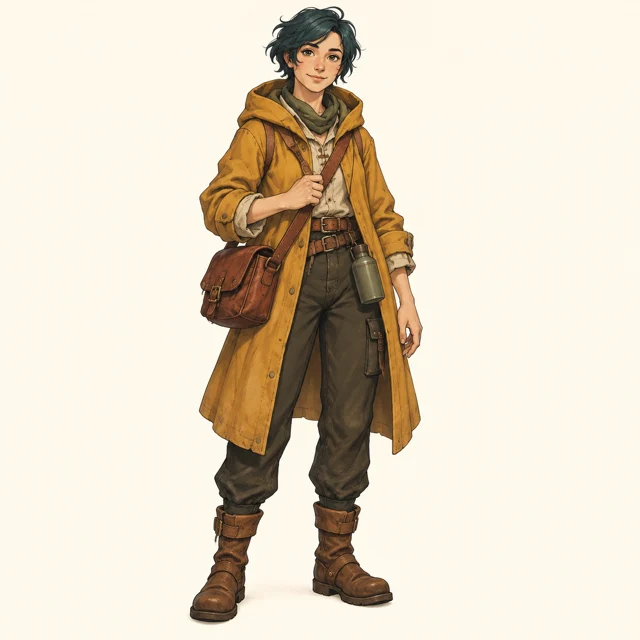 Reference image 1STEP 1
Upload your character
Add an authorized character reference to the Kimi K3 AI figure generator and choose GPT Image 2 image mode for a collectible concept.
- ModelGPT Image 21K1:1PromptOutputSTEP 2
Describe the collectible
Tell the Kimi K3 AI figure generator about resin finish, clothing, accessories, and a supporting base, keeping the full figure inside the frame.
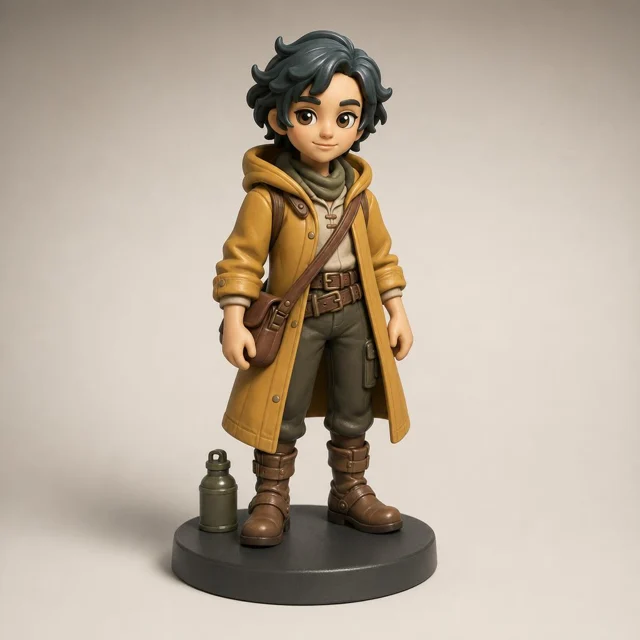 BeforeAfterSTEP 3
Create a studio view
Set square 1K in the Kimi K3 AI figure generator, describe soft studio lighting, review the displayed credits, and generate a candidate.
- STEP 4
Inspect the object
Check Kimi K3 AI figure generator results for coherent joints, material texture, and stable footing, then download the illustration rather than manufacturing files.
Features
Explore sculpted form with the Kimi K3 AI figure generator
Ask the Kimi K3 AI figure generator to translate flat shapes into readable volumes without losing the character’s defining visual relationships.
Balance head, body, and hands
Explain which proportions should feel exaggerated and which should stay restrained. The Kimi K3 AI figure generator can explore that balance without filling the face with miniature surface detail.
- Keep the silhouette readable from the chosen viewing angle.
- Review Kimi K3 AI figure generator proportions before adding surface decoration.
Simplify the pose
A planted stance with one small accessory is easier to inspect than a leaping pose with overlapping limbs. Ask the Kimi K3 AI figure generator for clear separations between arms, torso, and props.
Treat hidden surfaces as unresolved
A single image cannot establish every side of a collectible. The Kimi K3 AI figure generator may invent a different rear design when asked for another angle.

Specify materials for the Kimi K3 AI figure generator
Give the Kimi K3 AI figure generator a limited finish palette, with a clear material role for each visible part.
Separate sculpt from painted detail
Describe a matte vinyl body with painted eyes and a slightly glossier accessory, or a stone-like sculpt with restrained metallic accents. The Kimi K3 AI figure generator should make those differences legible.
- Choose one main material and a small number of accents.
- Check Kimi K3 AI figure generator highlights against the intended surface finish.
Describe cloth as a sculpted surface
A collectible cape might be molded plastic with broad folds, not actual flowing fabric. Tell the Kimi K3 AI figure generator which interpretation you intend. A small wooden-looking instrument can likewise be a painted accessory rather than a physically separate piece of real wood.
Keep texture at a believable scale
Large pores or oversized scratches can make a tiny figure look enormous. Ask the Kimi K3 AI figure generator for subtle surface variation suited to the imagined object. A clean painted finish may explain the design better than dramatic weathering across every visible part.
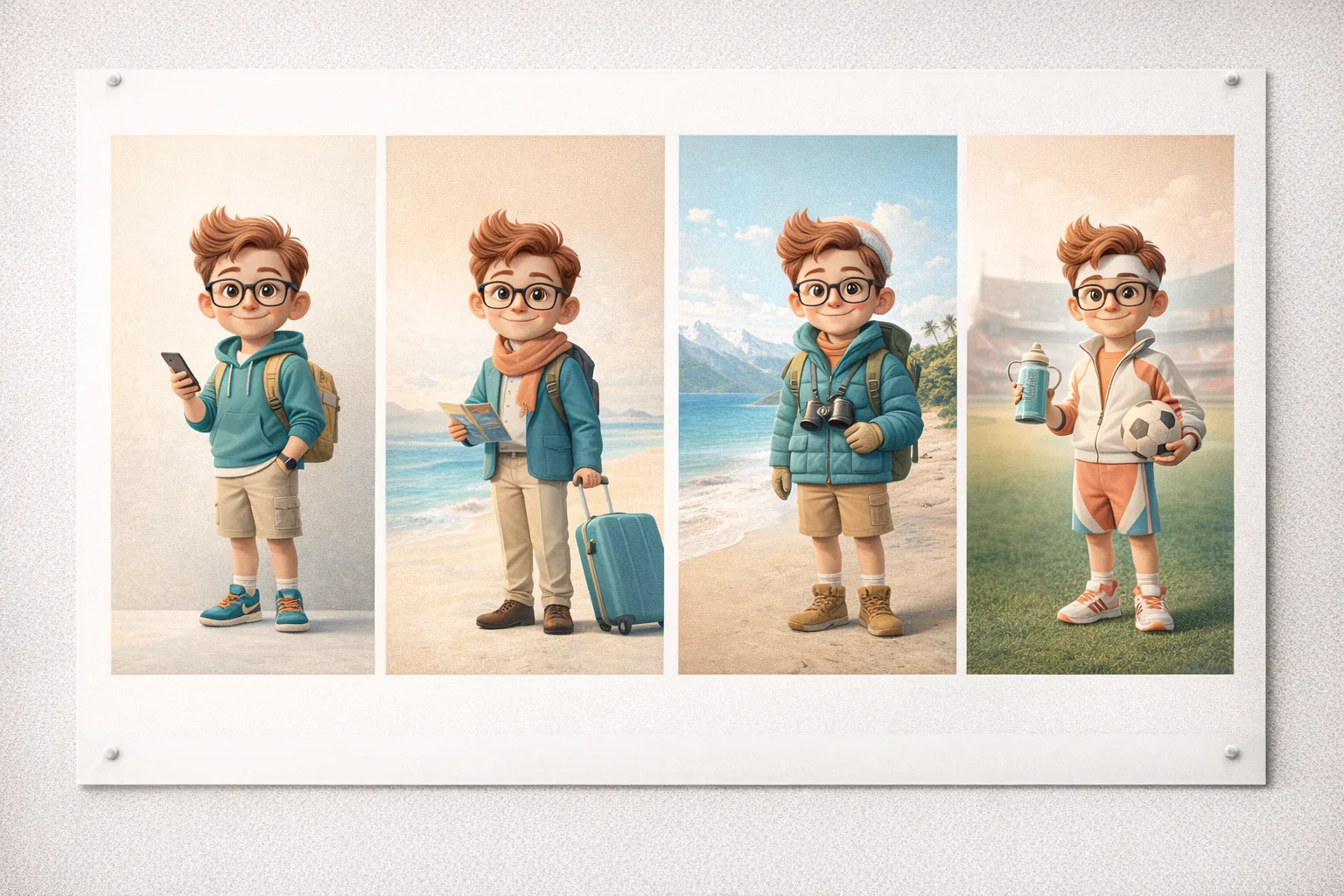
Give the Kimi K3 AI figure generator a display context
Use the Kimi K3 AI figure generator to frame the collectible through a simple base, quiet setting, and coherent studio light.
Choose a base with a purpose
A shallow circular base can suggest a quiet display object; a small terrain fragment can support a story. Tell the Kimi K3 AI figure generator where the feet contact the base. Inspect that connection and avoid a large platform that overwhelms the actual character.
- Leave space around the entire figure and its base.
- Keep Kimi K3 AI figure generator support details visible rather than obscured.
Use a restrained studio setting
Request a neutral sweep, soft side light, and enough shadow to ground the object. The Kimi K3 AI figure generator does not need shelves full of unrelated collectibles. A quiet setup lets you compare materials and proportions without getting distracted by the surrounding scene.
Separate packaging from the figure
Explore box design later if it becomes useful. Adding a package, labels, accessories, and a complex backdrop to the first Kimi K3 AI figure generator request makes the core design harder to judge. Begin with the collectible itself shown completely inside the frame.

Run a Kimi K3 AI figure generator study
Give the Kimi K3 AI figure generator a reference, material treatment, and camera view that answer a specific design question.
Upload and set the starting view
Choose GPT Image 2 image mode at 1:1 and 1K, with one output. Upload your character reference and request a complete three-quarter figure view. Give the Kimi K3 AI figure generator a clear pose, simple base, and the material distinctions you want to inspect.
- Use a reference you are authorized to develop.
- Review the Kimi K3 AI figure generator configuration and displayed credits first.
Explain additional references
Image mode supports up to sixteen references. Label their roles: character appearance, material mood, or display lighting. Otherwise the Kimi K3 AI figure generator may mix a secondary reference into the character design. Use the smallest selection that communicates the task clearly.
Revise the sculpt before the photograph
If the expression or proportions are wrong, fix those before experimenting with dramatic lighting. The Kimi K3 AI figure generator supports one to four outputs, multiple ratios, and 1K, 2K, or 4K. Use those options to explore deliberate alternatives rather than hide unresolved design decisions.
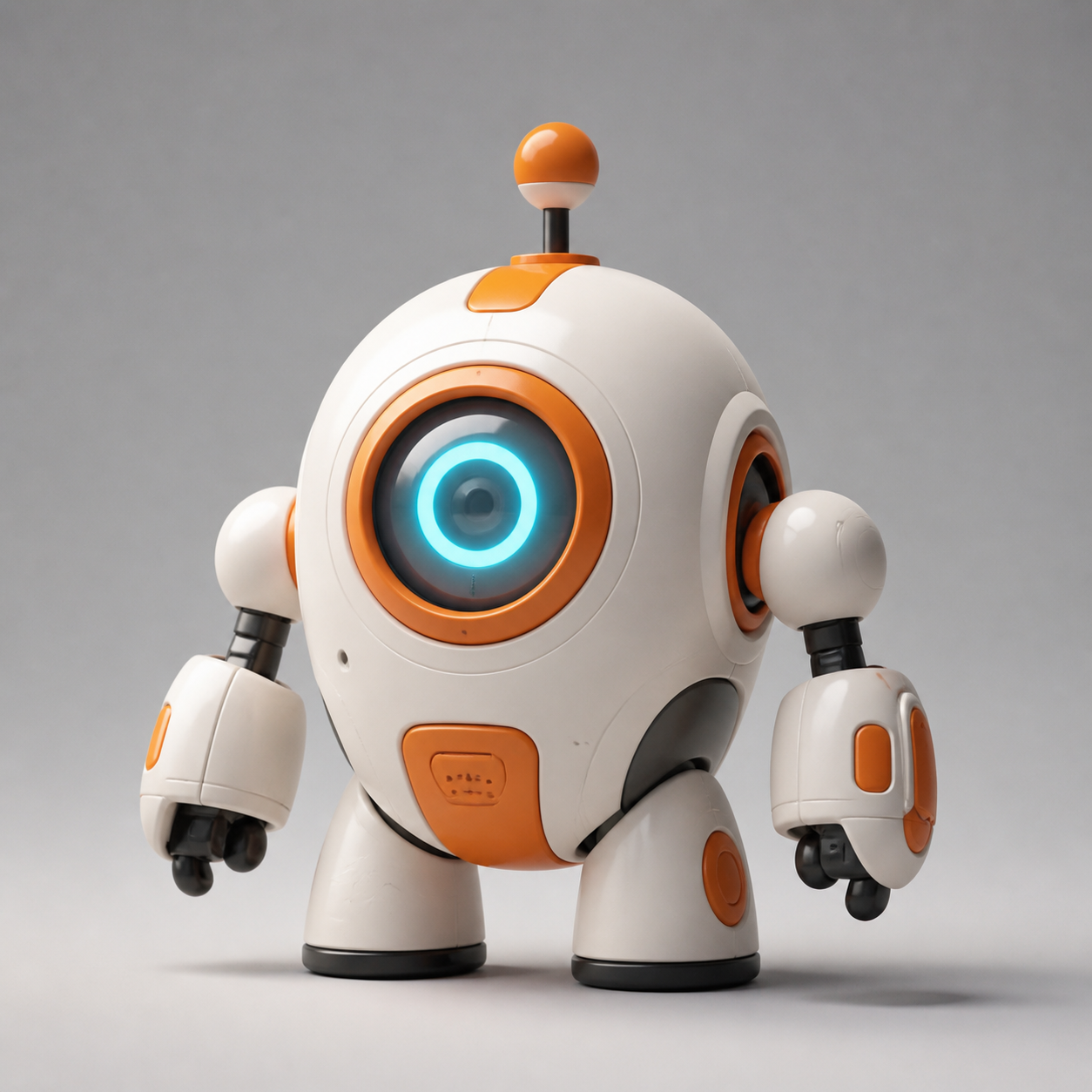
Review the Kimi K3 AI figure generator concept as an image
Review Kimi K3 AI figure generator images for visual coherence while keeping unresolved construction questions in a separate next-stage brief.
Inspect small connections
Look at fingers around handles, straps over shoulders, glasses near ears, and feet on the base. The Kimi K3 AI figure generator can merge adjacent details. A simpler hand holding one clearly defined accessory is preferable to an ornate cluster whose parts cannot be distinguished.
- Compare signature features with the original character reference.
- List Kimi K3 AI figure generator details needing another design pass.
Keep the output boundary clear
The result is a JPEG raster image. The Kimi K3 AI figure generator does not output a 3D mesh, printable geometry, joints, or production tolerances. A convincing material finish and stable-looking pose are visual proposals, not proof that the object can be manufactured as depicted.
Prepare a sculptor-facing brief
Share the reference, selected image, intended scale, finish notes, and unresolved views with the next designer. Use the Kimi K3 AI figure generator concept to start that conversation. A sculptor or manufacturer must separately determine actual geometry, support, assembly, and feasible materials.
Example prompts
A matte explorer art toy
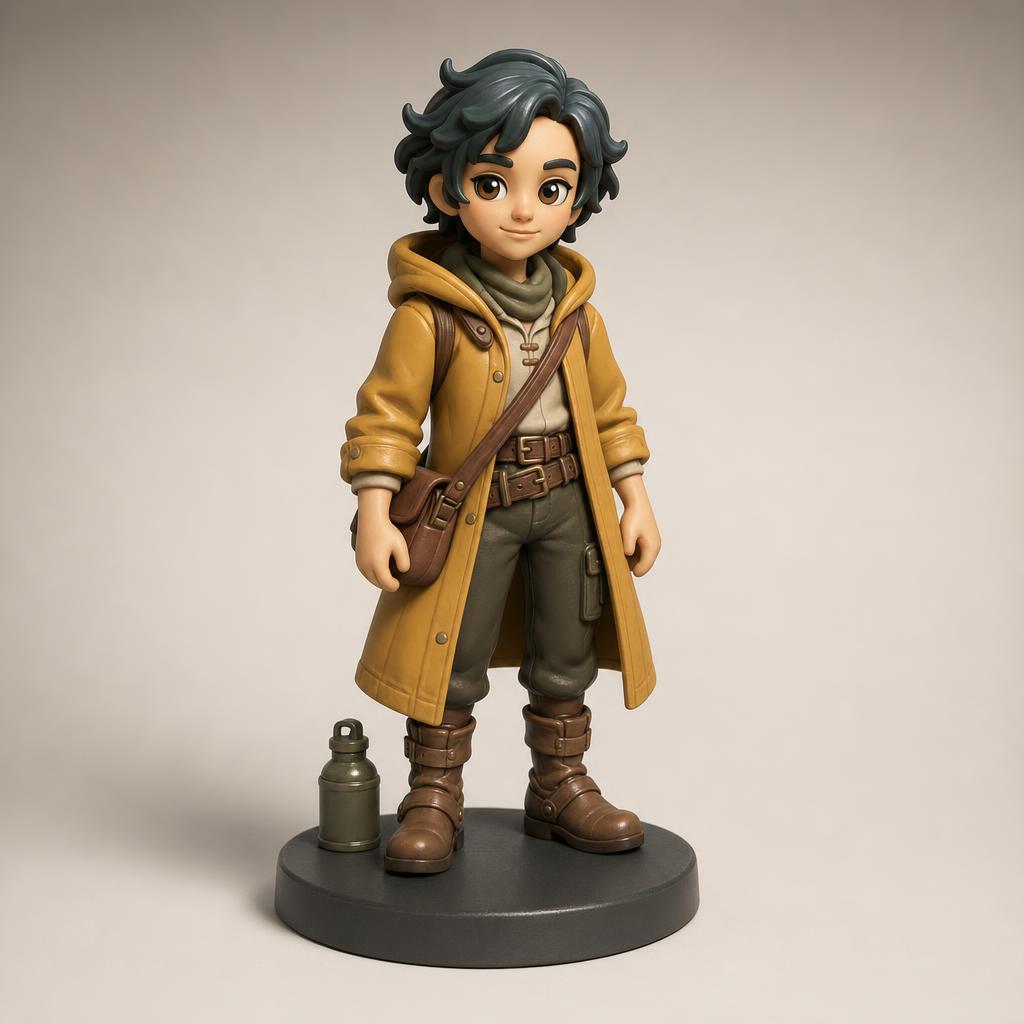
Use my uploaded original character as the appearance reference. Reinterpret the character as a collectible matte vinyl art toy with slightly rounded proportions, retaining the defining hairstyle, hood, satchel, and main colors. Show the entire figure in a relaxed standing pose on a shallow circular charcoal base, three-quarter camera view. Simple clearly separated hands, one small travel accessory, painted eyes, and restrained semi-gloss accents. Neutral warm gray studio background, soft side lighting, realistic contact shadow, square composition. No packaging, brand names, price labels, extra characters, or floating parts.
A painted ceramic character study
Use the uploaded character design to create a photographed collectible statuette concept with a softly glazed ceramic-like finish. Preserve the main silhouette and expression as closely as possible, simplifying fine costume details into broad sculpted forms. Muted cream, sage, and terracotta palette, compact seated pose on a low oval base. Show the whole object with generous space around it, eye-level three-quarter view, ivory studio sweep, gentle diffuse light. Avoid translucent bodies, exaggerated scratches, product packaging, text, and additional unrelated objects.
User reviews
Kimi K3 video creator feedback.
Kimi K3 creator reviews

Illustrative workflow: plan an original game title sequence with simple shapes, readable words and timed visual beats. Inspect the animation before adding it to a larger game presentation.

Illustrative workflow: turn a short explanation into a diagram that reveals one idea at a time. Compare Sketch and Motion treatments, then keep the version that communicates the subject clearly.

Illustrative workflow: place an approved product picture beside short benefit text. Assemble a simple graphic product story and review the composition at the intended screen size.

Illustrative workflow: create a portrait opening with one headline, a small set of colors and a quiet final hold. Export the selected scene and add separate sound during editing when needed.

Illustrative workflow: revise one visual decision in a saved animation, such as the closing pause or label placement. Compare saved versions before exporting the selected result.

Illustrative workflow: build a silent graphic sequence to explain the structure of a presentation. These examples describe possible uses; they are not verified customer testimonials or promised outcomes.
Kimi K3 Pricing and Credit Plans
Cancel anytime
Lite
50% off0.025 / credit
Billed $ yearly179· Save $179.8
Video Models



Image Models



- Includes Kimi K3.1 and all premium models
- Up to 1 batch generation task
- Standard generation speed
- Standard generation success rate
- Standard customer support
- Commercial Use License
Standard
50% off0.017 / credit
Billed $ yearly299· Save $299.8
Video Models
Image Models
- Includes Kimi K3.1 and all premium models
- Up to 4 batch generation tasks
- Priority processing speed
- High generation success rate
- Priority customer support
- Commercial Use License
Pro
50% off0.014 / credit
Billed $ yearly599· Save $599.8
Video Models
Image Models
- Includes Kimi K3.1 and all premium models
- Up to 10 batch generation tasks
- Fastest generation speed
- High generation success rate
- Dedicated account manager
- Commercial Use License
Max
50% off0.012 / credit
Billed $ yearly1,199· Save $1,199.8
Video Models
Image Models
- Includes Kimi K3.1 and all premium models
- Up to 10 batch generation tasks
- Fastest generation speed
- High generation success rate
- Dedicated account manager
- Commercial Use License
Pay safely and securely with























FAQ
Frequently asked questions
Does the Kimi K3 AI figure generator create a printable 3D model?
No. The Kimi K3 AI figure generator returns a JPEG concept image, not mesh geometry or a manufacturing file. Use the picture to discuss appearance and presentation. A separate modeling and production process is needed to determine the actual three-dimensional object.
Can the Kimi K3 AI figure generator use my original character?
Yes. Upload a reference you are authorized to use and describe the features that should remain recognizable. Specify the collectible style, materials, pose, and base. Check the result against your design because fine details and proportions may change during reinterpretation.
Can the Kimi K3 AI figure generator show multiple angles?
You can request a different camera view, but separate images may disagree about hidden surfaces or accessories. Treat them as design proposals to reconcile. They do not establish a consistent turntable, linked camera views, or an underlying three-dimensional model.
What materials can I describe to the Kimi K3 AI figure generator?
You can describe visual finishes such as matte vinyl, painted resin, ceramic-like glaze, or brushed metallic accents. Explain which part uses each finish. These instructions guide the image; they do not select actual materials or verify how a physical object would be made.
How should I start a Kimi K3 AI figure generator request?
Begin with the character reference, GPT Image 2 image mode, 1:1, and 1K. Choose a simple full-figure view and one output. Read the displayed credits for the configuration before submitting, then review the character translation before spending attention on elaborate scenery.
CTA
Build a collectible direction with the Kimi K3 AI figure generator
Bring a clear character reference and choose its sculpted personality. Use the Kimi K3 AI figure generator to explore materials and presentation, then carry the selected image into a separate design and production conversation.
Explore a collectible concept