 Kimi K3
Kimi K3 Convert Image Online to Five Output Formats
Change the actual encoding of a picture, not just the letters after its filename. Kimi K3 Convert Image reads supported local files and exports JPG, PNG, WebP, BMP, or ICO. Use Kimi K3 Convert Image for one asset or a batch of up to 20, with settings you can reuse across the selection.
Convert Image workspace
Drop or paste a JPG, PNG or WebP · up to 30 MB each
Up to 8192 pixels per side and 32 megapixels · up to 20 images
Free · Sign in to process · Inputs and results are saved to your account.
Introduction
What Is Kimi K3 Convert Image?
Kimi K3 Convert Image changes a picture from one file format to another, such as JPG to PNG. Choose a JPG photo when a website asks for PNG, then save the converted file; changing formats does not improve picture quality.
Match the format to the next task
A photograph, transparent graphic, and small application icon can need different kinds of files. Kimi K3 Convert Image lets you create the required output from a supported picture, so you can prepare a download for a document, website, presentation, or other existing workflow.
Kimi K3 Convert Image does not invent missing detail or turn a raster picture into editable vector artwork. A PNG made from a compressed JPG still contains the visible defects already present in that source.
- Choose an output format for its intended destination.
- Keep the source when you may need another version.
Browser conversion with account history
Kimi K3 Convert Image processes pictures in your browser after sign-in. Inputs and results are uploaded to your account for task review. No subscription, credit deduction, or paid cloud model is required.
Local work is still limited by browser resources. Kimi K3 Convert Image can require more time or memory for large pictures, especially when several files are involved.
- Select source pictures directly from your own device.
- Download completed files after sign-in, without spending credits.

How to use
How to Use Kimi K3 Convert Image
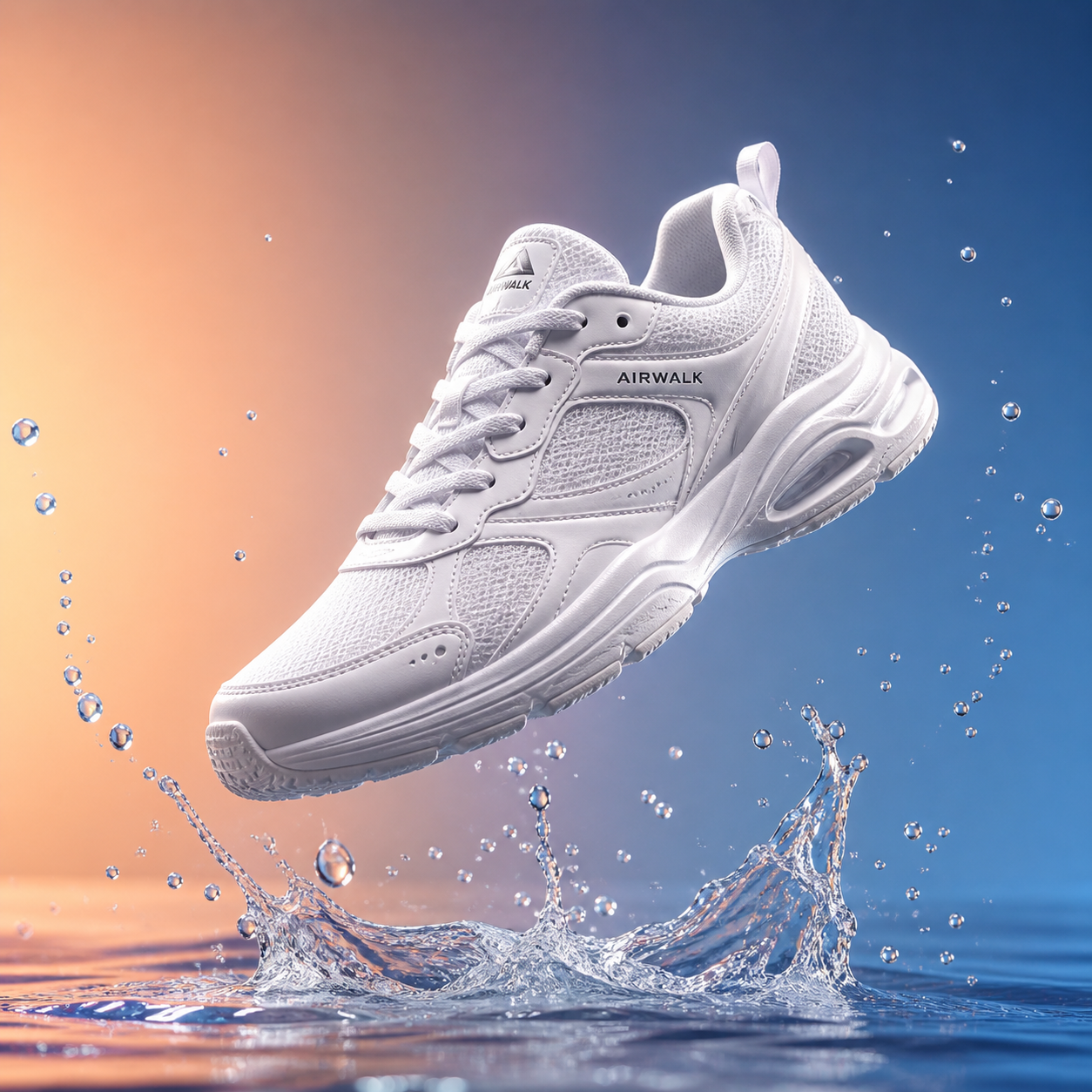
- Beforebag.jpg
 1254 × 1254 px1.63 MBSTEP 1
Select the source files
Open Kimi K3 Convert Image and choose up to 20 static JPG, PNG, or WebP files that meet the file-size, longest-side, and total-pixel limits.
- FormatPNGJPG PNGSTEP 2
Configure an output
Choose the format, quality, dimensions, and background in Kimi K3 Convert Image. For ICO, use a square size no larger than 256 pixels and inspect its padding.
- JPG
 PNGSTEP 3
Reuse settings carefully
Apply the settings of one file to all selected files in Kimi K3 Convert Image when appropriate. Review pictures with different proportions or transparent areas before starting the conversion.
- AfterBeforebag.pngDownloadSTEP 4
Save the finished results
Download individual files or the batch ZIP from Kimi K3 Convert Image. Check the exported backgrounds, dimensions, and small details in the workflow where they will be used.
Features
Kimi K3 Convert Image Features: Useful Output Formats
Kimi K3 Convert Image exports JPG, PNG, WebP, BMP, and ICO. Transparency and icon sizing deserve attention because these formats do not all represent the same things.
Choose between opaque and transparent output
JPG and BMP output in Kimi K3 Convert Image uses an opaque background. Select white or a chosen background color when the source contains transparent areas.
PNG and WebP can retain supported source transparency in Kimi K3 Convert Image. They cannot create a cutout from an opaque photograph simply by changing the format.
- Choose the fill color before exporting JPG or BMP.
- Do not mistake PNG conversion for automatic background removal.
Create a small square ICO file
ICO output in Kimi K3 Convert Image is a square no larger than 256 pixels on a side. The icon layout uses transparent padding for a source that does not fill that square, making it suitable for preparing a compact asset without forcing a rectangular subject to stretch.
A tiny icon needs a clear source. Kimi K3 Convert Image does not simplify complicated artwork into a newly designed symbol, and text that reads well in a large banner may become illegible at icon size.
- Keep the ICO size within the 256-pixel square limit.
- Review fine lines and text after reducing an icon.

Kimi K3 Convert Image Features: Reusable Settings and Batch Downloads
Kimi K3 Convert Image accepts up to 20 source files together. You can establish settings on one file, apply them to the selection, and review the outputs separately.
Set format, quality, size, and background
Each file in Kimi K3 Convert Image has output format, quality, dimensions, and background settings. Use those controls to prepare the intended result, remembering that a quality value is relevant to encoders that use it rather than a universal improvement applied to every format.
The apply-to-all action in Kimi K3 Convert Image reuses the settings of one file across the batch. A landscape photograph and a transparent logo may need different output decisions despite sharing a folder.
- Configure one file before reusing settings across the batch.
- Inspect sources with different shapes or transparency needs.
Download individually or collect a ZIP
Use the separate download for one finished asset, or save a ZIP containing the batch results. Kimi K3 Convert Image provides both routes so that a single required icon does not force you to collect every other file prepared during the same session.
The archive bundles files; it does not make their image encoding interchangeable. Kimi K3 Convert Image may produce a larger file when the chosen format favors lossless storage or a different use case. Choose the output because it suits the destination, not because conversion guarantees fewer bytes.
- Download a selected result when only one asset is needed.
- Use the ZIP option to collect the finished batch.
Kimi K3 Convert Image Features: Defined Inputs and Honest Results
Kimi K3 Convert Image has a deliberately narrower input list than its output list. Check the source format and the image limits before planning a conversion workflow.
Understand the accepted source files
Kimi K3 Convert Image accepts static JPG, PNG, and WebP files up to 30 MB each. The longest side must not exceed 8192 pixels, and total image area must not exceed 32 megapixels.
Animated images, HEIC, TIFF, SVG, and AVIF are not supported inputs for Kimi K3 Convert Image. BMP and ICO are available as exports, not additional accepted sources. An unsupported file is not sent elsewhere for conversion, and renaming its extension does not change its actual encoding.
- Use a supported source even when exporting another format.
- Check the file size and both source dimension limits.
Check the result in its intended context
Repeated lossy encoding can introduce additional visual changes. Kimi K3 Convert Image should therefore start from the best source you have, particularly for fine lettering, smooth gradients, or product details. Saving an already damaged image into a lossless format does not undo earlier compression.
Before replacing a working asset, inspect the download and its background in the intended layout. Kimi K3 Convert Image does not guarantee compatibility with every application that recognizes an extension.
- Review the actual exported file, not only its filename.
- Keep a source copy until the new asset is checked.
User reviews
Kimi K3 video creator feedback.
Kimi K3 creator reviews

Illustrative workflow: plan an original game title sequence with simple shapes, readable words and timed visual beats. Inspect the animation before adding it to a larger game presentation.

Illustrative workflow: turn a short explanation into a diagram that reveals one idea at a time. Compare Sketch and Motion treatments, then keep the version that communicates the subject clearly.

Illustrative workflow: place an approved product picture beside short benefit text. Assemble a simple graphic product story and review the composition at the intended screen size.

Illustrative workflow: create a portrait opening with one headline, a small set of colors and a quiet final hold. Export the selected scene and add separate sound during editing when needed.

Illustrative workflow: revise one visual decision in a saved animation, such as the closing pause or label placement. Compare saved versions before exporting the selected result.

Illustrative workflow: build a silent graphic sequence to explain the structure of a presentation. These examples describe possible uses; they are not verified customer testimonials or promised outcomes.
Kimi K3 Convert Image is free after sign-in, with no subscription or credits required. Inputs and results are uploaded and saved to your account for task review.
Kimi K3 Pricing and Credit Plans
Cancel anytime
Lite
50% off0.025 / credit
Billed $ yearly179· Save $179.8
Video Models



Image Models



- Includes Kimi K3.1 and all premium models
- Up to 1 batch generation task
- Standard generation speed
- Standard generation success rate
- Standard customer support
- Commercial Use License
Standard
50% off0.017 / credit
Billed $ yearly299· Save $299.8
Video Models
Image Models
- Includes Kimi K3.1 and all premium models
- Up to 4 batch generation tasks
- Priority processing speed
- High generation success rate
- Priority customer support
- Commercial Use License
Pro
50% off0.014 / credit
Billed $ yearly599· Save $599.8
Video Models
Image Models
- Includes Kimi K3.1 and all premium models
- Up to 10 batch generation tasks
- Fastest generation speed
- High generation success rate
- Dedicated account manager
- Commercial Use License
Max
50% off0.012 / credit
Billed $ yearly1,199· Save $1,199.8
Video Models
Image Models
- Includes Kimi K3.1 and all premium models
- Up to 10 batch generation tasks
- Fastest generation speed
- High generation success rate
- Dedicated account manager
- Commercial Use License
Pay safely and securely with























FAQ
Frequently asked questions
Is Kimi K3 Convert Image free after signing in?
Yes. Kimi K3 Convert Image requires sign-in, but no subscription or credits. The original and finished image are saved to your account and included in task history. Paid plans elsewhere on the site are optional for this tool.
Does Kimi K3 Convert Image send files to a server?
No. Kimi K3 Convert Image processes supported sources locally and does not use an upload-based conversion fallback. The website loads application resources, but your selected pictures are not submitted to a cloud converter.
Which outputs ca Kimi K3 Convert Image create?
Kimi K3 Convert Image exports JPG, PNG, WebP, BMP, and ICO. Accepted inputs are static JPG, PNG, and WebP only, so an available output format is not automatically an additional supported input format.
How does Kimi K3 Convert Image handle transparent JPG output?
Kimi K3 Convert Image fills transparent source areas with white or the background color you choose for JPG and BMP output. PNG and WebP can retain transparency, but conversion does not remove an opaque background.
What are the Kimi K3 Convert Image limits for ICO?
ICO output must be square and no larger than 256 pixels on a side. Transparent padding accommodates a source that does not fill the square. Check readability at the intended icon size.
Ca Kimi K3 Convert Image reuse settings across multiple files?
Yes. Format, quality, dimensions, and background settings from one file can be applied to all selected files. A batch can contain up to 20 sources, each within the supported input limits.
Will Kimi K3 Convert Image always make a smaller file?
No. Kimi K3 Convert Image results depend on the output format, dimensions, and encoding settings. A conversion to PNG or BMP can increase file weight, and preserving visual information may matter more than reducing bytes.
Ca Kimi K3 Convert Image accept HEIC, animation, or SVG?
No. Animated images, HEIC, TIFF, SVG, and AVIF are unsupported. Use static JPG, PNG, or WebP up to 30 MB, no longer than 8192 pixels per side, and no larger than 32 megapixels overall.
CTA
Prepare Your Next Format with Kimi K3 Convert Image
Choose a supported source and make an output that fits its next job. Kimi K3 Convert Image keeps the settings, review, and downloads together in a local workflow.
Choose Images