 Kimi K3
Kimi K3 AI Talking Photo for a portrait with a recorded message
Turn a chosen portrait and a short recording into a speaking visual. Kimi K3 AI Talking Photo uses Sync Talking Photo with one image and one WAV or M4A audio file. The recording supplies the message and its duration. Prepare Kimi K3 AI Talking Photo around a clear face and a complete thought, then review the animated result before sharing.
Video workspace
Upload one portrait image and one WAV/M4A audio file under 30 seconds. Credits follow audio duration.

Prepare the portrait and matching voice recording
17/30View prompt
Prepare the adult man’s authorized portrait image and the provided recording of the same man speaking. Use one WAV or M4A file shorter than thirty seconds, with clear speech and a complete ending. Load the image and audio, then review the generated speaking portrait for recognizable features, natural articulation, comfortable framing, and the full recorded message.
Introduction
Give Kimi K3 AI Talking Photo a reason to speak
A useful Kimi K3 AI Talking Photo task connects a portrait with a short message, such as an introduction, a welcome, or an explanation that benefits from a visible speaker.
Start with one complete thought
A welcome or short introduction is more focused than several unrelated points. Prepare the message before Kimi K3 AI Talking Photo. Choose words you genuinely want heard instead of extending the recording simply because more time is available.
Use the two required materials
Upload one image and one WAV or M4A audio file shorter than thirty seconds. Kimi K3 AI Talking Photo uses those materials directly through Sync Talking Photo. It does not need an existing portrait video, and the page does not provide a prompt box or text-to-speech field.
Keep the portrait’s role clear
Use a fictional subject or authorized portrait and recording. Kimi K3 AI Talking Photo creates an animated presentation, not evidence of a real video recording.
How to use
How to create a Kimi K3 AI Talking Photo
- Input
 Reference image 1STEP 1
Choose the portrait
Upload one clear authorized portrait for Kimi K3 AI Talking Photo, keeping the face visible and leaving comfortable space around the head and shoulders.
- ModelSync Talking Photo5sOutputSTEP 2
Add the recording
Provide Kimi K3 AI Talking Photo with one finished WAV or M4A recording shorter than thirty seconds, with clear speech and natural pauses.
- First frameLast frame
 0.0s
0.0s 2.8s
2.8s 5.0sSTEP 3
Check and create
Select Sync Talking Photo, review the Kimi K3 AI Talking Photo Create quote for the loaded recording, and generate without entering a text prompt.
- STEP 4
Watch and approve
Review Kimi K3 AI Talking Photo articulation, facial appearance, and the complete audio-length message before downloading the approved version for your intended layout.
Features
Prepare a Kimi K3 AI Talking Photo image with a readable face
Choose the image for the speaking task, not just for its photographic drama. Kimi K3 AI Talking Photo needs a face that remains easy to inspect in the intended layout.
Keep facial features visible
A mostly forward-facing portrait with clear eyes and mouth gives you a useful basis for review. Avoid choosing a Kimi K3 AI Talking Photo source where the lips are hidden by a hand, hair, or an object. Strong shadow can also obscure details you need to judge.
- Choose one clear subject rather than a busy group portrait.
- Keep the Kimi K3 AI Talking Photo source visible beside the generated result.
Leave space around the head
A very tight crop can make animated movement feel cramped. Leave natural room above the hair and around the shoulders when preparing Kimi K3 AI Talking Photo.
Prefer believable source detail
Choose readable facial detail rather than a heavily filtered portrait. Kimi K3 AI Talking Photo does not establish missing information as factual. A clear source helps you judge whether the animated face remains recognizable instead of merely looking smooth.

Give Kimi K3 AI Talking Photo a finished audio take
The recording supplies the actual speech. Prepare Kimi K3 AI Talking Photo audio before uploading, with the intended wording, tone, and pauses already present in the file.
Speak at a comfortable pace
Record one concise message with enough space between phrases to sound natural. For Kimi K3 AI Talking Photo, a rushed take can make the presentation harder to follow even if the words are audible.
- Use a supported WAV or M4A recording below thirty seconds.
- Keep Kimi K3 AI Talking Photo speech clear of competing voices and loud background music.
Keep the beginning and ending intact
Avoid cutting away the first sound of a word or ending immediately before a final consonant. Prepare Kimi K3 AI Talking Photo audio with a complete opening and a natural finish. Short pauses can support the message, while unnecessary silence consumes time without adding useful content.
Choose the final recording before processing
Make wording changes in your own recording workflow, then upload the chosen take. Kimi K3 AI Talking Photo does not offer a typed script or a voice selector for revising the speech.

Pla Kimi K3 AI Talking Photo framing for its destination
A speaking portrait needs an appropriate place to appear. Design the Kimi K3 AI Talking Photo composition around the audience’s viewing size and the information surrounding the face.
Keep the face large enough
A portrait placed too small in a busy layout can lose its expressive value. Preview the Kimi K3 AI Talking Photo source at its intended display size.
- Reserve clear space for any title you will add separately.
- Check Kimi K3 AI Talking Photo framing before committing to the source crop.
Use a background that supports speech
A quieter background keeps attention on the face and recording. Choose a Kimi K3 AI Talking Photo image whose surroundings suit the message without implying an unrelated workplace or event.
Do not build the task around body choreography
This workflow uses an image and recorded speech, not typed gestures or camera directions. Choose a Kimi K3 AI Talking Photo source that works as a speaking portrait.
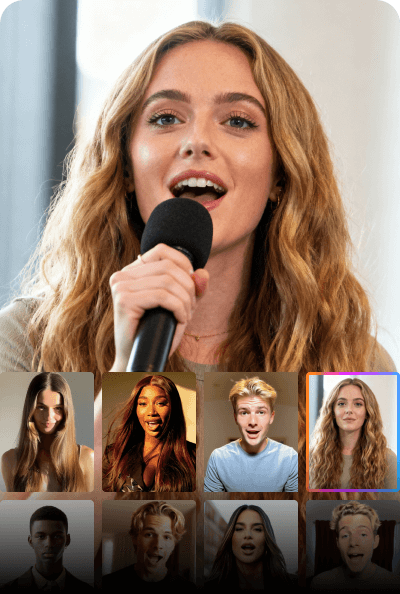
Run Kimi K3 AI Talking Photo from the prepared materials
The Kimi K3 AI Talking Photo task is file-driven. Check the selected image and audio together before starting, then review the current quote for the actual recording.
Load the intended pair
Select Sync Talking Photo and load the final portrait and approved recording. Preview both Kimi K3 AI Talking Photo inputs before submitting. Similar filenames do not prove that you selected the intended crop or the correct audio take.
Let the recording determine the duration
The generated Kimi K3 AI Talking Photo video follows the audio length. Keep the recording below thirty seconds and make the closing phrase complete. A short welcome does not need extra silence just to reach a particular duration, and the output is not an unlimited speaking session.
Read the quote after loading audio
Duration affects the task cost, so check Create with the actual Kimi K3 AI Talking Photo materials in place. Example cards provide material preparation ideas, not text commands for the model. Changing the recording means reviewing its content, duration, and quote before another submission.
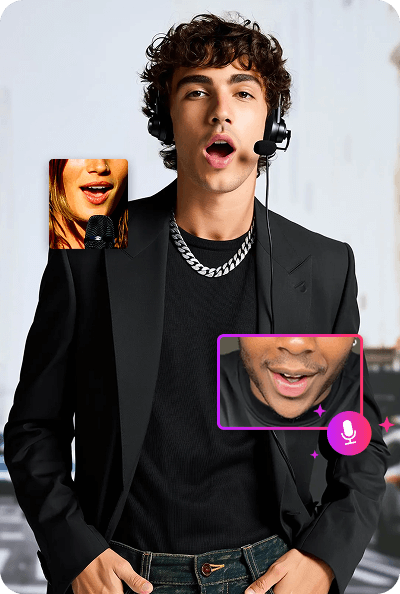
Review Kimi K3 AI Talking Photo expression and articulation
Watch the complete message with sound. Kimi K3 AI Talking Photo review should assess whether the portrait communicates naturally, not simply whether its mouth appears to move.
Compare the face with the source
Inspect the eyes, cheeks, mouth, jawline, and hair as the portrait speaks. A Kimi K3 AI Talking Photo result can introduce changes in appearance or expression.
Listen while watching the words unfold
Notice whether visible articulation fits the rhythm of the recording and settles during pauses. Review Kimi K3 AI Talking Photo at normal speed before examining individual moments. Plausible still frames do not guarantee convincing speech, especially when teeth, lips, or expression change abruptly between sounds.
Approve the actual delivered file
Play the downloaded Kimi K3 AI Talking Photo result in its intended layout, checking the opening, final words, and crop. Improve that pairing when revising; there is no prompt field.
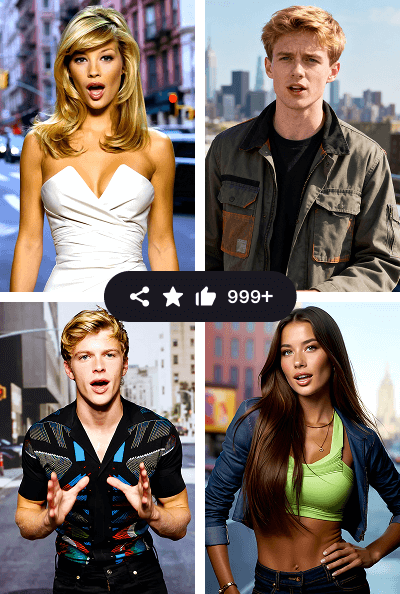
Example prompts
Material preparation: a personal introduction
Prepare one clear authorized adult portrait and a WAV or M4A recording of that person delivering a short introduction. Keep the recording below thirty seconds, with a complete opening and closing sentence. Load the image and audio together, then review the animated face and spoken pacing in the generated result.
Material preparation: a short welcome
Choose a portrait with visible eyes and mouth, a calm expression, and comfortable shoulder space. Record a concise welcome in a quiet environment as WAV or M4A, keeping it shorter than thirty seconds. Finalize the audio before uploading, then inspect the delivered speaking portrait in the layout where it will appear.
User reviews
Kimi K3 video creator feedback.
Kimi K3 creator reviews

Illustrative workflow: plan an original game title sequence with simple shapes, readable words and timed visual beats. Inspect the animation before adding it to a larger game presentation.

Illustrative workflow: turn a short explanation into a diagram that reveals one idea at a time. Compare Sketch and Motion treatments, then keep the version that communicates the subject clearly.

Illustrative workflow: place an approved product picture beside short benefit text. Assemble a simple graphic product story and review the composition at the intended screen size.

Illustrative workflow: create a portrait opening with one headline, a small set of colors and a quiet final hold. Export the selected scene and add separate sound during editing when needed.

Illustrative workflow: revise one visual decision in a saved animation, such as the closing pause or label placement. Compare saved versions before exporting the selected result.

Illustrative workflow: build a silent graphic sequence to explain the structure of a presentation. These examples describe possible uses; they are not verified customer testimonials or promised outcomes.
Kimi K3 Pricing and Credit Plans
Cancel anytime
Lite
50% off0.025 / credit
Billed $ yearly179· Save $179.8
Video Models



Image Models



- Includes Kimi K3.1 and all premium models
- Up to 1 batch generation task
- Standard generation speed
- Standard generation success rate
- Standard customer support
- Commercial Use License
Standard
50% off0.017 / credit
Billed $ yearly299· Save $299.8
Video Models
Image Models
- Includes Kimi K3.1 and all premium models
- Up to 4 batch generation tasks
- Priority processing speed
- High generation success rate
- Priority customer support
- Commercial Use License
Pro
50% off0.014 / credit
Billed $ yearly599· Save $599.8
Video Models
Image Models
- Includes Kimi K3.1 and all premium models
- Up to 10 batch generation tasks
- Fastest generation speed
- High generation success rate
- Dedicated account manager
- Commercial Use License
Max
50% off0.012 / credit
Billed $ yearly1,199· Save $1,199.8
Video Models
Image Models
- Includes Kimi K3.1 and all premium models
- Up to 10 batch generation tasks
- Fastest generation speed
- High generation success rate
- Dedicated account manager
- Commercial Use License
Pay safely and securely with























FAQ
Frequently asked questions
Does Kimi K3 AI Talking Photo need a video input?
No. Upload one image and one supported audio recording. The portrait supplies the visual starting point. Use the separate lip-sync workflow when your task begins with an existing moving portrait video instead.
Ca Kimi K3 AI Talking Photo read text that I type?
Not through this page. Prepare speech as WAV or M4A before uploading. There is no prompt input, text-to-speech field, or voice-generation control; the recording should already contain the words and delivery you want.
How long is a Kimi K3 AI Talking Photo result?
The result follows the audio length, and the uploaded recording must be shorter than thirty seconds. Finish the message naturally and avoid unnecessary silence. Check Create with the actual recording because duration affects the quote.
What audio formats does Kimi K3 AI Talking Photo accept?
Use WAV or M4A. Select one clear recording with the intended message and pace. When another format needs conversion, prepare a supported file in your own workflow before uploading it here.
Will Kimi K3 AI Talking Photo preserve every facial detail?
No exact likeness or articulation is guaranteed. Compare the animated face with the source throughout the recording. Review the actual delivered file and obtain the appropriate approval before presenting it as part of a project.
CTA
Bring a prepared message to Kimi K3 AI Talking Photo
Choose a readable portrait and a finished recording, review the current Create quote, and create the speaking visual. Listen to the complete result and check the face before selecting your final version.
Create your speaking portrait