 Kimi K3
Kimi K3 Seedance 1.5 Pro for Sound-Led Moments and Steady Framing
Shape a short scene around action, sound, and a deliberate viewpoint with Kimi K3 Seedance 1.5 Pro on Kimi K3. Start with text or frame images, then choose the duration and audio setting. Kimi K3 Seedance 1.5 Pro also offers fixed-camera and seed controls for exploring a focused brief without changing every creative decision.
Video workspace
The wooden elevator opens
36/53View prompt
Five-second continuous frontal shot of closed wooden elevator doors opening slowly to reveal one adult woman standing inside. Keep the camera fixed at eye level and the woman relaxed, facing forward. Preserve a simple, balanced composition with warm wood grain and soft interior light. End with the doors open and the woman still standing.
Introduction
What Is Kimi K3 Seedance 1.5 Pro?
Kimi K3 Seedance 1.5 Pro is a ByteDance video generation model available on fal for creating video from text or images with optional audio.
A model for directing picture and sound
The official Kimi K3 Seedance 1.5 Pro endpoints accept a prompt alongside video, audio, fixed-camera, and seed controls. The image route adds an opening picture and an optional ending picture. Kimi K3 Seedance 1.5 Pro can therefore begin with a scene described from scratch or with chosen visual endpoints, while the audio option determines whether sound accompanies the requested clip.
A practical set of choices on Kimi K3
On Kimi K3, Kimi K3 Seedance 1.5 Pro provides 480p, 720p, and 1080p output with four-, eight-, or twelve-second choices. Select text or image mode, configure audio, and request a fixed camera when appropriate.
How to use
How to Create with Kimi K3 Seedance 1.5 Pro
- PromptSTEP 1
Pick text or image mode
Select Kimi K3 Seedance 1.5 Pro. Describe a new scene in text mode, or provide an opening frame in image mode. Add a last frame when the ending composition is important.
- ModelSeedance 1.5 Pro480p16:98sPromptSTEP 2
Write the action and sound
Give Kimi K3 Seedance 1.5 Pro a concise visible action. Include relevant ambience or a short spoken line when using audio, and identify the elements that should remain stable.
- First frameLast frame
 0.0s
0.0s 4.0s
4.0s 7.2sSTEP 3
Set the available controls
Choose four, eight, or twelve seconds and an available resolution. Set audio, fixed camera, and seed as needed, then check the Kimi K3 Seedance 1.5 Pro workspace credits.
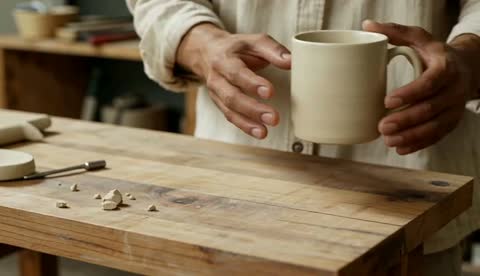
- Create an eight-second shot of an adult ceramicist gently setting an unmarked cream cup on a wooden workbench. The camera stays at a fixed medium-close viewpoint. Preserve the cup handle and keep the bench still. Include one soft ceramic contact sound and quiet studio ambience, no dialogue or music. Finish with the hand withdrawing and the cup resting securely.DownloadSTEP 4
Review before revising
Watch the Kimi K3 Seedance 1.5 Pro take, listen to its soundtrack, and inspect the important object details. Preserve successful settings and change one observable issue when making the next request.
Features
Connect Visible Events and Sound with Kimi K3 Seedance 1.5 Pro
Give Kimi K3 Seedance 1.5 Pro an audible event that belongs to the action, rather than adding an unrelated soundtrack description afterward.
Choose a recognizable sound for Kimi K3 Seedance 1.5 Pro
A ceramicist setting a cup on a workbench offers a simple relationship between movement and sound. Describe the hand lowering the cup, the light contact, and the quieter room behind it. Kimi K3 Seedance 1.5 Pro can be directed toward that relationship through the prompt. Ask Kimi K3 Seedance 1.5 Pro for restrained ambience so a loud musical layer does not obscure the small event you are trying to show.
Make dialogue fit the available moment
For a speaking scene, identify the speaker and give them one short line rather than a paragraph of narration. Allow room for a pause or reaction. Review Kimi K3 Seedance 1.5 Pro speech for the intended words, timing, and tone; generated dialogue should not be treated as an exact recording. Turn audio off when the clip needs a separately produced voiceover or a consistent soundtrack across several shots.
Give Kimi K3 Seedance 1.5 Pro a Planned Visual Transition
Opening and optional ending images let Kimi K3 Seedance 1.5 Pro work between compositions you have already chosen for the scene.
Make the first frame a useful starting state
Show the subject, its support surface, and enough surrounding space for the movement. Ask Kimi K3 Seedance 1.5 Pro to preserve its shape and finish while completing the action.
Define completion in the Kimi K3 Seedance 1.5 Pro last frame
An ending picture can establish where the cup should rest and where the hand should finish. Explain the action joining those states in the Kimi K3 Seedance 1.5 Pro prompt. Watch the entire Kimi K3 Seedance 1.5 Pro clip for changing handles, floating contact points, or an unexplained object appearing between the two intended endpoints.
Stage a Stable Viewpoint with Kimi K3 Seedance 1.5 Pro
The fixed-camera option in Kimi K3 Seedance 1.5 Pro requests a stationary camera position while leaving room for action within the composition.
Let the subject provide the movement
Use a fixed viewpoint when the movement itself matters more than a camera reveal: a hand arranging tools, a lid being closed, or a person pausing before speaking. Kimi K3 Seedance 1.5 Pro framing can then be judged against a simple visual arrangement. Tell Kimi K3 Seedance 1.5 Pro which action should occur inside that frame, keeping unnecessary background motion out of the brief so the main change remains readable.
Do not confuse camera stability with a frozen scene
The fixed-camera control concerns viewpoint, not a promise that every object will remain unchanged. With Kimi K3 Seedance 1.5 Pro, avoid combining the control with a request to orbit or pull away. Review the background edges and subject placement for unintended drift, then simplify the motion instruction when the result does not match the intended staging.
Match Kimi K3 Seedance 1.5 Pro to the Scene Length
Choose four, eight, or twelve seconds in the Kimi K3 Seedance 1.5 Pro workspace according to the amount of action the viewer needs to see.
Use short duration for a single clear event
A four-second clip can focus on an object settling or a brief expression changing. Eight seconds leaves more room for preparation and a response. Give Kimi K3 Seedance 1.5 Pro a task that fits the selected window instead of compressing a complete narrative into it.
Keep a longer scene connected
For twelve seconds, describe related actions rather than several disconnected highlights. The cup is lowered, the hand releases it, and the person steps back to inspect the arrangement. Ask Kimi K3 Seedance 1.5 Pro for a measured progression with consistent surroundings. Review whether Kimi K3 Seedance 1.5 Pro uses the extra time purposefully, and shorten or simplify the brief when the scene merely repeats an already completed gesture.
Compare Kimi K3 Seedance 1.5 Pro Variations Deliberately
Seed and output controls help organize Kimi K3 Seedance 1.5 Pro requests, but the final choice should follow the actual picture and sound.
Keep the Kimi K3 Seedance 1.5 Pro experiment understandable
When testing lighting or a spoken line, retain the other settings and record the seed. Kimi K3 Seedance 1.5 Pro uses this as a generation input, not an identical-repeat guarantee.
Inspect detail without losing sight of the action
Choose 480p, 720p, or 1080p for the current task, then check the completed Kimi K3 Seedance 1.5 Pro clip at normal speed. Examine important edges and materials, and listen separately for unwanted sound. A sharper-looking frame does not excuse a broken action. Check the Kimi K3 Seedance 1.5 Pro credits before generating again, especially after changing duration, output size, or audio settings that may affect the quote.
Example prompts
Text with audio: place a ceramic cup
Create an eight-second shot of an adult ceramicist gently setting an unmarked cream cup on a wooden workbench. The camera stays at a fixed medium-close viewpoint. Preserve the cup handle and keep the bench still. Include one soft ceramic contact sound and quiet studio ambience, no dialogue or music. Finish with the hand withdrawing and the cup resting securely.
Image endpoints: complete the arrangement
Use the supplied first and last images as endpoints for a twelve-second scene. The adult hand slowly lowers the cup to the position shown in the ending image, releases it, and withdraws. Keep the camera stationary, preserve the cup proportions, and maintain the original side lighting. Gentle contact sound and subdued room tone, without speech. Hold the completed arrangement briefly.
Text with a short spoken line
Create an eight-second scene in a quiet pottery studio. An adult instructor, seen at a fixed medium viewpoint, looks toward a newly finished bowl and says, "Let it rest here." A small natural gesture toward the bowl follows the line. Warm window light and subtle room ambience. No music, extra people, captions, or camera movement. Keep the bowl stationary.
User reviews
Kimi K3 video creator feedback.
Kimi K3 creator reviews

Illustrative workflow: plan an original game title sequence with simple shapes, readable words and timed visual beats. Inspect the animation before adding it to a larger game presentation.

Illustrative workflow: turn a short explanation into a diagram that reveals one idea at a time. Compare Sketch and Motion treatments, then keep the version that communicates the subject clearly.

Illustrative workflow: place an approved product picture beside short benefit text. Assemble a simple graphic product story and review the composition at the intended screen size.

Illustrative workflow: create a portrait opening with one headline, a small set of colors and a quiet final hold. Export the selected scene and add separate sound during editing when needed.

Illustrative workflow: revise one visual decision in a saved animation, such as the closing pause or label placement. Compare saved versions before exporting the selected result.

Illustrative workflow: build a silent graphic sequence to explain the structure of a presentation. These examples describe possible uses; they are not verified customer testimonials or promised outcomes.
Kimi K3 Pricing and Credit Plans
Cancel anytime
Lite
50% off0.025 / credit
Billed $ yearly179· Save $179.8
Video Models



Image Models



- Includes Kimi K3.1 and all premium models
- Up to 1 batch generation task
- Standard generation speed
- Standard generation success rate
- Standard customer support
- Commercial Use License
Standard
50% off0.017 / credit
Billed $ yearly299· Save $299.8
Video Models
Image Models
- Includes Kimi K3.1 and all premium models
- Up to 4 batch generation tasks
- Priority processing speed
- High generation success rate
- Priority customer support
- Commercial Use License
Pro
50% off0.014 / credit
Billed $ yearly599· Save $599.8
Video Models
Image Models
- Includes Kimi K3.1 and all premium models
- Up to 10 batch generation tasks
- Fastest generation speed
- High generation success rate
- Dedicated account manager
- Commercial Use License
Max
50% off0.012 / credit
Billed $ yearly1,199· Save $1,199.8
Video Models
Image Models
- Includes Kimi K3.1 and all premium models
- Up to 10 batch generation tasks
- Fastest generation speed
- High generation success rate
- Dedicated account manager
- Commercial Use License
Pay safely and securely with























FAQ
Frequently asked questions
What inputs does Kimi K3 Seedance 1.5 Pro accept here?
Use text mode for a written scene, or image mode with an opening picture and an optional ending picture. These are frame-based image inputs, not a mixed collection of reference videos, images, and audio clips.
Which durations can I choose?
Kimi K3 Seedance 1.5 Pro offers four, eight, and twelve seconds in the H3 Max workspace. Pick the duration that fits the event. Keep a short clip focused, and use a longer setting for related actions that need breathing room.
Ca Kimi K3 Seedance 1.5 Pro generate audio?
Yes. Enable the audio option and describe the sound that belongs to the scene. You can also turn audio off. Review dialogue, effects, and synchronization before choosing a generated clip for a finished project.
What does fixed camera control do?
Kimi K3 Seedance 1.5 Pro uses this option to request a fixed camera position. It does not freeze the subject or guarantee an unchanged background. Describe the movement inside the frame, and avoid asking for a camera orbit at the same time.
Does Kimi K3 Seedance 1.5 Pro support a last image?
Yes. Image mode accepts an optional ending frame alongside the opening frame. Keep the two images compatible when you want a continuous scene, and describe the motion between them. Check the transition rather than reviewing only its endpoints.
Will repeating a seed reproduce the exact video?
Kimi K3 Seedance 1.5 Pro exposes a seed input, but exact reproduction is not promised here. Keep the prompt, source images, and other settings unchanged for a useful comparison. Treat any repeated request as a new result that needs inspection.
Where do I select resolution and check credits?
The Kimi K3 Seedance 1.5 Pro workspace offers 480p, 720p, and 1080p output and displays credits before submission. Review the quote after configuring duration, audio, and inputs rather than assuming a fixed per-clip price.
CTA
Direct a Complete Moment with Kimi K3 Seedance 1.5 Pro
Choose a scene, a viewpoint, and the sound it needs. Review the settings and credits, then create a Kimi K3 Seedance 1.5 Pro take on Kimi K3 that you can assess as a whole.
Create a Short Scene