 Kimi K3
Kimi K3 Seedream 5.0 Pro for Creating, Refining, and Separating Images
Develop an image beyond its first appearance. Kimi K3 Seedream 5.0 Pro on Kimi K3 supports new visual concepts, reference-guided edits, and a separate layer decomposition workflow. Start in text mode, then use Kimi K3 Seedream 5.0 Pro for the next task your design actually needs, with settings and credits visible in the workspace.
Image workspace
Sample Image
 11 / 40
Introduction
What Is Kimi K3 Seedream 5.0 Pro?
Kimi K3 Seedream 5.0 Pro is ByteDance's image model with distinct fal interfaces for text generation, reference editing, and layer separation.
Three uses with different starting points
Kimi K3 Seedream 5.0 Pro can create a picture from a written brief, revise supplied imagery, or decompose an existing image into a base and separate layers. These are different operations rather than three automatic stages of every request. Kimi K3 Seedream 5.0 Pro starts in text mode on this page, leaving you free to develop the composition before choosing an editing or separation task.
A defined workspace for each operation
Standard Kimi K3 Seedream 5.0 Pro creation and editing on Kimi K3 use 1K or 2K JPEG output, with up to six outputs and up to ten reference images for editing. The independent layer workflow takes one image and has its own size choices. Kimi K3 Seedream 5.0 Pro therefore needs the appropriate mode selected before the input, output expectations, and displayed credits can be reviewed together.

How to use
How to Work with Kimi K3 Seedream 5.0 Pro
- PromptSTEP 1
Select the appropriate image task
Open Kimi K3 Seedream 5.0 Pro on Kimi K3. Begin in text mode, switch to editing for supplied references, or choose the separate layer workflow for one existing image.
- ModelSeedream 5.0 Pro2K1:1PromptSTEP 2
Explain the visual priorities
Give Kimi K3 Seedream 5.0 Pro a clear subject and composition. For edits, name each reference role. For decomposition, identify the elements you need separated.
- Detail
 STEP 3
Review the operation-specific settings
Choose the available size and output options for that workflow. Check the uploaded inputs and displayed credits, including the stated settlement basis for layers.
- Create an exhibition poster concept for a fictional ceramics show. Place one sculptural ivory vase in the lower center against a deep blue background. Include only the short heading "FORM IN CLAY" near the top in large, clearly separated letters. Use a restrained editorial layout with generous margins and soft side lighting. No dates, venue names, logos, decorative badges, or additional text.DownloadSTEP 4
Inspect the complete result
Check Kimi K3 Seedream 5.0 Pro output for lettering, proportions, contact shadows, and boundaries. Keep useful candidates, and address any remaining problem with a focused revision.
Features
Shape Visual Hierarchy with Kimi K3 Seedream 5.0 Pro
Kimi K3 Seedream 5.0 Pro is positioned for structured visual work, including detailed layouts and text that belongs within the composition.
Organize the reading order
Give the image a clear route for the eye: a main object, a short heading, and a smaller supporting detail. Ask Kimi K3 Seedream 5.0 Pro for explicit placement and enough separation between those elements. When directing Kimi K3 Seedream 5.0 Pro, specify which element should dominate rather than asking everything to be prominent.
Keep important wording short and inspectable
Write the exact phrase you want visible and describe its relationship to the scene. Treat Kimi K3 Seedream 5.0 Pro lettering as part of the image draft: inspect spelling, alignment, and accidental extra characters.

Guide an Edit with Kimi K3 Seedream 5.0 Pro References
Use Kimi K3 Seedream 5.0 Pro references deliberately, assigning each uploaded image a role instead of treating the collection as an unspecified mood board.
Separate subject, setting, and appearance
One image might define the main object, another the setting, and a third the desired material finish. Tell Kimi K3 Seedream 5.0 Pro which reference serves each role and which details should not transfer. Give Kimi K3 Seedream 5.0 Pro a clear priority when references disagree.
Use only the references the request needs
More inputs can introduce contradictions as well as guidance. Remove near duplicates and images that do not contribute to the change. The Kimi K3 Seedream 5.0 Pro workspace allows up to ten editing references, and additional reference costs are reflected in its displayed credits. Check that amount after choosing the inputs.
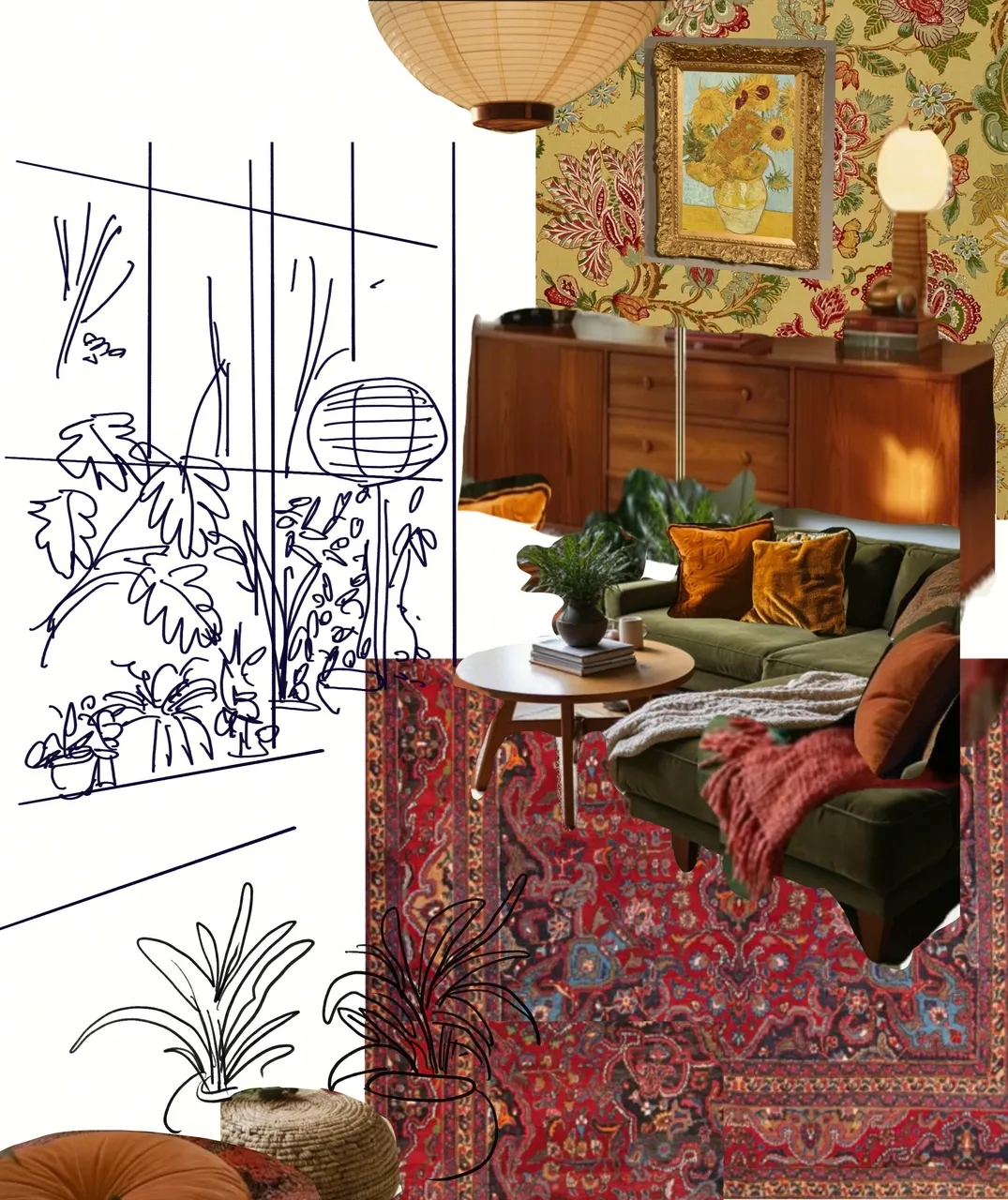
Compare a Focused Set with Kimi K3 Seedream 5.0 Pro
Kimi K3 Seedream 5.0 Pro offers a bounded output selection for ordinary generation and editing, keeping the requested image set explicit.
Choose the number for a reason
You can request up to six standard outputs in the H3 Max workspace. Use Kimi K3 Seedream 5.0 Pro to compare a manageable group when the brief leaves room for interpretation, rather than requesting the maximum automatically. Before submitting Kimi K3 Seedream 5.0 Pro, decide what will separate a useful candidate from a merely different one: clearer hierarchy, a stronger silhouette, or a better balance of empty space.
Review JPEG output in context
Standard creation and editing deliver JPEG images at your selected 1K or 2K setting. Inspect Kimi K3 Seedream 5.0 Pro results inside their intended layout, then examine close details that matter to the project. A larger setting does not fix an inaccurate label or an awkward composition.

Separate Existing Artwork with Kimi K3 Seedream 5.0 Pro
The Kimi K3 Seedream 5.0 Pro layer decomposition workflow is independent of ordinary image creation and begins with one uploaded image.
Turn a composition into separate elements
Use Kimi K3 Seedream 5.0 Pro layer decomposition when you need parts of an existing composition separated for further design work. It returns a base image and independently editable layers rather than simply another flat JPEG variation. Ask Kimi K3 Seedream 5.0 Pro to separate meaningful elements, then inspect their edges and overlap.
Choose layer size and review the result
This workflow offers auto, 1K, 1.5K, and 2K output sizing. Kimi K3 Seedream 5.0 Pro layer charges are settled according to the actual layers returned, so do not confuse the standard image output count with a guaranteed layer count. Review the workspace estimate and final usage.

Finish the Visual Decision with Kimi K3 Seedream 5.0 Pro
Kimi K3 Seedream 5.0 Pro is most useful when the final review connects its visual detail to the purpose of the finished design.
Look at materials and contact points
Inspect where glass meets a table, where a handle joins a body, or where fabric folds around an edge. Ask Kimi K3 Seedream 5.0 Pro for a specific adjustment when those relationships look inconsistent. A Kimi K3 Seedream 5.0 Pro revision should solve the observed problem without introducing unnecessary new objects. For real merchandise, verify the final shape and finish against accurate product material rather than approving on atmosphere alone.
Hand off an image with clear intent
Before placing a Kimi K3 Seedream 5.0 Pro result into a larger design, check the focal point, lettering, margins, and visible artifacts together. Record which composition was selected and what still needs manual finishing. That gives the next person a concrete visual decision instead of a folder of unexplained alternatives.
Example prompts
A compact exhibition concept
Create an exhibition poster concept for a fictional ceramics show. Place one sculptural ivory vase in the lower center against a deep blue background. Include only the short heading "FORM IN CLAY" near the top in large, clearly separated letters. Use a restrained editorial layout with generous margins and soft side lighting. No dates, venue names, logos, decorative badges, or additional text.
Reference-led material adjustment
Edit Image 1 as the base composition. Use Image 2 only as the reference for the matte clay surface finish, not for its shape, background, or lighting. Apply that finish to the main vessel in Image 1 while aiming to preserve its silhouette, handle, position, and contact shadow. Keep the surrounding scene unchanged. Do not add labels, lettering, or accessories.
Separate a composed image into layers
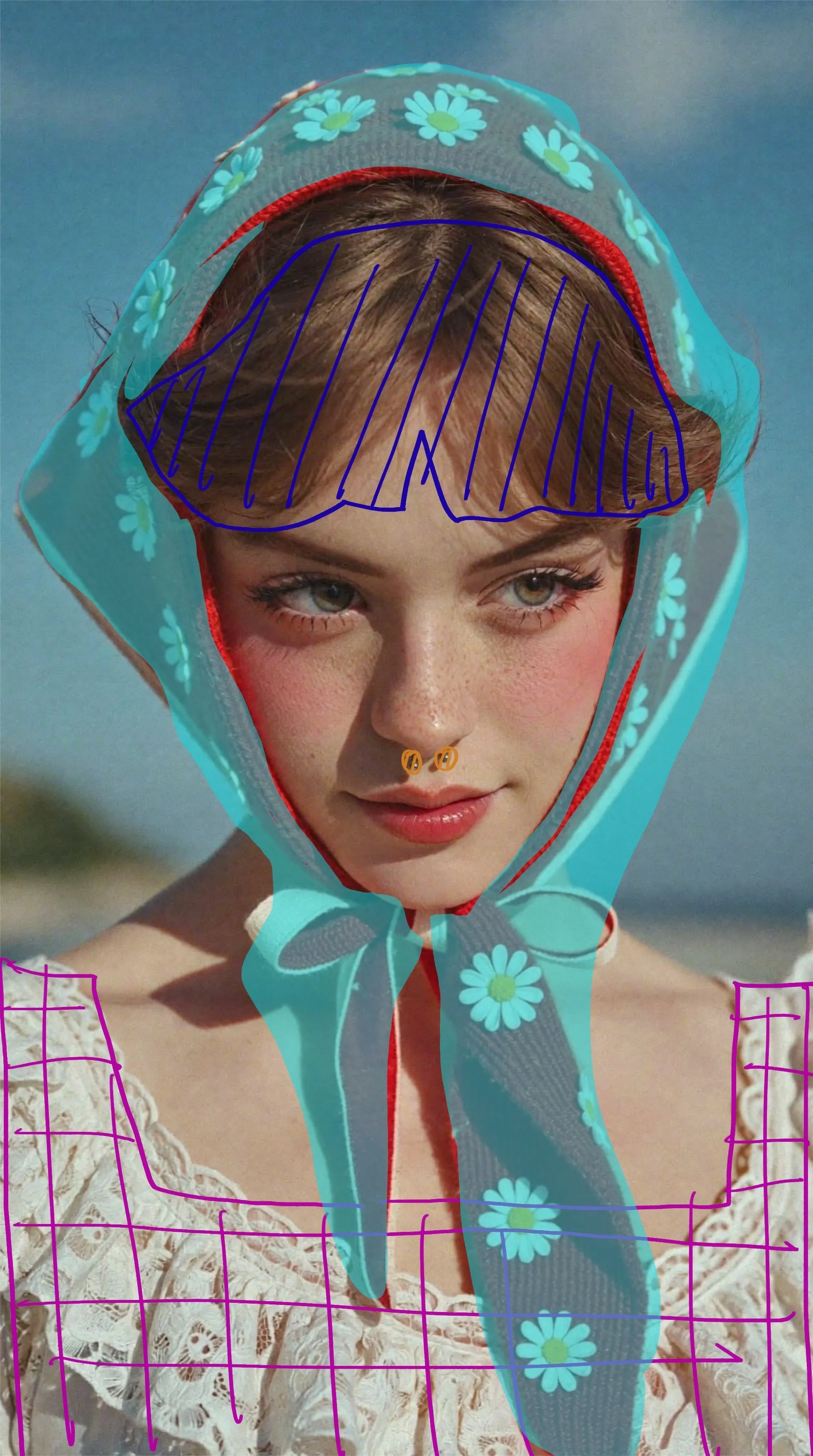
Decompose the uploaded composition into a base image and separate meaningful visual elements. Keep the main foreground object separate from supporting props and the background. Preserve the visible appearance and placement of each element as closely as possible. Pay particular attention to handles, narrow gaps, overlapping edges, and soft shadows. Do not introduce new objects or redesign the composition.
User reviews
Kimi K3 video creator feedback.
Kimi K3 creator reviews

Illustrative workflow: plan an original game title sequence with simple shapes, readable words and timed visual beats. Inspect the animation before adding it to a larger game presentation.

Illustrative workflow: turn a short explanation into a diagram that reveals one idea at a time. Compare Sketch and Motion treatments, then keep the version that communicates the subject clearly.

Illustrative workflow: place an approved product picture beside short benefit text. Assemble a simple graphic product story and review the composition at the intended screen size.

Illustrative workflow: create a portrait opening with one headline, a small set of colors and a quiet final hold. Export the selected scene and add separate sound during editing when needed.

Illustrative workflow: revise one visual decision in a saved animation, such as the closing pause or label placement. Compare saved versions before exporting the selected result.

Illustrative workflow: build a silent graphic sequence to explain the structure of a presentation. These examples describe possible uses; they are not verified customer testimonials or promised outcomes.
Kimi K3 Pricing and Credit Plans
Cancel anytime
Lite
50% off0.025 / credit
Billed $ yearly179· Save $179.8
Video Models



Image Models



- Includes Kimi K3.1 and all premium models
- Up to 1 batch generation task
- Standard generation speed
- Standard generation success rate
- Standard customer support
- Commercial Use License
Standard
50% off0.017 / credit
Billed $ yearly299· Save $299.8
Video Models
Image Models
- Includes Kimi K3.1 and all premium models
- Up to 4 batch generation tasks
- Priority processing speed
- High generation success rate
- Priority customer support
- Commercial Use License
Pro
50% off0.014 / credit
Billed $ yearly599· Save $599.8
Video Models
Image Models
- Includes Kimi K3.1 and all premium models
- Up to 10 batch generation tasks
- Fastest generation speed
- High generation success rate
- Dedicated account manager
- Commercial Use License
Max
50% off0.012 / credit
Billed $ yearly1,199· Save $1,199.8
Video Models
Image Models
- Includes Kimi K3.1 and all premium models
- Up to 10 batch generation tasks
- Fastest generation speed
- High generation success rate
- Dedicated account manager
- Commercial Use License
Pay safely and securely with
























FAQ
Frequently asked questions
What opens by default on the Kimi K3 Seedream 5.0 Pro page?
Text generation is the default starting mode. Use it for an image described in words. Switch to editing for reference-guided changes, or choose the independent layer decomposition workflow for an existing composition.
Which standard outputs does Kimi K3 Seedream 5.0 Pro offer here?
Ordinary text generation and editing support 1K or 2K JPEG output, with up to six outputs. Review the selected number and size in the workspace before submitting your request.
How many editing references ca Kimi K3 Seedream 5.0 Pro use?
The H3 Max implementation accepts up to ten reference images for editing. Include only useful inputs and explain their roles. Additional reference costs appear in the workspace credits for that request.
Is Kimi K3 Seedream 5.0 Pro layer decomposition part of every generation?
No. It is a separate workflow taking one uploaded image. Choose it when you need an existing composition separated into a base and layers, rather than a new flat image or an ordinary edit.
What sizes does Kimi K3 Seedream 5.0 Pro layer decomposition support?
The independent layer workflow offers auto, 1K, 1.5K, and 2K. These choices belong to decomposition and should not be confused with the 1K and 2K settings for standard image generation and editing.
How are Kimi K3 Seedream 5.0 Pro layer credits settled?
Layer decomposition is settled according to the actual layers returned. Review the workspace estimate and resulting usage. Standard image output counts and layer counts describe different requests and are not interchangeable.
Does Kimi K3 Seedream 5.0 Pro guarantee exact text or perfect separation?
No. Check lettering, object boundaries, and small visual details before using the result. Treat text and separated layers as material to inspect and refine, especially when precise design reproduction matters.
CTA
Start a Defined Task with Kimi K3 Seedream 5.0 Pro
Create a composition, revise useful references, or separate an existing image. Choose the matching Kimi K3 Seedream 5.0 Pro workflow and review its settings and credits before beginning.
Open Image Workspace