 Kimi K3
Kimi K3 Seedance 1.0 Pro for Deliberately Timed Visual Inserts
Build a visual moment to fit a larger edit with Kimi K3 Seedance 1.0 Pro on Kimi K3. Generate from text or guide the action with opening and ending images. Kimi K3 Seedance 1.0 Pro combines integer-second duration choices, fixed-camera control, and a seed input without adding an audio-generation workflow.
Video workspace
The wooden elevator opens
36/53View prompt
Five-second continuous frontal shot of closed wooden elevator doors opening slowly to reveal one adult woman standing inside. Keep the camera fixed at eye level and the woman relaxed, facing forward. Preserve a simple, balanced composition with warm wood grain and soft interior light. End with the doors open and the woman still standing.
Introduction
What Is Kimi K3 Seedance 1.0 Pro?
Kimi K3 Seedance 1.0 Pro is a ByteDance video generation model with separate text-to-video and image-to-video interfaces documented by fal.
Generate a scene or animate a starting image
Kimi K3 Seedance 1.0 Pro constructs video from a written scene or animates a supplied opening picture with an optional last frame. Both routes expose duration, resolution, fixed-camera, and seed parameters. Kimi K3 Seedance 1.0 Pro generates a new shot rather than arranging existing footage on a timeline.
A picture-focused workflow on Kimi K3
Kimi K3 Seedance 1.0 Pro offers 480p, 720p, and 1080p output here, with whole-second durations from two through twelve. This workspace does not offer audio generation for the model.
How to use
How to Create with Kimi K3 Seedance 1.0 Pro
- PromptSTEP 1
Start with text or a frame
Select Kimi K3 Seedance 1.0 Pro and choose text or image mode. Write the scene, or supply the opening image. Add an ending image only when the destination is already defined.
- ModelSeedance 1.0 Pro1080p16:95sPromptSTEP 2
Describe the visible event
Tell Kimi K3 Seedance 1.0 Pro what should move and what should remain recognizable. Keep the action appropriate to a short insert, and leave soundtrack production outside this workflow.
- First frameLast frame
 0.0s
0.0s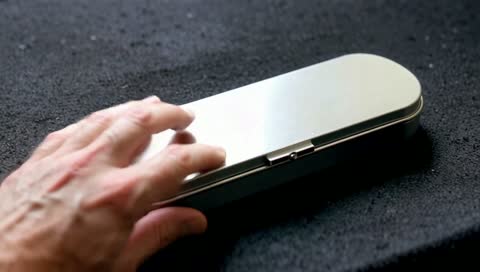 2.5s
2.5s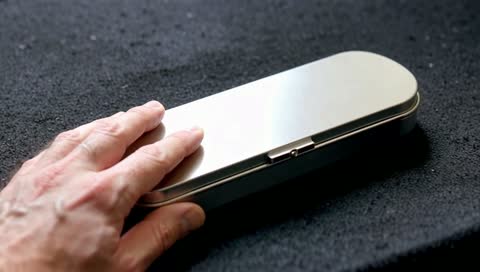 4.5sSTEP 3
Configure timing and viewpoint
Set a whole-second duration from two to twelve, choose an available resolution, and configure fixed camera and seed. Review the Kimi K3 Seedance 1.0 Pro workspace credits before generating.
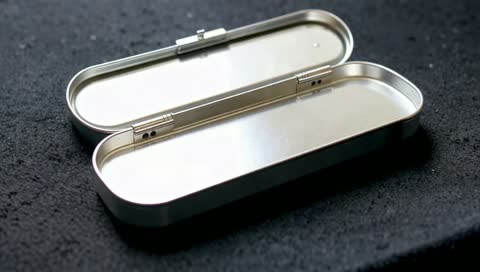
- Create a four-second close view of an unmarked brushed aluminum pencil tin on a charcoal felt mat. An adult hand slides the lid closed in one measured movement, then holds still. Fixed camera at a slightly elevated angle. Keep the tin proportions, lid mechanism, and mat consistent. Soft side light, no additional objects, text, cuts, or changes of setting.DownloadSTEP 4
Check the complete movement
Watch the Kimi K3 Seedance 1.0 Pro clip at normal speed and inspect its object relationships. Keep the useful candidate, or revise a single issue while preserving the other settings.
Features
Fit the Available Time with Kimi K3 Seedance 1.0 Pro
Whole-second duration choices let Kimi K3 Seedance 1.0 Pro serve a specific gap in an edit rather than forcing every idea into the same length.
Give the Kimi K3 Seedance 1.0 Pro insert one visible purpose
For a two- or three-second insert, focus on a single event such as a pencil tin lid sliding closed. Ask Kimi K3 Seedance 1.0 Pro for the state change that matters. Review Kimi K3 Seedance 1.0 Pro at normal speed to make sure the viewer can understand the movement without pausing the clip.
Choose time for anticipation and completion
A longer duration can show the approach to the event and the settled result afterward. Seven seconds, for example, can give a hand time to reach the tin, move the lid, and withdraw. Tell Kimi K3 Seedance 1.0 Pro which part deserves emphasis. Do not assume that selecting a longer clip creates a more complete story; a specific sequence of connected actions still belongs in the brief.
Describe a Readable Scene for Kimi K3 Seedance 1.0 Pro
Text mode gives Kimi K3 Seedance 1.0 Pro the subject, setting, and visual relationships needed to construct a new insert shot.
Stage the action before choosing its mood
Describe the tin on a felt mat, its sliding lid half open, and the position of the hand that will move it. Keep the background simple enough that the viewer immediately sees the action. Kimi K3 Seedance 1.0 Pro can then be directed with practical details such as side lighting and a slightly elevated viewpoint.
Define what does not change
Stability matters when the scene contains a recognizable object. Ask Kimi K3 Seedance 1.0 Pro to keep the tin dimensions, surface finish, and supporting mat consistent while the lid moves. Those instructions define a review target, not a guarantee of exact preservation. Check Kimi K3 Seedance 1.0 Pro output for changes in hinges, edges, or contact with the table that could make the action difficult to understand or use.
Bridge Two Visual States with Kimi K3 Seedance 1.0 Pro
The image route lets Kimi K3 Seedance 1.0 Pro begin from an opening frame and work toward an optional ending frame.
Use endpoints that explain the same object
For a closing-lid action, the first frame can show the tin open and the last can show it shut from a compatible viewpoint. Kimi K3 Seedance 1.0 Pro receives a clearer task when both pictures agree about the object, lighting, and surface. Describe how the action travels between them. Ask Kimi K3 Seedance 1.0 Pro to avoid introducing another hand, changing the lid mechanism, or replacing the surrounding set.
Inspect the Kimi K3 Seedance 1.0 Pro path between endpoints
Matching start and finish pictures does not establish what happens in every intermediate frame. Watch for the lid passing through the object, a hand losing contact, or materials changing mid-motion. Kimi K3 Seedance 1.0 Pro should be judged on the connecting action, not just two familiar compositions. Use one opening image without a last frame when the ending is flexible and the subject only needs a modest movement.
Keep a Deliberate Viewpoint with Kimi K3 Seedance 1.0 Pro
Choose fixed camera in Kimi K3 Seedance 1.0 Pro when movement inside the scene should carry the shot instead of a travelling viewpoint.
Establish a stable Kimi K3 Seedance 1.0 Pro viewpoint
A fixed view makes it easier to compare where an object begins and ends. Stage the tin, mat, and hand so the action is visible without a camera move. Kimi K3 Seedance 1.0 Pro fixed-camera control requests camera stability; it does not immobilize the subject. Describe the action that should occur within the composition, and avoid simultaneously instructing the viewpoint to orbit or pull backward.
Plan camera motion as a different decision
When viewpoint movement is essential, leave fixed camera off and distinguish camera motion from subject motion. With Kimi K3 Seedance 1.0 Pro, decide whether the shot is about the sliding lid or the changing perspective. Compare the resulting Kimi K3 Seedance 1.0 Pro clip against that intention, looking for unwanted drift or a move that hides the main action.
Prepare a Usable Kimi K3 Seedance 1.0 Pro Candidate
Kimi K3 Seedance 1.0 Pro output and seed settings support organized comparisons before a clip becomes part of a larger production.
Keep track of a controlled revision
Record the seed and retain the same prompt, images, and settings when examining a particular variation. Kimi K3 Seedance 1.0 Pro exposes a seed input, but this is not an exact-reproduction promise. A fresh result still needs review. Ask Kimi K3 Seedance 1.0 Pro for one focused change, such as a slower lid movement, rather than adjusting the subject, duration, viewpoint, and lighting together without a clear reason.
Inspect the picture before adding sound elsewhere
Choose 480p, 720p, or 1080p and inspect the movement and important object details. Arrange any soundtrack separately; this model has no audio option here. Before another Kimi K3 Seedance 1.0 Pro request, review the workspace credits.
Example prompts
Text: a compact closing action
Create a four-second close view of an unmarked brushed aluminum pencil tin on a charcoal felt mat. An adult hand slides the lid closed in one measured movement, then holds still. Fixed camera at a slightly elevated angle. Keep the tin proportions, lid mechanism, and mat consistent. Soft side light, no additional objects, text, cuts, or changes of setting.
Image: open tin to closed tin
Use the supplied first frame of the open tin and last frame of the closed tin. Over seven seconds, let the visible adult hand slide the lid into its final position and withdraw. Keep the camera fixed. Preserve the metal finish, object dimensions, and mat position. Maintain clear contact between hand and lid. End with the closed tin resting on the mat.
Text: a quiet visual insert
Create a three-second visual insert of a narrow ribbon falling gently across the corner of an unmarked closed notebook. The notebook rests on pale linen and remains still. Locked viewpoint, close framing, warm side light. Show one natural ribbon movement and a brief settled finish. No hands entering, new objects, printed words, or camera movement.
User reviews
Kimi K3 video creator feedback.
Kimi K3 creator reviews

Illustrative workflow: plan an original game title sequence with simple shapes, readable words and timed visual beats. Inspect the animation before adding it to a larger game presentation.

Illustrative workflow: turn a short explanation into a diagram that reveals one idea at a time. Compare Sketch and Motion treatments, then keep the version that communicates the subject clearly.

Illustrative workflow: place an approved product picture beside short benefit text. Assemble a simple graphic product story and review the composition at the intended screen size.

Illustrative workflow: create a portrait opening with one headline, a small set of colors and a quiet final hold. Export the selected scene and add separate sound during editing when needed.

Illustrative workflow: revise one visual decision in a saved animation, such as the closing pause or label placement. Compare saved versions before exporting the selected result.

Illustrative workflow: build a silent graphic sequence to explain the structure of a presentation. These examples describe possible uses; they are not verified customer testimonials or promised outcomes.
Kimi K3 Pricing and Credit Plans
Cancel anytime
Lite
50% off0.025 / credit
Billed $ yearly179· Save $179.8
Video Models



Image Models



- Includes Kimi K3.1 and all premium models
- Up to 1 batch generation task
- Standard generation speed
- Standard generation success rate
- Standard customer support
- Commercial Use License
Standard
50% off0.017 / credit
Billed $ yearly299· Save $299.8
Video Models
Image Models
- Includes Kimi K3.1 and all premium models
- Up to 4 batch generation tasks
- Priority processing speed
- High generation success rate
- Priority customer support
- Commercial Use License
Pro
50% off0.014 / credit
Billed $ yearly599· Save $599.8
Video Models
Image Models
- Includes Kimi K3.1 and all premium models
- Up to 10 batch generation tasks
- Fastest generation speed
- High generation success rate
- Dedicated account manager
- Commercial Use License
Max
50% off0.012 / credit
Billed $ yearly1,199· Save $1,199.8
Video Models
Image Models
- Includes Kimi K3.1 and all premium models
- Up to 10 batch generation tasks
- Fastest generation speed
- High generation success rate
- Dedicated account manager
- Commercial Use License
Pay safely and securely with























FAQ
Frequently asked questions
What ca Kimi K3 Seedance 1.0 Pro generate from?
Use a text description to create a new scene, or provide an opening image in image mode. You can also add an optional last frame. This workflow does not accept a multimodal reference collection of videos and audio.
Which duration values are available?
Kimi K3 Seedance 1.0 Pro supports each whole-second choice from two through twelve seconds on Kimi K3. Choose a duration that leaves enough time for the action and its result. Do not assume a longer setting improves an unclear brief.
Does Kimi K3 Seedance 1.0 Pro generate a soundtrack?
No audio-generation option is provided for this model in the workspace. Develop the picture here and arrange any dialogue, music, or effects separately. The prompt should focus on visible action rather than expecting a requested sound to be produced.
Can I guide the last frame?
Kimi K3 Seedance 1.0 Pro image mode accepts an optional ending image alongside the opening image. Use compatible frames to describe the intended change of state. Review the intervening motion for object changes or an implausible transition.
What does Kimi K3 Seedance 1.0 Pro fixed camera mean?
It requests a fixed camera position, not a frozen subject. The action can still happen inside the frame. Keep your written camera directions consistent with the selected control, and check the result for unintended viewpoint movement.
Which resolutions are offered?
Kimi K3 Seedance 1.0 Pro provides 480p, 720p, and 1080p output here. Select the size for the intended use and inspect the finished clip. Resolution alone does not establish accurate object geometry or a successful action.
How should I use the seed and credit quote?
Keep the Kimi K3 Seedance 1.0 Pro seed with the prompt and settings to organize comparisons. Do not expect guaranteed identical repeats. Review the workspace credits before every request, especially when duration or output resolution changes.
CTA
Make the Next Visual Insert with Kimi K3 Seedance 1.0 Pro
Define the action, choose its duration, and review the workspace credits. Bring Kimi K3 Seedance 1.0 Pro a clear picture brief on Kimi K3 and judge the result by the cut it needs to serve.
Build a Visual Clip