 Kimi K3
Kimi K3.1 Pro AI Video Generator for Editable Motion
Create with Kimi K3.1 Pro, explore official visual examples and turn a focused brief into an editable animation. Start in Video with Kimi K3.1 selected, choose your message and inspect the credit quote. Switch to image generation or the included creative tools when your project needs another kind of asset.
Video workspace
Images are placed as graphic elements, not animated first frames. Other model drafts are kept.
x1 · Silent animation · MP4 export at 720p or 1080p
Robot Film · official reference
1/53View prompt
Create a 15-second silent motion graphic in 16:9. A friendly maintenance robot notices a tiny seedling in a warm workshop. Show the robot as an original geometric character, a plant growing from a small pot, and a lamp switching on. Use teal, cream and amber. Build three clearly timed scenes and finish with the words "Small ideas grow".
Introduction
Turn a Kimi K3.1 Idea into a Visible Story
Kimi K3.1 brings reasoning and visual planning into a creative workflow. Begin with a short message, develop its sequence and inspect an animation you can continue editing.
Start with a purpose
A product introduction, a classroom explanation and an opening title need different rhythms. Tell Kimi K3.1 who will watch the piece and what they should remember. Choose one main point, then describe the opening, the change in the middle and the final composition.
Choose a practical creative workflow
The selected Kimi K3.1 workflow creates an editable motion graphic from text, shapes and approved image elements. It renders that scene as a silent video. Use it for visual explanations, animated messages and graphic product stories.
Know the model behind the selection
Moonshot AI develops the underlying model. This independent Kimi K3.1 workspace provides access, private task history and supporting creative tools. The published demonstrations show a broader range of work made with external software.
How to use
How to Create with Kimi K3.1
- STEP 1
Describe your Kimi K3.1 idea
Begin with the audience, the message and the sequence. Write the exact on-screen words and describe a small number of visual beats. You can load a gallery prompt and replace its subject with your own.
- STEP 2
Set the visual direction
Select Sketch or Motion, then choose the duration and aspect ratio. Add approved pictures as graphic elements if the composition needs them. Give Kimi K3.1 clear instructions about where those pictures belong and leave room for readable text.
- STEP 3
Review and create
Sign in, check your available credits and review the current reservation. Submit the complete Kimi K3.1 brief when its wording and settings match your intention. The request is saved in Creation History.
- STEP 4
Refine and export
Watch the entire sequence and compare it with the original assignment. Request one specific change when needed, then select the saved version you prefer. Export your Kimi K3.1 project as a silent MP4, or continue with separate creative tools when the finished piece needs additional assembly.
Features
Give Kimi K3.1 a Clear Creative Brief
A useful Kimi K3.1 prompt connects a subject, a message and a sequence. Concrete relationships give the animation a direction before you begin choosing colors or transitions.
Write the important words exactly
Put essential on-screen wording in quotation marks. Ask Kimi K3.1 for short lines that people can read while the graphic moves. Separate a headline from supporting details, and explain which one appears first.
Describe the movement in order
Explain what changes between the first and last frame. A circle might expand, a diagram might assemble, or a product picture might settle beside a title. Give Kimi K3.1 a few meaningful beats with a calm closing hold.
Use references as a starting point
Choose a gallery card to load an adapted brief. Replace its subject, wording or palette with your own direction. Kimi K3.1 examples identify their source, and selecting one prepares the workspace without submitting a request.
Build Readable Motion with Kimi K3.1
Use Kimi K3.1 to arrange typography, shapes and approved pictures into a coherent sequence. A consistent visual language helps a short animation carry one clear message.
Keep the composition connected
Repeat a small set of colors, align related objects and leave enough space around important words. Ask Kimi K3.1 to introduce one visual group at a time. A product benefit can appear beside its illustration, followed by a brief closing phrase.
Choose between Sketch and Motion
Sketch uses a paper-like palette and outlined forms, while Motion favors clean geometric transitions. Select the treatment that fits your message before asking Kimi K3.1 to create the project.
Place approved pictures deliberately
Add up to four supported image elements after signing in. Describe their role in the layout, such as a product photograph beside a heading. In this Kimi K3.1 workflow, pictures become graphic elements.
Explore Kimi K3.1 Examples and Creative Directions
The Kimi K3.1 gallery starts with published Moonshot demonstrations and adapted prompts. Explore their visual direction while keeping the original showcase and the site workflow distinct.
Look for useful visual relationships
A robot workshop suggests warm lighting and a simple emotional beat. An atrium suggests layered space and a gradual reveal. A mechanical assembly suggests ordered movement. Use those relationships to develop a Kimi K3.1 brief of your own.
Separate official references from your results
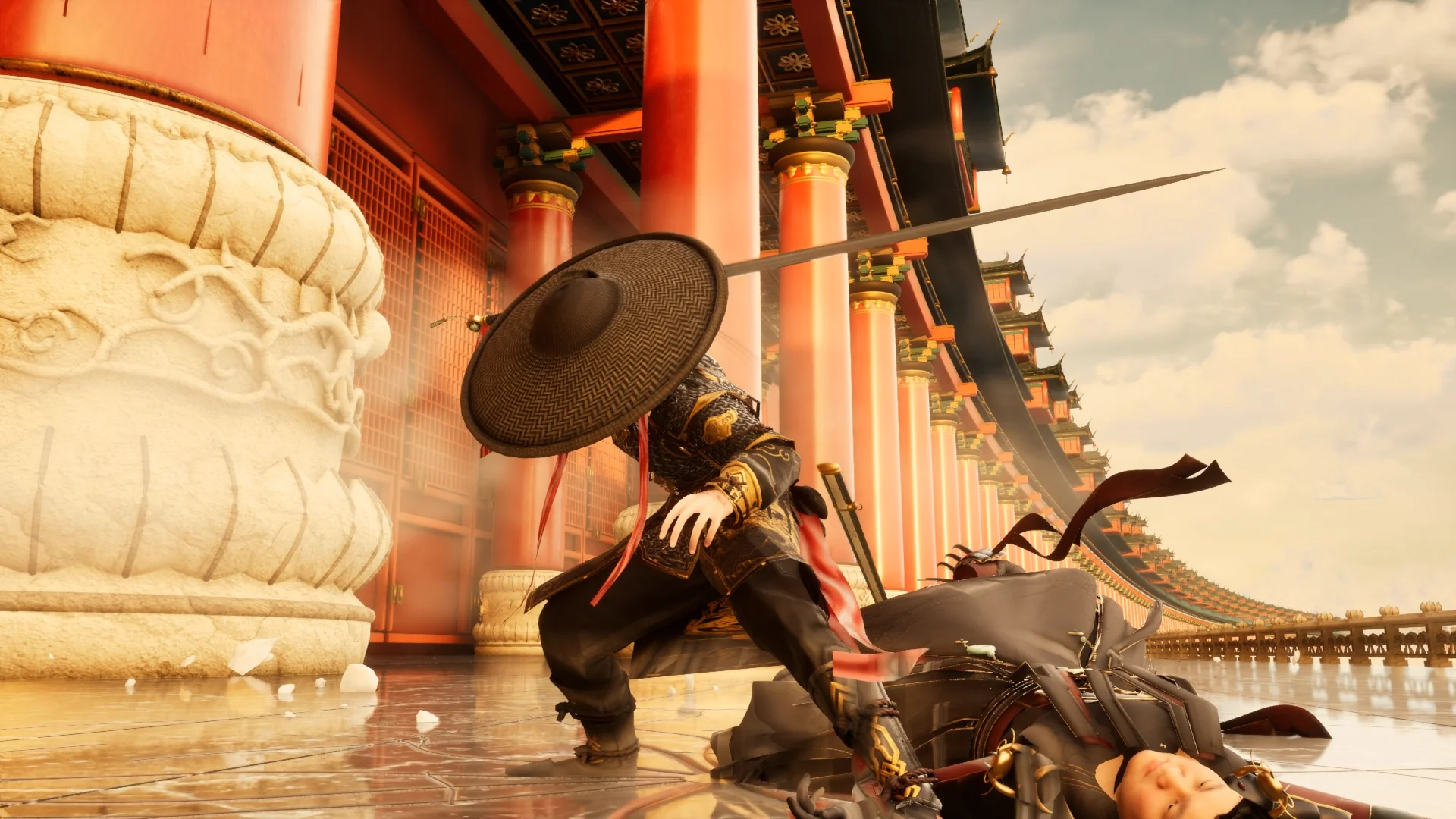
The official Kimi K3.1 films were produced with creative tools such as Blender, CAD software and game engines. The adapted prompts here reinterpret those ideas as supported motion graphics. They are not the original unpublished instructions and do not promise identical films.
Continue with still images when needed
Switch to Image when the project needs a poster, a character concept or a product still. Choose an available image model and inspect its supported settings. Kimi K3.1 is the selected animation model, not a native image generator in this workspace.
Choose Kimi K3.1 Settings and Review Credits
The Kimi K3.1 quote follows the complete request. Review your brief and supported options together before creating a project, then compare the result with the purpose you set.
Match the format to the destination
Choose ten, fifteen, twenty or thirty seconds and a wide, portrait or square composition. Use Kimi K3.1 for one project at a time. Select a shape that gives the words enough room at the intended viewing size.
Understand the reservation and settlement
Kimi K3.1 generation uses a server-issued quote tied to your input. One credit represents one US cent of provider cost, rounded up for the operation. The interface shows the maximum reservation before submission. Actual receipt costs determine settlement, and unused reserved credits return to the balance.
Review a complete request before submitting
The animation quote covers the brief and any editable base scene, with a bounded output allowance. A longer or more complex Kimi K3.1 assignment can consume more tokens than a short one. Changing relevant inputs requires a fresh quote.
Inspect, Refine and Export Your Kimi K3.1 Project
A useful Kimi K3.1 result still needs your review. Check the whole sequence, make a specific revision and export the version that communicates your original idea clearly.
Watch every part of the sequence
Read the words while the scene plays and check its beginning, transitions and final hold. Look for cropped text, distracting movement and an ending that disappears too quickly. Compare the Kimi K3.1 result with your brief at the size viewers will actually see.
Revise one meaningful decision
Ask for a longer pause, a simpler diagram or a different emphasis rather than rewriting every instruction at once. Kimi K3.1 revisions produce saved versions, allowing you to compare the change with the prior scene. Keep the request specific and review the new quote.
Take the selected result into your project
Export the approved Kimi K3.1 animation as a silent MP4 at 720p or 1080p. Exporting a saved scene does not send another model-generation request.
Example prompts
Kimi K3.1 product reveal
Create a 15-second silent motion graphic in 16:9. On a charcoal background, assemble three original cream and blue geometric product components. Show each component separately, join them in order and reveal the exact headline "Designed to fit". Finish with a three-second hold. Use readable typography and no external logos.
A small idea grows
Create a 20-second silent Sketch motion graphic in 16:9. Introduce a small green seed, let a simple outlined plant grow, and reveal the words "Start small" followed by "Keep growing". Use warm cream paper, dark outlines and one green accent. Keep the ending calm and readable.
User reviews
Kimi K3 video creator feedback.
Kimi K3 creator reviews

Illustrative workflow: plan an original game title sequence with simple shapes, readable words and timed visual beats. Inspect the animation before adding it to a larger game presentation.

Illustrative workflow: turn a short explanation into a diagram that reveals one idea at a time. Compare Sketch and Motion treatments, then keep the version that communicates the subject clearly.

Illustrative workflow: place an approved product picture beside short benefit text. Assemble a simple graphic product story and review the composition at the intended screen size.

Illustrative workflow: create a portrait opening with one headline, a small set of colors and a quiet final hold. Export the selected scene and add separate sound during editing when needed.

Illustrative workflow: revise one visual decision in a saved animation, such as the closing pause or label placement. Compare saved versions before exporting the selected result.

Illustrative workflow: build a silent graphic sequence to explain the structure of a presentation. These examples describe possible uses; they are not verified customer testimonials or promised outcomes.
Kimi K3 Pricing and Credit Plans
Cancel anytime
Lite
50% off0.025 / credit
Billed $ yearly179· Save $179.8
Video Models



Image Models



- Includes Kimi K3.1 and all premium models
- Up to 1 batch generation task
- Standard generation speed
- Standard generation success rate
- Standard customer support
- Commercial Use License
Standard
50% off0.017 / credit
Billed $ yearly299· Save $299.8
Video Models
Image Models
- Includes Kimi K3.1 and all premium models
- Up to 4 batch generation tasks
- Priority processing speed
- High generation success rate
- Priority customer support
- Commercial Use License
Pro
50% off0.014 / credit
Billed $ yearly599· Save $599.8
Video Models
Image Models
- Includes Kimi K3.1 and all premium models
- Up to 10 batch generation tasks
- Fastest generation speed
- High generation success rate
- Dedicated account manager
- Commercial Use License
Max
50% off0.012 / credit
Billed $ yearly1,199· Save $1,199.8
Video Models
Image Models
- Includes Kimi K3.1 and all premium models
- Up to 10 batch generation tasks
- Fastest generation speed
- High generation success rate
- Dedicated account manager
- Commercial Use License
Pay safely and securely with























FAQ
Frequently asked questions
What is Kimi K3.1?
It is Moonshot AI’s multimodal model series. The Pro model supports reasoning and complex creative tasks.
Does Kimi K3.1 create the official 3D films here?
The gallery films are published Moonshot demonstrations made with external creative tools. This site offers adapted prompts for its own motion-graphics renderer.
Can Kimi K3.1 generate still images?
The selected model produces animation scene instructions in this integration. Switch to Image and choose an actual image model for still generation.
How are Kimi K3.1 credits calculated?
Actual provider receipt cost is converted at one US cent per credit and rounded up per operation. A server quote reserves a bounded amount first.
Can I reuse a Kimi K3.1 example prompt?
Yes. Click a card or Use This Prompt to load its adapted instructions. The original source and the adapted workflow remain distinct.
Which video exports are available?
Saved animations can be exported as silent MP4 files at 720p or 1080p. The supported composition shapes are wide, portrait and square.
CTA
Start Your Next Kimi K3.1 Animation
Bring one clear message into the workspace. Choose Kimi K3.1, review the brief and credits, then create a scene you can inspect, refine and export.
Create with Kimi K3.1