 Kimi K3
Kimi K3 H3 Max Styles for Five Distinct Animated Looks
Choose a visual language before you describe the scene. Kimi K3 H3 Max Styles on H3 Max brings together Hand Drawn, VHS, Retro Toon 70s, Low Poly, and 16-bit Pixel. Start from text or one image, then use Kimi K3 H3 Max Styles to develop a short 768P video with native audio and a clear creative direction.
Video workspace
Evening Tram Hand-Drawn Light Animation
21/53View prompt
Create a fifteen-second handheld phone video inside an almost empty vintage tram at dusk. A passenger traces the misted window. The mark becomes a warm apricot hand-drawn glow, curling around a finger and settling into the palm as a paper ticket. It folds into a swallow and flies along the handrail. Follow slightly late with imperfect handheld movement. Let the same glowing line transform continuously into a caterpillar, an arrow, a tiny sailboat, a miniature tram, a snail, an umbrella, and a small fish. Each form should retain recognizable marks from the previous one. The passenger reaches after it as it travels across seats, poles, and windows. Near the end, its trails spread through the carriage into a gentle sunset landscape drawn over the real surroundings, then return to a ticket in the passenger’s hand and scatter as paper fragments. Keep the animation flat and handmade, with chalk and crayon texture, uneven outlines, soft warm color, and subtle reflections. Preserve the real tram, natural motion blur, occasional missed focus, and the feeling of spontaneous discovery. Use wheel rumble, rattling handrails, footsteps, paper rustles, and faint playful drawing sounds. No music, captions, logos, sudden cuts, horror effects, or polished 3D characters.
Introduction
What Is Kimi K3 H3 Max Styles?
Kimi K3 H3 Max Styles groups five dedicated H3 Max video generators whose individual style endpoints are documented on fal.
Style-specific generation rather than a generic filter
The official fal pages behind Kimi K3 H3 Max Styles describe separate generators for hand-drawn animation, VHS, retro painted animation, low-poly 3D, and pixel animation. Each creates 768P video with audio from a prompt and an optional first-frame image. Kimi K3 H3 Max Styles uses these distinct choices to establish the visual treatment before generation; it is not a filter for processing an uploaded video.
One consistent starting workflow
In Kimi K3 H3 Max Styles, select one of the five looks, write a scene, and optionally upload one opening image. Choose a duration from five to fifteen seconds and use the seed control when needed. Output remains 768P. Review the credits and judge the returned picture and soundtrack together.
How to use
How to Create with Kimi K3 H3 Max Styles
- PromptSTEP 1
Select the style for your scene
Open Kimi K3 H3 Max Styles and choose Hand Drawn, VHS, Retro Toon 70s, Low Poly, or 16-bit Pixel. Begin with the treatment that fits the idea you want to explore.
- ModelH3 Max Styles768P16:98sPromptSTEP 2
Describe the action and optional image
Give Kimi K3 H3 Max Styles a scene, movement, camera direction, and soundscape. Upload one compatible opening image when you want to start from an existing composition.
- First frameLast frame
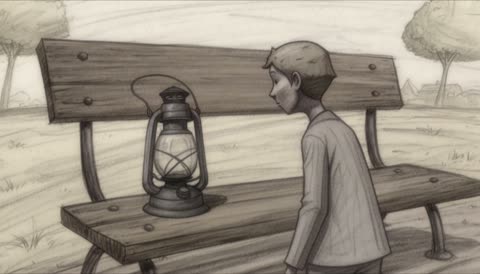 0.0s
0.0s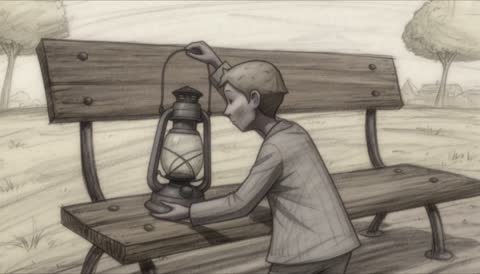 4.0s
4.0s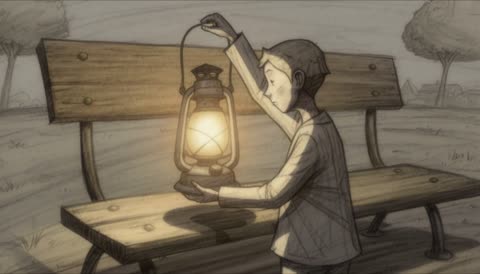 7.2sSTEP 3
Review the generation settings
Choose five to fifteen seconds at the fixed 768P resolution. Set a seed when needed and check the credits for the configured request before submitting it.
- Create one eight-second hand-drawn scene of a small paper explorer finding an unlit lantern on a bench. The explorer leans closer, lifts the lantern, and holds it as it begins to glow softly. Use clear pencil-like lines, a simple background, and a steady medium view. Quiet paper rustling and a gentle click, no speech or added lettering.DownloadSTEP 4
Evaluate the complete styled clip
Watch Kimi K3 H3 Max Styles output with sound. Check visual continuity, the chosen treatment, and the ending; revise a specific part of the brief before creating another version.
Features
Explore Hand-Drawn Movement with Kimi K3 H3 Max Styles
The Hand Drawn option in Kimi K3 H3 Max Styles gives a scene an illustrated direction with room for expressive poses and readable lines.
Write for the clarity of a drawing
Think about a gesture that would read in a small sequence of sketches: a character leaning toward a curious object or a long scarf lifting in a breeze. Give Kimi K3 H3 Max Styles one dominant action and a simple background. Kimi K3 H3 Max Styles can then be directed toward expressive movement without burying the scene under photorealistic material descriptions that conflict with the chosen look.
Start with artwork that supports the treatment
A pencil or similarly drawn source can provide a compatible visual starting point for Kimi K3 H3 Max Styles. Use a clear silhouette and leave room for the intended motion. Describe which lines, shapes, and colors should stay recognizable, then review whether they do.
Create an Analog Mood with Kimi K3 H3 Max Styles
VHS in Kimi K3 H3 Max Styles applies an analog tape treatment to the generated scene rather than requiring you to construct that look manually.
Choose a scene that benefits from the texture
A quiet rehearsal room, an empty arcade entrance, or a small tabletop still life can provide a setting for analog atmosphere. Tell Kimi K3 H3 Max Styles what should happen within that setting. Let the chosen VHS treatment establish the tape character. Kimi K3 H3 Max Styles still needs a subject and an action; asking only for nostalgia leaves the content of the scene undefined.
Keep the subject readable through the treatment
Analog texture should not hide the essential action. When using Kimi K3 H3 Max Styles, choose strong shapes and avoid making tiny text the only important detail.
Build a Painted Scene with Kimi K3 H3 Max Styles
Retro Toon 70s gives Kimi K3 H3 Max Styles a hand-painted animation direction suited to deliberately composed settings and distinctive character silhouettes.
Use a few expressive shapes and colors
A broad landscape, a plainly staged character, and a restrained palette can establish an illustrated world without overwhelming the frame. Ask Kimi K3 H3 Max Styles for a clear movement within that world, such as a traveler lifting a lantern. Keep the Kimi K3 H3 Max Styles brief aligned with painted animation rather than mixing demands for unrelated visual treatments or exact photographic surface detail.
Make background and action work together
The environment can frame the performance without becoming equally busy. Direct Kimi K3 H3 Max Styles toward a still painted setting while one subject moves, or make a background element carry the main event. When supplying an image, painted-style artwork can support the intended look.
Stage Geometric Action with Kimi K3 H3 Max Styles
Low Poly in Kimi K3 H3 Max Styles develops a retro 3D visual treatment in which strong forms and clear staging can carry the scene.
Design the shot around readable geometry
Describe a few simple volumes, deliberate lighting, and a movement that makes their relationship apparent. Kimi K3 H3 Max Styles might be directed toward a small geometric vehicle following a curved road or a figure crossing a broad platform. Avoid dense decorative clutter. A Kimi K3 H3 Max Styles low-poly scene can be judged by its silhouettes and motion rather than by the amount of surface detail.
Treat the result as video, not a 3D asset
Low-poly appearance does not turn Kimi K3 H3 Max Styles into a mesh exporter or a scene reconstruction tool. The output is a moving image. You can request a controlled viewpoint and coherent object placement, but unseen surfaces remain generated interpretations.
Compose Pixel Motion with Kimi K3 H3 Max Styles
The 16-bit Pixel option gives Kimi K3 H3 Max Styles a pixel-art direction while preserving the same text-or-image starting workflow.
Make the action readable at a glance
Use a strong silhouette, a limited cast, and a clearly staged action for Kimi K3 H3 Max Styles pixel animation. A small robot reaching a signpost can be more legible than several characters crossing a crowded city. Kimi K3 H3 Max Styles does not supply a game engine or a sprite sheet. Plan a short video composition and evaluate whether the movement remains understandable across its duration.
Join the visual rhythm to a restrained soundscape
Native audio lets a Kimi K3 H3 Max Styles brief include atmosphere and sound events alongside movement. Watch and listen to the entire Kimi K3 H3 Max Styles result.
Example prompts
Hand Drawn: a text-led lantern moment
Create one eight-second hand-drawn scene of a small paper explorer finding an unlit lantern on a bench. The explorer leans closer, lifts the lantern, and holds it as it begins to glow softly. Use clear pencil-like lines, a simple background, and a steady medium view. Quiet paper rustling and a gentle click, no speech or added lettering.
VHS: animate an opening image
Use the uploaded image as the first frame of a seven-second VHS-style shot. Keep the main subject and setting recognizable while the camera makes a slight, steady approach. Preserve the overall lighting and keep other motion minimal. Subtle room ambience, no dialogue, new people, additional objects, titles, timestamps, or cuts to another scene.
16-bit Pixel: a small arrival from text
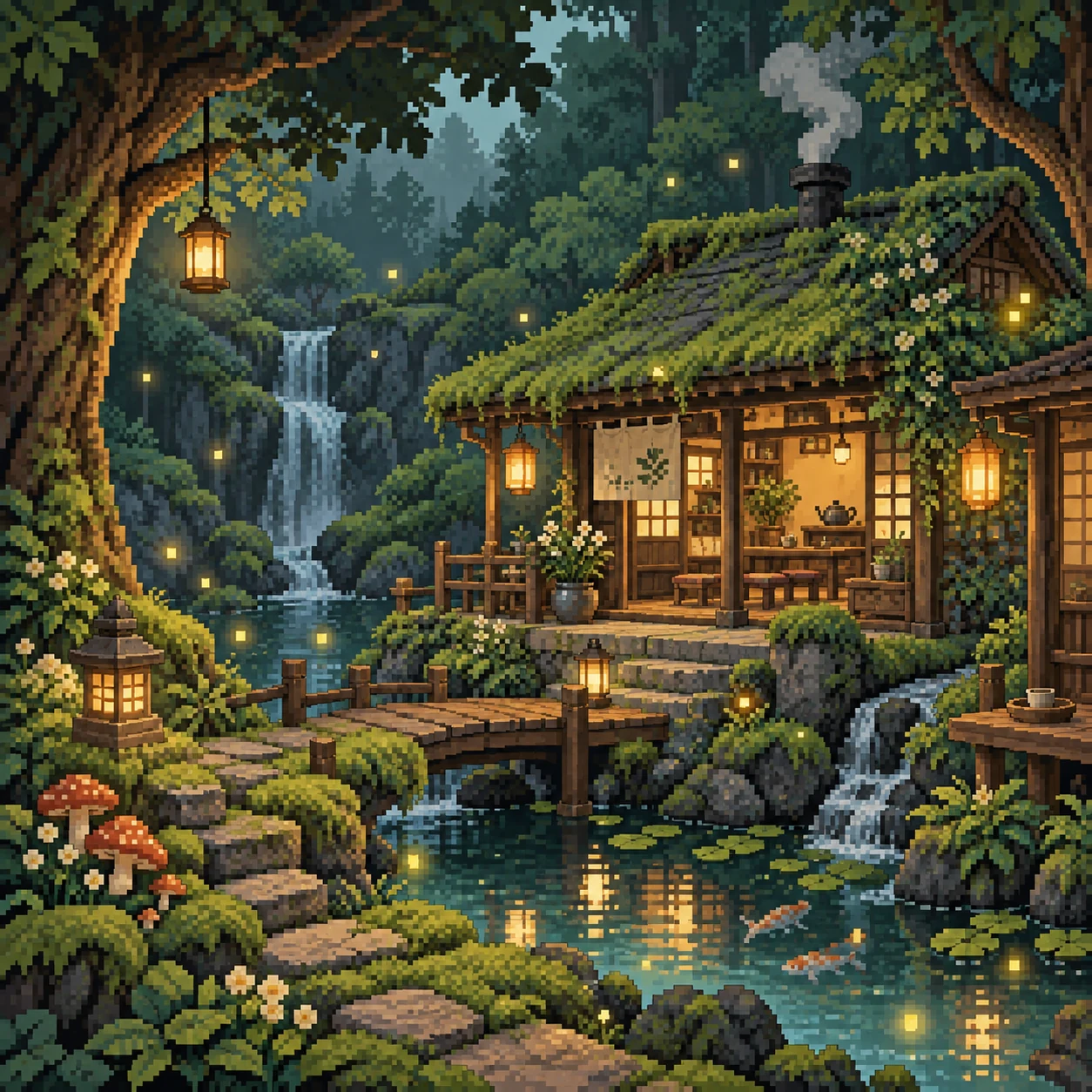
Create a ten-second pixel-art scene of a compact yellow robot walking along a simple stone path toward a blank wooden signpost. Use a clear side view, broad silhouettes, and a restrained sunset palette. The robot stops beside the post and looks upward. Light mechanical footfalls and a soft breeze, no speech, readable text, extra characters, or scene cuts.
User reviews
Kimi K3 video creator feedback.
Kimi K3 creator reviews

Illustrative workflow: plan an original game title sequence with simple shapes, readable words and timed visual beats. Inspect the animation before adding it to a larger game presentation.

Illustrative workflow: turn a short explanation into a diagram that reveals one idea at a time. Compare Sketch and Motion treatments, then keep the version that communicates the subject clearly.

Illustrative workflow: place an approved product picture beside short benefit text. Assemble a simple graphic product story and review the composition at the intended screen size.

Illustrative workflow: create a portrait opening with one headline, a small set of colors and a quiet final hold. Export the selected scene and add separate sound during editing when needed.

Illustrative workflow: revise one visual decision in a saved animation, such as the closing pause or label placement. Compare saved versions before exporting the selected result.

Illustrative workflow: build a silent graphic sequence to explain the structure of a presentation. These examples describe possible uses; they are not verified customer testimonials or promised outcomes.
Kimi K3 Pricing and Credit Plans
Cancel anytime
Lite
50% off0.025 / credit
Billed $ yearly179· Save $179.8
Video Models



Image Models



- Includes Kimi K3.1 and all premium models
- Up to 1 batch generation task
- Standard generation speed
- Standard generation success rate
- Standard customer support
- Commercial Use License
Standard
50% off0.017 / credit
Billed $ yearly299· Save $299.8
Video Models
Image Models
- Includes Kimi K3.1 and all premium models
- Up to 4 batch generation tasks
- Priority processing speed
- High generation success rate
- Priority customer support
- Commercial Use License
Pro
50% off0.014 / credit
Billed $ yearly599· Save $599.8
Video Models
Image Models
- Includes Kimi K3.1 and all premium models
- Up to 10 batch generation tasks
- Fastest generation speed
- High generation success rate
- Dedicated account manager
- Commercial Use License
Max
50% off0.012 / credit
Billed $ yearly1,199· Save $1,199.8
Video Models
Image Models
- Includes Kimi K3.1 and all premium models
- Up to 10 batch generation tasks
- Fastest generation speed
- High generation success rate
- Dedicated account manager
- Commercial Use License
Pay safely and securely with























FAQ
Frequently asked questions
Which looks are available in Kimi K3 H3 Max Styles?
The five choices are Hand Drawn, VHS, Retro Toon 70s, Low Poly, and 16-bit Pixel. Select the style in the workspace before submitting the scene; these are distinct generation options rather than a request to blend every look together.
Ca Kimi K3 H3 Max Styles work from an image?
Yes. You may supply one opening image along with your prompt. Choose artwork or imagery compatible with the selected treatment. This workflow does not accept a video for restyling or a pair of endpoint images.
What duration and resolution does Kimi K3 H3 Max Styles use?
The workspace offers five to fifteen seconds of generated footage at a fixed 768P output. Select the clip duration in the controls. The number of seconds describes the video length, not the time needed to generate it.
Does Kimi K3 H3 Max Styles create audio?
Yes. These style generators produce video with native audio. Describe relevant atmosphere or sound events in the prompt and review the returned soundtrack. Exact dialogue, synchronization, and every requested sound are not guaranteed.
What does the seed do in Kimi K3 H3 Max Styles?
The seed is a randomness setting for generation. Record it with the style, prompt, image, and duration when comparing attempts. It is not an identity lock or a guarantee of identical results across different configurations.
Ca Kimi K3 H3 Max Styles export animation layers or 3D models?
No such output is offered in this workflow. Hand-drawn, low-poly, and pixel describe video treatments, not editable project formats. Use the resulting clip as footage and keep your original artwork separately for future revisions.
How do I check the cost of Kimi K3 H3 Max Styles?
Read the credits displayed for the selected style and request settings before generating. Check them again before a revised attempt. No fixed completion time, free generation allowance, or universal price is promised on this page.
CTA
Choose a Visual Language with Kimi K3 H3 Max Styles
Start with the look that serves your idea, then give it an action and soundscape. Open Kimi K3 H3 Max Styles, review the duration and credits, and develop a short scene with a recognizable direction.
Explore the Five Styles