 Kimi K3
Kimi K3 Video to Video for a different visual interpretation
Keep an existing movement as your starting idea, then explore a different look around it. Kimi K3 Video to Video uses MiniMax H3 reference mode to work from uploaded footage and written direction. Combine purposeful references for appearance, setting, or sound. Use Kimi K3 Video to Video to develop a new short interpretation rather than expecting an untouched copy with a filter attached.
Video workspace
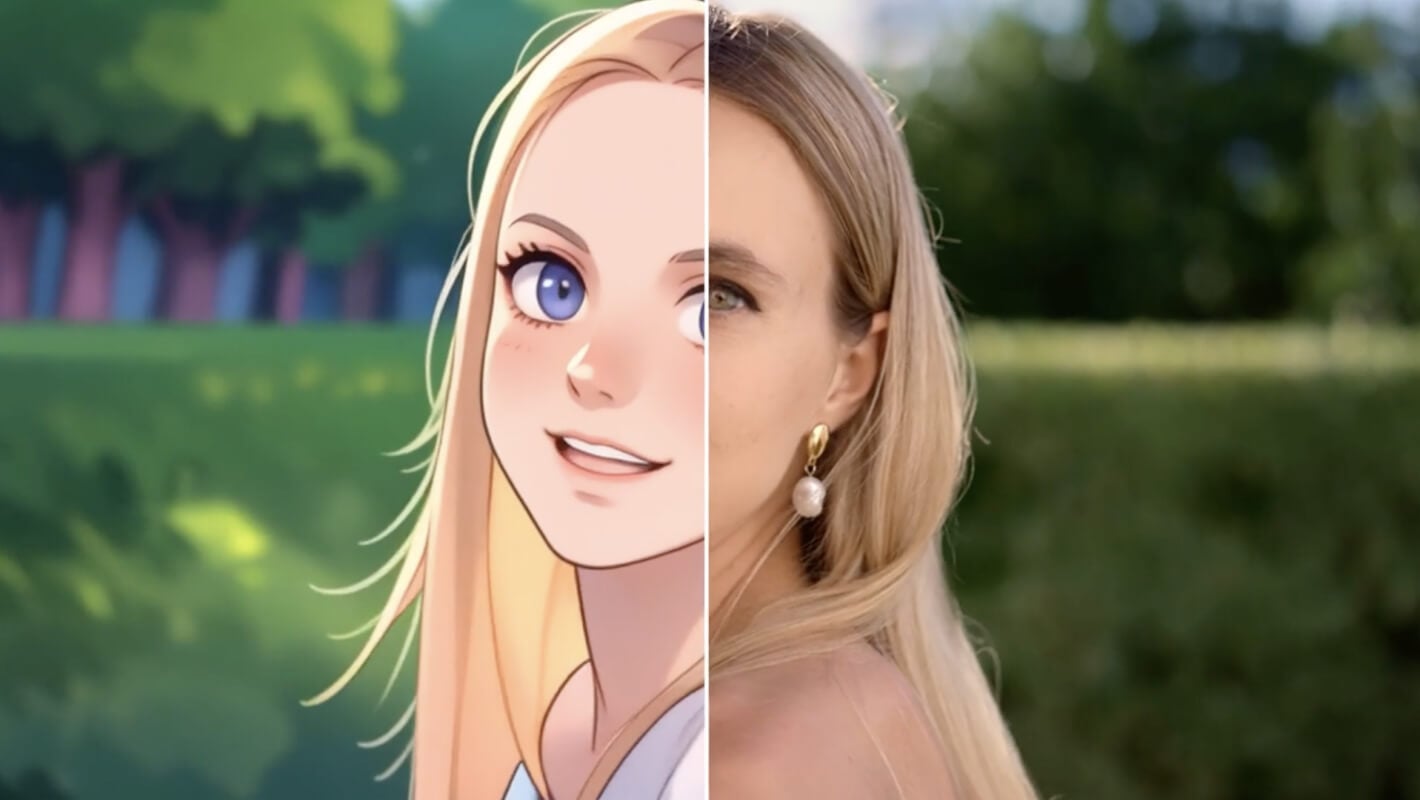
A portrait in flat cartoon colors
12/30View prompt
Use @Video 1 as the source adult woman’s portrait performance. Reinterpret the footage as flat-color cartoon animation with clean outlines, restrained shading, and a simple coherent palette. Follow the existing facial movement, head direction, framing, and background arrangement. Create a five-second interpretation without adding new gestures, extra subjects, camera changes, or written captions.
Introduction
Start Kimi K3 Video to Video with a meaningful source
A useful Kimi K3 Video to Video source already contains movement worth exploring. Choose the clip for its action and composition before deciding how its appearance should change.
Find the movement to keep
A dancer completing one turn or a bicycle passing a wall provides an understandable motion idea. Tell Kimi K3 Video to Video why that movement matters.
Choose a transformation with purpose
A clay-like visual treatment can make a simple gesture playful; a restrained painted look can make a landscape feel illustrative. Give Kimi K3 Video to Video a reason for the transformation instead of asking for a collection of unrelated effects over the same footage.
Use the reference model
This Kimi K3 Video to Video workflow starts with MiniMax H3 reference mode at 2K and five seconds. You can select five to fifteen seconds. The model generates a new interpretation from your materials, so its output should be reviewed independently from the uploaded source.
How to use
How to create with Kimi K3 Video to Video
- InputReference video 1STEP 1
Choose the source clip
Select MiniMax H3 reference mode for Kimi K3 Video to Video and upload footage containing the movement you want to reinterpret.
- ModelMiniMax H32K5sPrompt
 OutputSTEP 2
Assign reference roles
Give Kimi K3 Video to Video a clear transformation brief, identifying which optional images, videos, or audio guide appearance, motion, and atmosphere.
- First frameLast frame
 0.0s
0.0s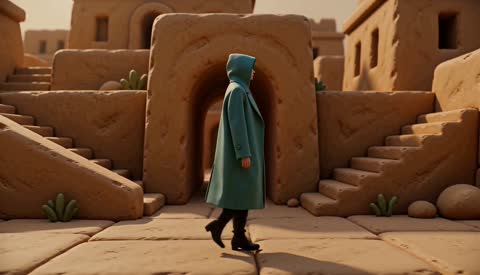 2.6s
2.6s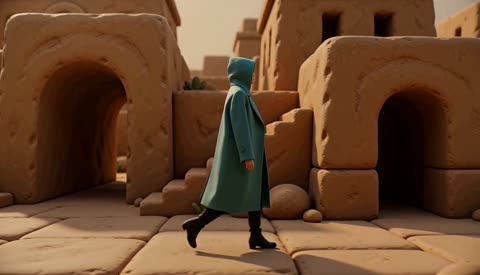 4.7sSTEP 3
Generate the interpretation
Start Kimi K3 Video to Video at five seconds and 2K, review the displayed credits, and generate a short interpretation of your sources.
- STEP 4
Inspect the whole clip
Watch Kimi K3 Video to Video movement, changing details, and sound together, then revise one weak aspect before choosing the version to download.
Features
Build a purposeful Kimi K3 Video to Video reference set
Every uploaded item should answer a question. Kimi K3 Video to Video instructions become clearer when each reference supplies a specific role rather than competing to define the whole result.
Identify the main motion source
Designate one uploaded video as the basis for the action and camera relationship. Tell Kimi K3 Video to Video which movement to follow and which source details are incidental. This is clearer than adding several clips and leaving their relative importance unexplained.
- Choose the source with the clearest version of your intended movement.
- Name that source explicitly in your Kimi K3 Video to Video instructions.
Separate appearance from movement
Use an image reference for a surface treatment, palette, outfit, or setting that the video does not show. Explain its role in Kimi K3 Video to Video.
Keep supporting material selective
The reference workspace accepts up to nine images, three videos, and three audio files. These are limits, not a checklist. Add material to Kimi K3 Video to Video only when it clarifies the result, and use assets you are authorized to provide for the task.

Describe the Kimi K3 Video to Video look in concrete terms
Name the visible qualities of your intended treatment. Kimi K3 Video to Video can be directed through material, edge character, palette, and lighting rather than a vague request for a different style.
Describe surfaces and edges
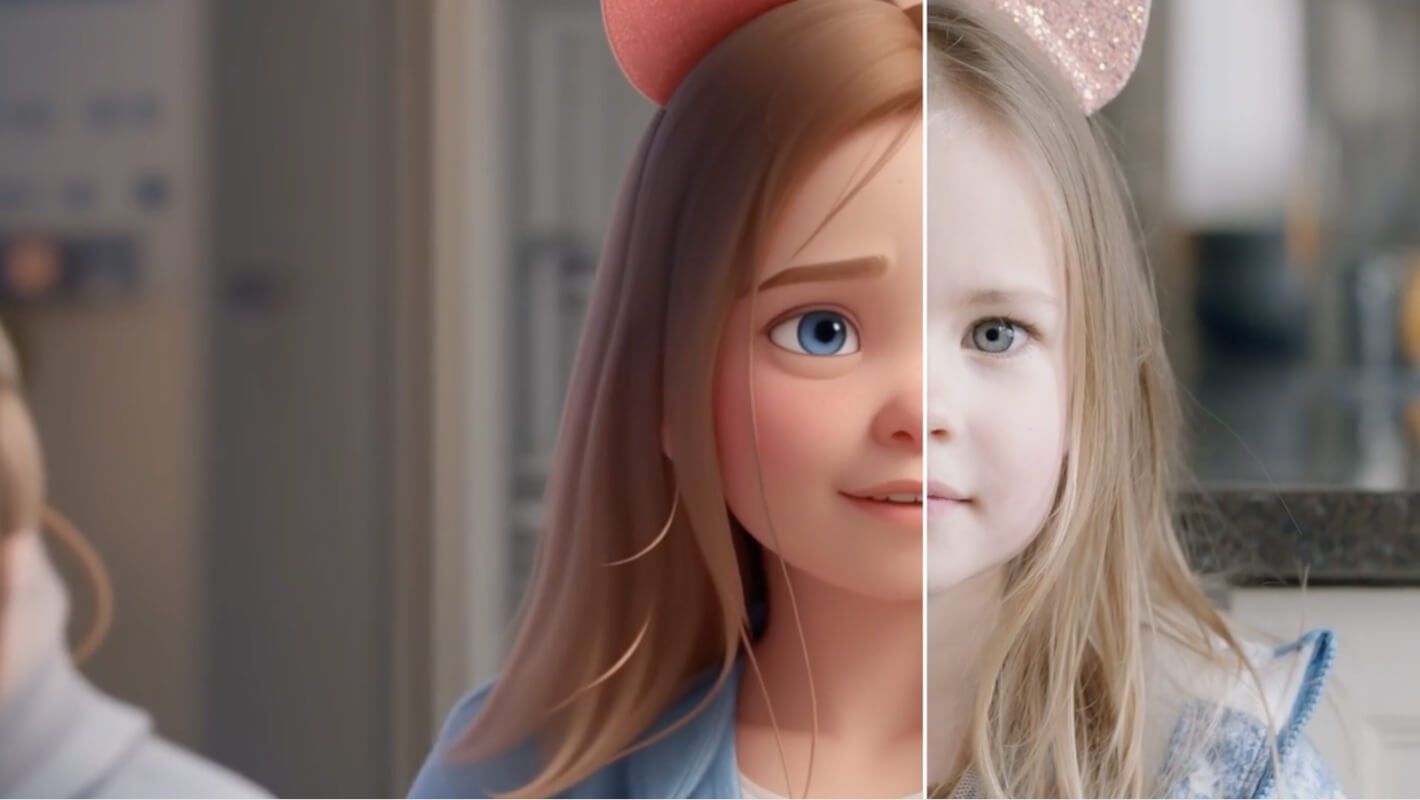
For a handmade look, ask for matte clay surfaces, rounded forms, and slight sculpted irregularities. For painted imagery, describe broad color shapes and quiet surface texture. Kimi K3 Video to Video needs a coherent visual vocabulary that fits the subject instead of several incompatible materials.
- Choose one dominant material treatment before adding decorative accents.
- Keep Kimi K3 Video to Video outlines readable against the intended background.
Give color a hierarchy
Limit the palette to a few related colors and one accent. A teal coat against a warm stone setting creates a useful distinction. Direct Kimi K3 Video to Video so the subject remains visible throughout movement, not merely in an attractive opening frame.
Match detail to the shot
A distant person needs a recognizable silhouette more than intricate stitching. A close object may need a readable surface finish. Adjust Kimi K3 Video to Video instructions to the camera distance so tiny details do not compete with the main action or turn into distracting texture.
Keep Kimi K3 Video to Video subjects grounded in their setting
A changed background should still support the movement. Give Kimi K3 Video to Video enough spatial direction to connect the subject, the floor, and the surrounding objects.
Describe the usable space
When moving a walking subject into a greenhouse, leave a clear path between the planting benches. Tell Kimi K3 Video to Video where the action takes place within that setting.
- Keep the subject’s route open from the beginning to the end.
- Review Kimi K3 Video to Video feet and contact shadows during movement.
Connect lighting across the scene
A subject lit from the left should not sit beside shadows suggesting strong light from the opposite side. Describe the main source for Kimi K3 Video to Video and inspect the result. Appearance and atmosphere need to change together when the setting changes significantly.
Consider what passes in front
Branches, doorframes, and foreground objects can obscure a moving subject. Keep these overlaps simple in your Kimi K3 Video to Video brief. Watch the moment of reappearance carefully, because clothing, limbs, or object shapes may change when they return from behind another element.
Direct Kimi K3 Video to Video pacing without overloading the clip
Transformation is more than a surface choice. Kimi K3 Video to Video also needs a clear pace and audio relationship that suit the short segment you intend to generate.
Select one readable motion segment
If the source contains several actions, identify the one that belongs in the output: the turn, the wave, or the crossing. Kimi K3 Video to Video is easier to review when you ask for a single short event rather than compressing an entire sequence.
Explain supporting motion references
An additional video can clarify a movement quality or camera idea. Tell Kimi K3 Video to Video what to borrow from it and what not to copy.
Use sound references with a role
An authorized audio reference can suggest the atmosphere or sound direction you want. Explain its role in Kimi K3 Video to Video rather than assuming the source soundtrack passes through unchanged.
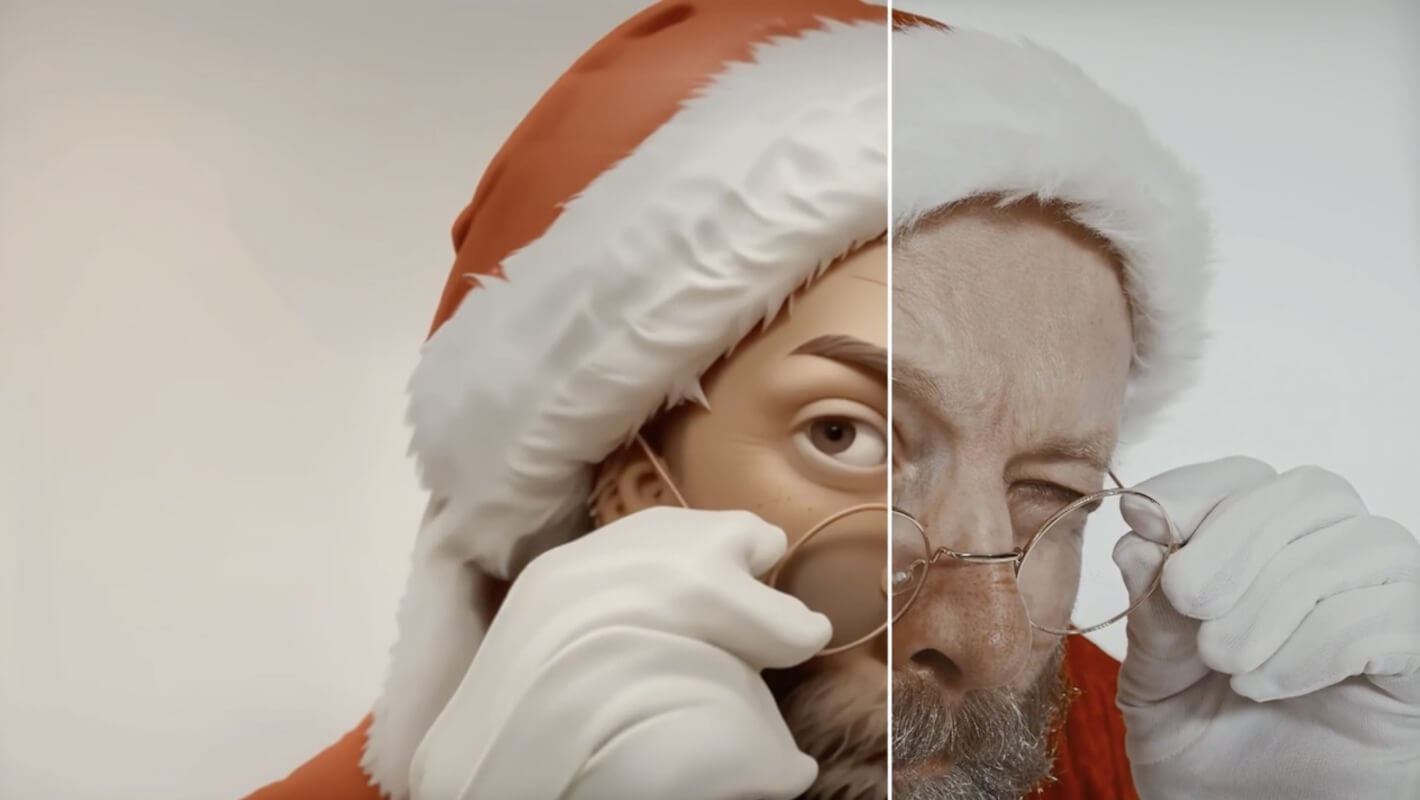
Review Kimi K3 Video to Video as a new creative result
Compare the interpretation with your intention, not just its first frame. Kimi K3 Video to Video review should cover motion, visual consistency, and the parts of the source you wanted to retain.
Check the action before the finish
Does the subject complete the turn, crossing, or gesture you selected? Watch Kimi K3 Video to Video output at normal speed before inspecting individual moments. A convincing material treatment should not distract from an action that has become confusing or physically implausible.
Look for changes over time
Inspect outlines, hands, accessories, and repeated background features across the clip. Kimi K3 Video to Video may reinterpret them as the action unfolds. For a series, compare those details between outputs too; matching prompts and reference files do not guarantee perfectly identical visual identities.
Revise the weakest instruction
Keep the successful action and adjust one problem: excessive texture, an obstructed route, or an overactive background. Before submitting another Kimi K3 Video to Video request, review its duration and displayed credits.
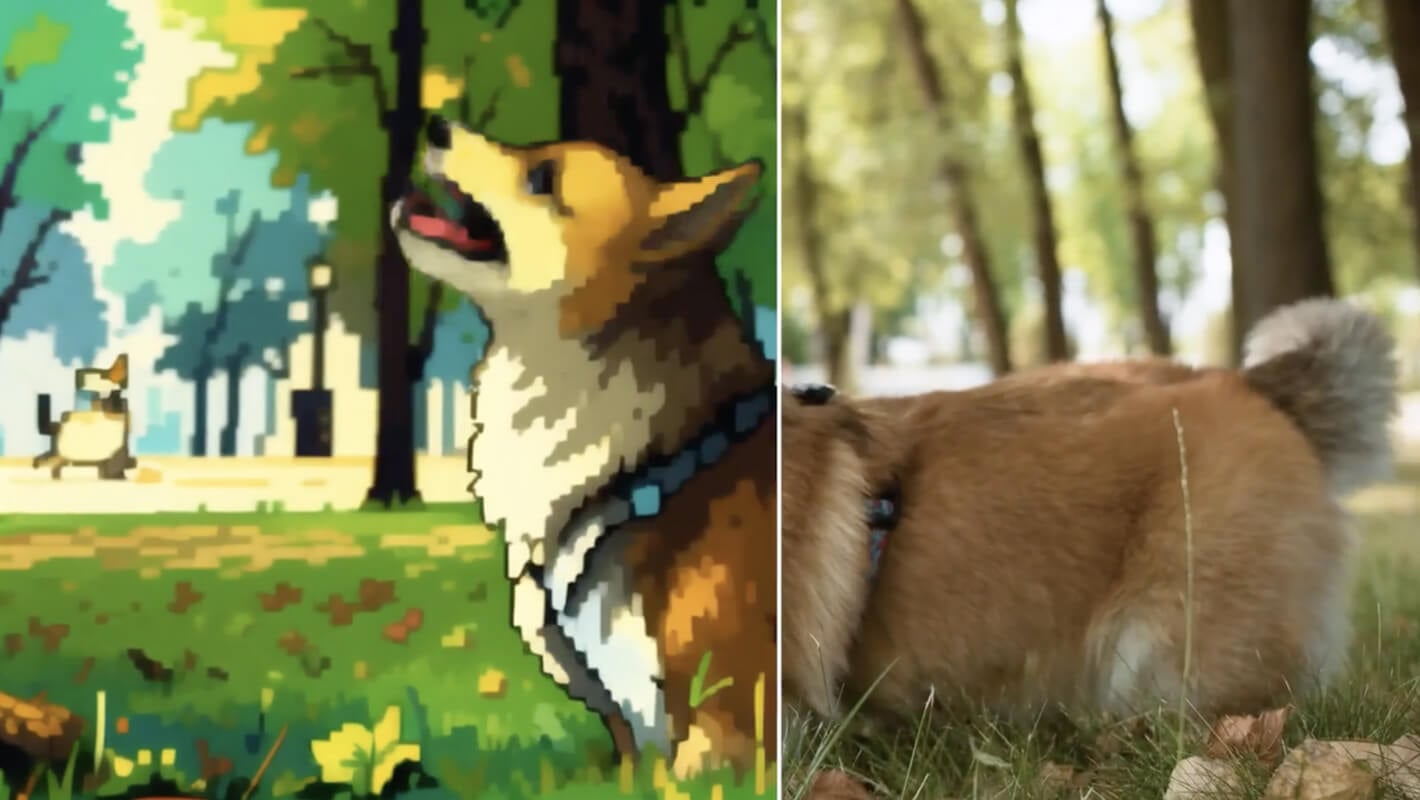
Example prompts
Clay-like interpretation of a walking shot
Use @Video 1 for the walking action and camera relationship. Reimagine the scene with matte clay-like surfaces, rounded shapes, a muted teal coat, and warm sandstone surroundings. Keep one subject moving along a clear path. Five-second interpretation, restrained background motion, soft footstep atmosphere. Do not introduce extra people, titles, or scene cuts.
A greenhouse version of the source scene
Use @Video 1 for the main subject and movement. Use @Image 1 only for the greenhouse setting, soft window light, and botanical palette. Place the subject on a clear aisle with consistent ground contact and gentle leaf movement. Generate one five-second interpretation with quiet greenhouse ambience. Keep the background secondary and avoid added captions.
User reviews
Kimi K3 video creator feedback.
Kimi K3 creator reviews

Illustrative workflow: plan an original game title sequence with simple shapes, readable words and timed visual beats. Inspect the animation before adding it to a larger game presentation.

Illustrative workflow: turn a short explanation into a diagram that reveals one idea at a time. Compare Sketch and Motion treatments, then keep the version that communicates the subject clearly.

Illustrative workflow: place an approved product picture beside short benefit text. Assemble a simple graphic product story and review the composition at the intended screen size.

Illustrative workflow: create a portrait opening with one headline, a small set of colors and a quiet final hold. Export the selected scene and add separate sound during editing when needed.

Illustrative workflow: revise one visual decision in a saved animation, such as the closing pause or label placement. Compare saved versions before exporting the selected result.

Illustrative workflow: build a silent graphic sequence to explain the structure of a presentation. These examples describe possible uses; they are not verified customer testimonials or promised outcomes.
Kimi K3 Pricing and Credit Plans
Cancel anytime
Lite
50% off0.025 / credit
Billed $ yearly179· Save $179.8
Video Models



Image Models



- Includes Kimi K3.1 and all premium models
- Up to 1 batch generation task
- Standard generation speed
- Standard generation success rate
- Standard customer support
- Commercial Use License
Standard
50% off0.017 / credit
Billed $ yearly299· Save $299.8
Video Models
Image Models
- Includes Kimi K3.1 and all premium models
- Up to 4 batch generation tasks
- Priority processing speed
- High generation success rate
- Priority customer support
- Commercial Use License
Pro
50% off0.014 / credit
Billed $ yearly599· Save $599.8
Video Models
Image Models
- Includes Kimi K3.1 and all premium models
- Up to 10 batch generation tasks
- Fastest generation speed
- High generation success rate
- Dedicated account manager
- Commercial Use License
Max
50% off0.012 / credit
Billed $ yearly1,199· Save $1,199.8
Video Models
Image Models
- Includes Kimi K3.1 and all premium models
- Up to 10 batch generation tasks
- Fastest generation speed
- High generation success rate
- Dedicated account manager
- Commercial Use License
Pay safely and securely with























FAQ
Frequently asked questions
What does Kimi K3 Video to Video change?
You can direct a different visual style, appearance, setting, or movement using the source and supporting references. The result is newly generated footage, not a lossless copy with a guaranteed reversible effect applied to it.
Which model does Kimi K3 Video to Video use here?
This page uses MiniMax H3 reference mode, starting at 2K and five seconds. The duration range is five to fifteen seconds. It is a different workflow from Turbo text generation or opening-and-ending-frame animation.
How many reference files can I upload?
Kimi K3 Video to Video accepts up to nine images, three videos, and three audio files in this reference workflow. Use fewer when they explain the task adequately. State the role of each file instead of relying on upload order alone.
Will it preserve every movement and facial feature?
No. Kimi K3 Video to Video can change timing, appearance, object details, or expressions. Review the complete result against the references. When exact source frames must remain intact, use a conventional editing workflow for that part of the project.
Can I combine several videos into a longer sequence?
Multiple Kimi K3 Video to Video references guide a generated clip; they are not timeline segments that automatically concatenate. Plan one output within the supported duration, then assemble selected clips separately when you need a longer sequence.
CTA
Explore a new direction with Kimi K3 Video to Video
Choose a useful source movement and give every supporting reference a clear role. Check your configuration and credits, then compare the new interpretation with the direction you intended.
Reimagine your source clip