 Kimi K3
Kimi K3 Resize Image Online with Exact Dimensions
Kimi K3 Resize Image processes pictures in your browser after sign-in. Inputs and results are uploaded to your account for task review. No subscription, credit deduction, or paid cloud model is required. Keep your source and inspect the result before using it elsewhere.
Resize Image workspace
Drop or paste a JPG, PNG or WebP · up to 30 MB
Up to 8192 pixels per side and 32 megapixels
Free · Sign in to process · Inputs and results are saved to your account.
Introduction
What Is Kimi K3 Resize Image?
Kimi K3 Resize Image changes a picture's pixel width and height, such as turning a 2000x1000 photo into 1000x500. Choose a large photo for a smaller website space; this changes its dimensions, unlike compression, which targets file size.
Kimi K3 Resize Image: Prepare the right amount of image
A picture can have the correct subject but the wrong dimensions for a layout. Kimi K3 Resize Image helps you make a smaller illustration, match a required width, or prepare an image for a predefined frame without rebuilding the surrounding design.
Use Kimi K3 Resize Image when pixel dimensions are the main issue. Resizing can also affect file size, but it does not guarantee that a download will meet a particular byte limit.
- Set dimensions for a specific layout or upload requirement.
- Keep an original copy before making smaller derivatives.
Kimi K3 Resize Image: Keep the workflow on your device
Kimi K3 Resize Image processes pictures in your browser after sign-in. Inputs and results are uploaded to your account for task review. No subscription, credit deduction, or paid cloud model is required.
Local processing still uses your device resources. Kimi K3 Resize Image may take longer with large sources, multiple open applications, or a slower browser environment.
- Work from a file selected on your device.
- Save the result after signing in, without a payment flow.

How to use
How to Use Kimi K3 Resize Image
- Beforebag.jpg
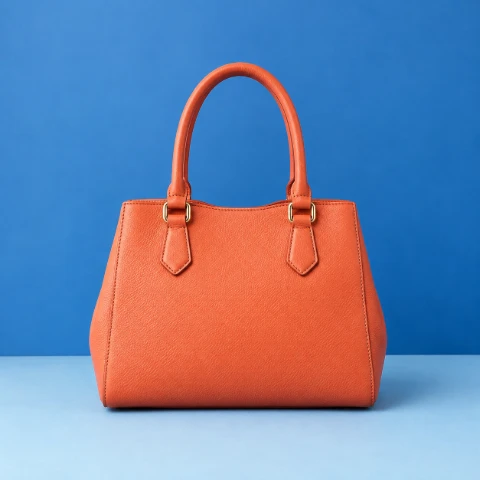 1254 × 1254 px1.63 MBSTEP 1
Choose a source image
Open Kimi K3 Resize Image and select a supported static picture within the file and pixel limits. Check its original dimensions before choosing a destination size.
- Width627 pxHeight627 px1:1 · 50%STEP 2
Enter the target dimensions
Set width, height, percentage, or a preset in Kimi K3 Resize Image. Keep the ratio lock enabled when you want the source proportions to remain linked.
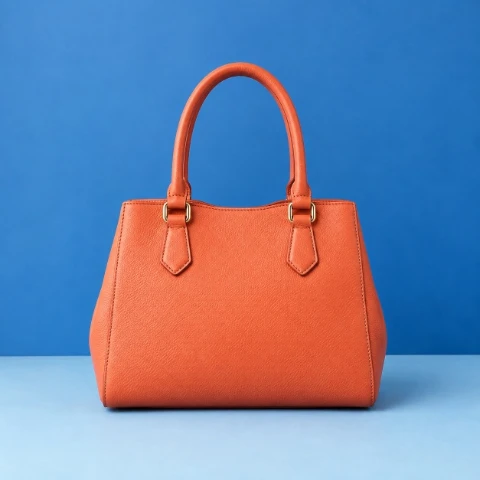 1254 × 1254627 × 627STEP 3
Select the fitting method
Choose contain, cover, or stretch in Kimi K3 Resize Image. Inspect the framing, and remember that physical units convert at 96 pixels per inch without changing DPI metadata.
- AfterBefore627 × 627 pxDownloadSTEP 4
Review and download
Check the final dimensions and visible details in Kimi K3 Resize Image, then download the result. Keep your original file available for future sizes and revisions.
Features
Kimi K3 Resize Image Features: Precise Dimension Controls
Kimi K3 Resize Image supports exact values and proportional changes, with a clear distinction between pixel counts and the physical units used to express those counts.
Use width, height, and percentage
Enter a width and height when you know the required dimensions. With the ratio lock enabled, Kimi K3 Resize Image keeps the proportions linked so that changing one side updates the other. Percentage sizing is useful when you simply need a smaller or larger version.
Unlocking dimensions gives Kimi K3 Resize Image more freedom, but it also requires a deliberate fit choice. A source photograph and a destination rectangle may have different shapes. Decide whether keeping everything, filling the frame, or changing proportions best matches the purpose of the result.
- Use the ratio lock to preserve the original proportions.
- Choose percentage scaling for a proportional size change.
Understand inches, centimeters, and millimeters
Kimi K3 Resize Image accepts px, in, cm, and mm, converting physical-unit entries using 96 pixels per inch. For example, an entry of two inches corresponds to 192 pixels. This is a convenient way to enter dimensions, not a promise about physical print size.
The unit control in Kimi K3 Resize Image does not write or adjust print DPI metadata. A printer or layout application can interpret the downloaded pixels at another density. Check those separate settings when preparing printed material, especially when a supplier specifies a required pixel count.
- Treat physical units as a 96-pixels-per-inch conversion.
- Check print settings separately from browser image dimensions.

Kimi K3 Resize Image Features: Fit Choices and Presets
Kimi K3 Resize Image offers contain, cover, and stretch because matching a rectangle involves more than entering two numbers. Each mode makes a different visual tradeoff.
Choose how the picture fits
Contain in Kimi K3 Resize Image preserves proportions while fitting the full picture within the selected bounds, leaving unused space when the shapes differ. Cover preserves proportions while filling the frame, so some source content can fall outside the visible result.
Stretch in Kimi K3 Resize Image fills the requested dimensions by allowing proportions to change. It can distort faces, circles, lettering, and product shapes. Choose it intentionally for a specific design need rather than using it as a shortcut around a mismatched aspect ratio.
- Contain favors the full image; cover favors a filled frame.
- Stretch can alter the apparent shape of the subject.
Start from a useful preset
Common social-media ratios and dimensions in Kimi K3 Resize Image provide convenient starting points for familiar layouts. A square, portrait, or wide preset can reduce repeated typing when you are preparing several kinds of visual assets for a campaign or content library.
A preset in Kimi K3 Resize Image is a sizing aid, not a guarantee that a platform will publish the image without further cropping.
- Use presets to establish a frame before fine adjustments.
- Check important content near every edge of the preview.
Kimi K3 Resize Image Features: Honest Output Expectations
Kimi K3 Resize Image makes dimension changes locally, but source quality, supported formats, and browser resources still determine what is practical for a particular picture.
Know what scaling can and cannot do
Enlarging a small picture with Kimi K3 Resize Image creates a larger pixel grid without recovering information that was never present. Edges may look softer and existing compression artifacts may become easier to see. This tool does not perform AI upscaling or restore missing facial detail.
Reducing an image with Kimi K3 Resize Image can make fine text or thin lines harder to distinguish. Keep a higher-resolution source for later revisions.
- Inspect small text after a substantial reduction in dimensions.
- Do not expect enlargement to create genuine missing detail.
Stay inside the supported input limits
Kimi K3 Resize Image accepts static JPG, PNG, and WebP inputs up to 30 MB each. The source must satisfy both pixel limits: its longest side must be no more than 8192 pixels, and the complete image must contain no more than 32 megapixels.
Animated images, HEIC, TIFF, SVG, and AVIF are not supported by Kimi K3 Resize Image. They are not sent to a server for conversion.
- Check file bytes as well as both source pixel limits.
- Use a supported static image before starting the resize.
User reviews
Kimi K3 video creator feedback.
Kimi K3 creator reviews

Illustrative workflow: plan an original game title sequence with simple shapes, readable words and timed visual beats. Inspect the animation before adding it to a larger game presentation.

Illustrative workflow: turn a short explanation into a diagram that reveals one idea at a time. Compare Sketch and Motion treatments, then keep the version that communicates the subject clearly.

Illustrative workflow: place an approved product picture beside short benefit text. Assemble a simple graphic product story and review the composition at the intended screen size.

Illustrative workflow: create a portrait opening with one headline, a small set of colors and a quiet final hold. Export the selected scene and add separate sound during editing when needed.

Illustrative workflow: revise one visual decision in a saved animation, such as the closing pause or label placement. Compare saved versions before exporting the selected result.

Illustrative workflow: build a silent graphic sequence to explain the structure of a presentation. These examples describe possible uses; they are not verified customer testimonials or promised outcomes.
Kimi K3 Resize Image is free after sign-in, with no subscription or credits required. Inputs and results are uploaded and saved to your account for task review.
Kimi K3 Pricing and Credit Plans
Cancel anytime
Lite
50% off0.025 / credit
Billed $ yearly179· Save $179.8
Video Models



Image Models



- Includes Kimi K3.1 and all premium models
- Up to 1 batch generation task
- Standard generation speed
- Standard generation success rate
- Standard customer support
- Commercial Use License
Standard
50% off0.017 / credit
Billed $ yearly299· Save $299.8
Video Models
Image Models
- Includes Kimi K3.1 and all premium models
- Up to 4 batch generation tasks
- Priority processing speed
- High generation success rate
- Priority customer support
- Commercial Use License
Pro
50% off0.014 / credit
Billed $ yearly599· Save $599.8
Video Models
Image Models
- Includes Kimi K3.1 and all premium models
- Up to 10 batch generation tasks
- Fastest generation speed
- High generation success rate
- Dedicated account manager
- Commercial Use License
Max
50% off0.012 / credit
Billed $ yearly1,199· Save $1,199.8
Video Models
Image Models
- Includes Kimi K3.1 and all premium models
- Up to 10 batch generation tasks
- Fastest generation speed
- High generation success rate
- Dedicated account manager
- Commercial Use License
Pay safely and securely with























FAQ
Frequently asked questions
Is Kimi K3 Resize Image free after signing in?
Yes. Kimi K3 Resize Image requires sign-in, but no subscription or credits. The original and finished image are saved to your account and included in task history. Paid plans elsewhere on the site are optional for this tool.
Does Kimi K3 Resize Image send photos to a server?
Kimi K3 Resize Image processes pictures in your browser after sign-in. Inputs and results are uploaded to your account for task review. No subscription, credit deduction, or paid cloud model is required. Keep your source and inspect the result before using it elsewhere.
Ca Kimi K3 Resize Image change print DPI metadata?
No. Kimi K3 Resize Image converts inches, centimeters, and millimeters using 96 pixels per inch. These controls calculate pixel dimensions; they do not set print DPI metadata or guarantee a particular printed size.
Does Kimi K3 Resize Image preserve the aspect ratio?
Kimi K3 Resize Image provides a ratio lock for proportional dimensions. Contain and cover also preserve proportions when fitting a frame, while stretch can change the shape of the picture to fill the selected size.
Which Kimi K3 Resize Image fit mode avoids cutting off content?
Contain keeps the full picture within the selected bounds, although the frame may have unused space. Cover fills the frame and can crop source content. Always inspect the preview before downloading.
Ca Kimi K3 Resize Image make a tiny photo truly sharper?
No. Ordinary enlargement increases the pixel dimensions but does not reconstruct missing detail. A larger file can still look soft, and existing blur or compression artifacts may become more visible.
Are Kimi K3 Resize Image social presets guaranteed platform requirements?
No. They are convenient starting dimensions and ratios, not a guarantee of acceptance or unchanged framing. Check the destination requirements and inspect the subject near the edges before publishing the image.
Which source files does Kimi K3 Resize Image accept?
Use static JPG, PNG, or WebP up to 30 MB, with no side above 8192 pixels and no more than 32 megapixels total. Animated images and HEIC, TIFF, SVG, and AVIF are unsupported.
CTA
Set Your Dimensions with Kimi K3 Resize Image
Choose the size and fitting method that match your next layout. Kimi K3 Resize Image lets you check the tradeoffs before downloading a locally processed result.
Choose an Image