 Kimi K3
Kimi K3 Seedream 4.5 for Detailed Scenes and Image Revisions
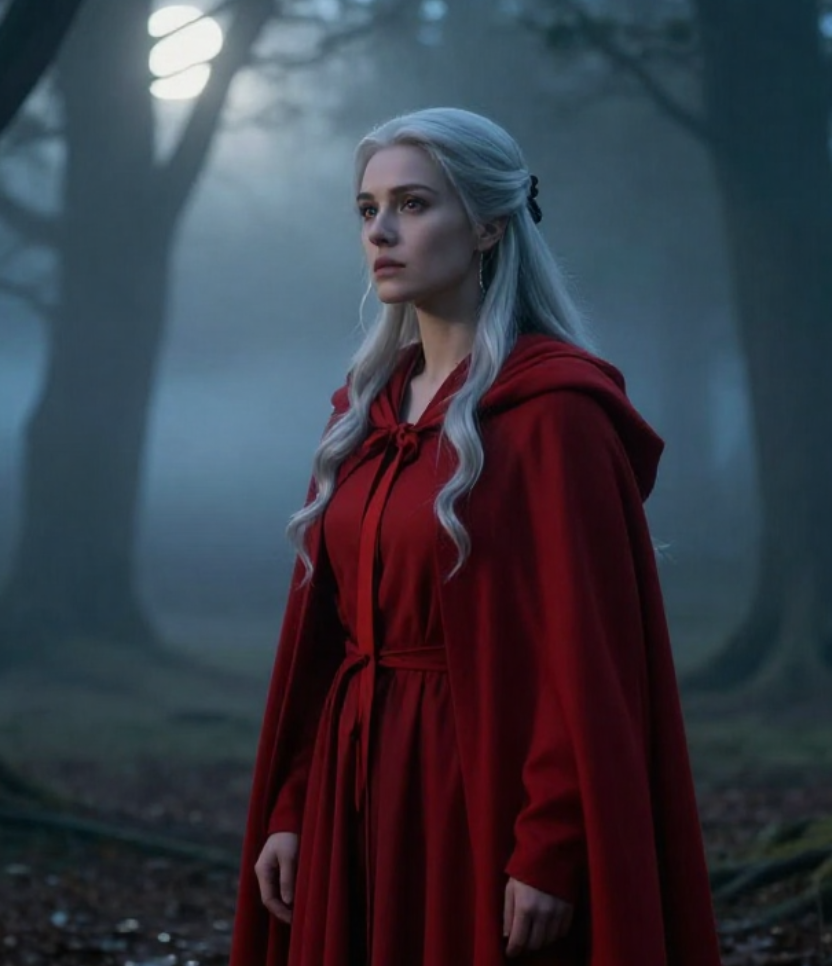
Build a scene with room to explore its details. Kimi K3 Seedream 4.5 on Kimi K3 supports text generation and image editing with 2K or 4K output. Use Kimi K3 Seedream 4.5 to develop an environment, revise a supplied picture, or establish a visual direction that can hold together across a wider composition.
Image workspace
Sample Image
 13 / 40
Introduction
What Is Kimi K3 Seedream 4.5?
Kimi K3 Seedream 4.5 is a ByteDance image model that brings image generation and image editing together within a unified architecture.
One model with two image workflows
Kimi K3 Seedream 4.5 has separate fal routes for creating an image from text and editing imagery supplied with a prompt. That shared model foundation does not make the two tasks identical: a new composition begins with a description, while an edit begins with visible material. Select the Kimi K3 Seedream 4.5 mode that matches the starting point rather than expecting a written brief to stand in for a missing reference.
A clear role within Kimi K3
H3 Max makes Kimi K3 Seedream 4.5 available for both tasks at 2K or 4K. Use the workspace controls to choose the output setting and the prompt to describe what should appear. Kimi K3 Seedream 4.5 can help develop a visual idea, but the finished image still needs inspection for detail, composition, and relevance to its destination. Higher resolution is a size choice, not proof of accuracy.
How to use
How to Build an Image with Kimi K3 Seedream 4.5
- PromptSTEP 1
Pick creation or editing
Select Kimi K3 Seedream 4.5 on Kimi K3. Begin with a written brief for a new composition, or choose editing and upload the image that should guide your revision.
- ModelSeedream 4.52K1:1PromptSTEP 2
Describe the scene and its priorities
Tell Kimi K3 Seedream 4.5 where the main subject belongs, how the scene is lit, and what should remain clear. For an edit, specify the intended change.
- Detail
 STEP 3
Choose output size and review the request
Set 2K or 4K in the workspace. Check the mode, inputs, and displayed credits before submitting, especially after changing the configuration.
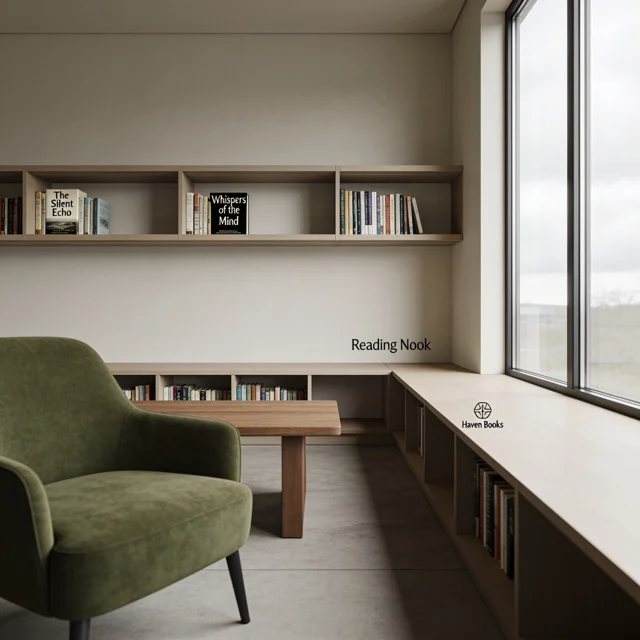
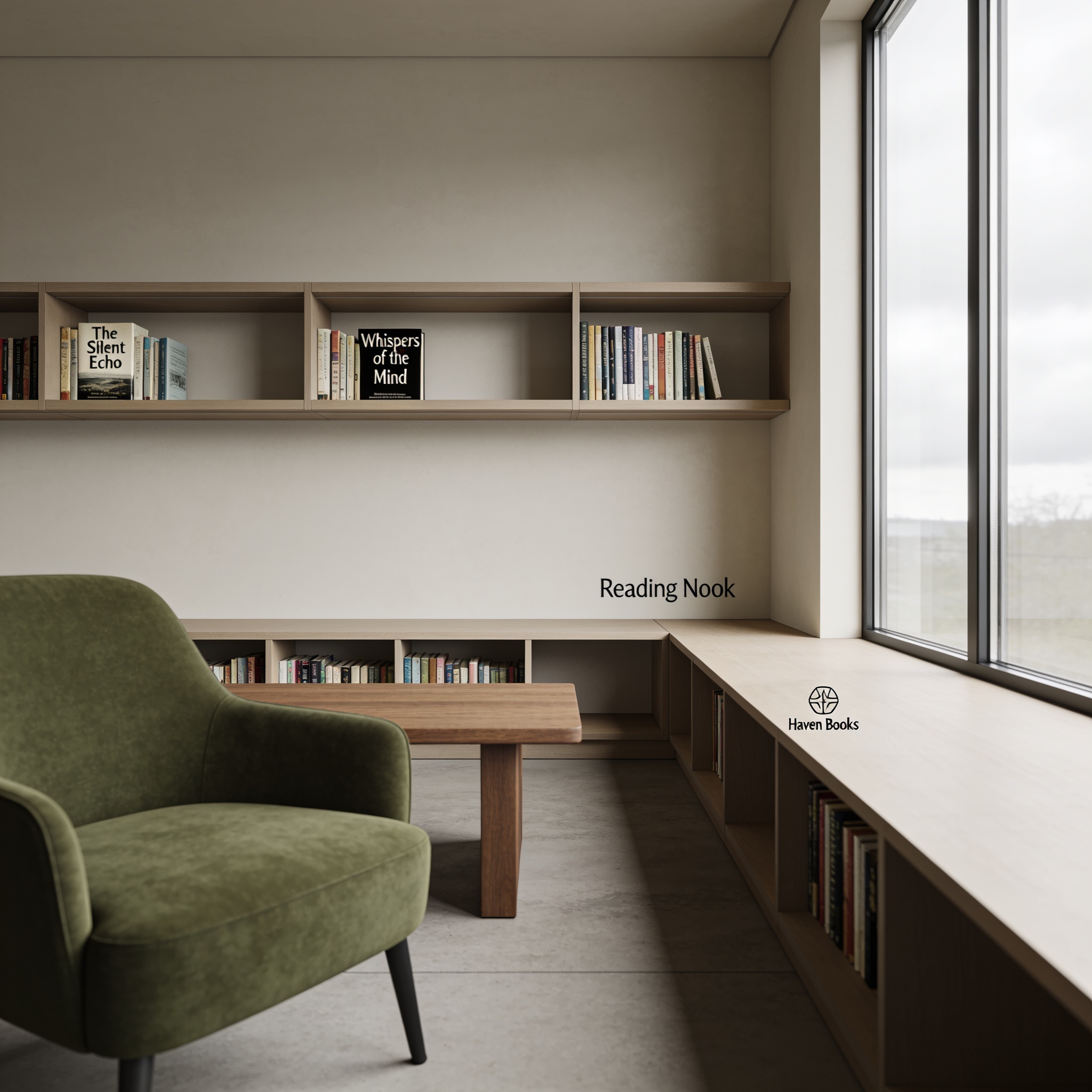
- Create an imagined reading room viewed from a seated eye-level position. Place one moss-green armchair in the left foreground, a low oak table in the middle distance, and built-in shelves along the back wall. A large window on the right provides soft overcast daylight. Keep the perspective coherent and the room comfortably spacious. Restrained textures, no people, readable book titles, logos, or signage.DownloadSTEP 4
Judge the result in its intended layout
View Kimi K3 Seedream 4.5 output both closely and at display size. Inspect fine details, test the planned crop, and make the next revision address a specific remaining issue.
Features
Compose a Layered Scene with Kimi K3 Seedream 4.5
Give Kimi K3 Seedream 4.5 a scene with an understandable foreground, middle distance, and background rather than an undifferentiated list of objects.
Use depth to organize attention
For an imagined reading room, place a chair near the viewer, shelves farther back, and a window beyond them. Tell Kimi K3 Seedream 4.5 which plane contains the focal point and which should remain quiet. Give Kimi K3 Seedream 4.5 a camera position as well as a subject. Those choices make it possible to judge whether the generated space conveys the scale and atmosphere you actually intended.
Keep perspective and lighting compatible
Describe a coherent viewpoint and a main light source. An elevated view across a table implies different visible surfaces from an eye-level view across a room. Inspect Kimi K3 Seedream 4.5 output for straight edges, repeated structures, and the way shadows connect objects to their surroundings. When something feels wrong, revise the camera or lighting instruction rather than adding more atmospheric language that leaves the spatial problem unresolved.

Revise a Supplied Picture with Kimi K3 Seedream 4.5
Kimi K3 Seedream 4.5 editing starts from your image, allowing the brief to concentrate on a change instead of rebuilding every visible detail.
Choose the source for the task
An image with a clear subject and readable edges provides a useful starting point for an edit. Ask Kimi K3 Seedream 4.5 to change a setting, adjust a visible material, or reinterpret a particular part of the picture. Tell Kimi K3 Seedream 4.5 what should remain recognizable. A source does not eliminate uncertainty, so retain the original for comparison and avoid treating a revised product image as an exact record.
Choose correction or reinterpretation with Kimi K3 Seedream 4.5
Changing a wall color is a narrower task than transforming the room into an illustrated scene. Make that distinction explicit when using Kimi K3 Seedream 4.5.

Work with 2K or 4K Kimi K3 Seedream 4.5 Output
The Kimi K3 Seedream 4.5 workspace offers two resolution tiers for planning detailed imagery around its eventual placement and review requirements.
Match the setting to the destination
Choose the output size in the workspace before submitting the image. Kimi K3 Seedream 4.5 can be used at 2K for one placement and 4K for another, but the choice should follow the intended use. When reviewing Kimi K3 Seedream 4.5, inspect the actual dimensions and the crop you need. A wide composition with essential details near the edges may be unsuitable for a narrow placement regardless of resolution.
Review Kimi K3 Seedream 4.5 detail within the whole composition
Zooming into an image helps reveal problems in repeated patterns, small objects, and fine boundaries. Step back afterward and judge whether the overall scene still reads clearly. With Kimi K3 Seedream 4.5, a detailed texture should support the composition rather than become its only attraction.
Carry a Visual Direction Through Kimi K3 Seedream 4.5
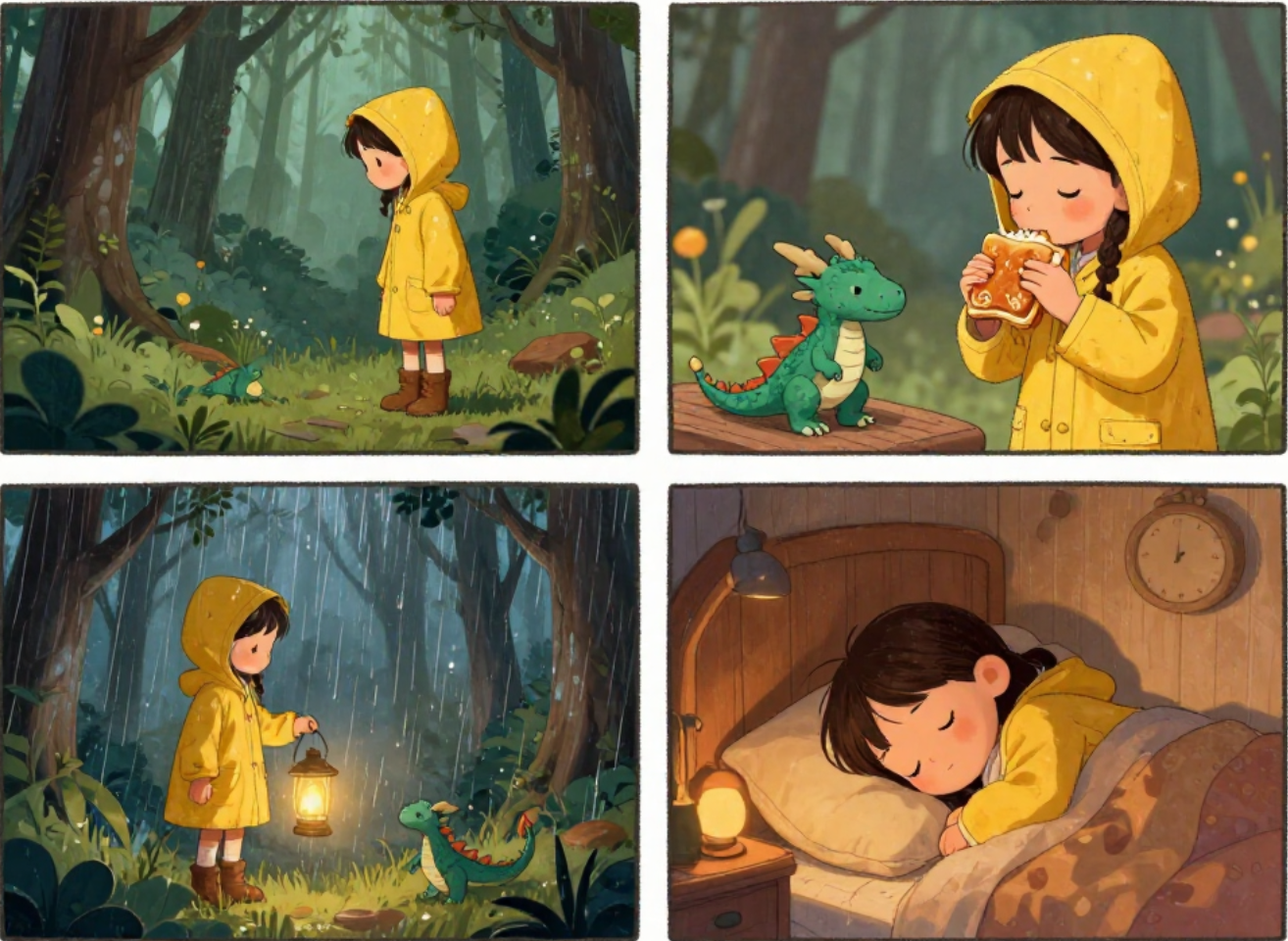
Use Kimi K3 Seedream 4.5 with a written set of visual decisions when several related images need to feel intentionally connected.
Define the decisions worth repeating
Write down a limited palette, the apparent material, the camera distance, and the lighting direction. Reuse those instructions in Kimi K3 Seedream 4.5 briefs while changing the subject or arrangement for a particular image. Kimi K3 Seedream 4.5 does not turn repeated wording into a guarantee of identical results, so compare the images as a group.
Vary the scene without losing its purpose
A set can contain a wide establishing image, a closer detail, and a simpler supporting composition. Ask Kimi K3 Seedream 4.5 for those distinct roles rather than three near duplicates.
Leave Useful Design Space with Kimi K3 Seedream 4.5
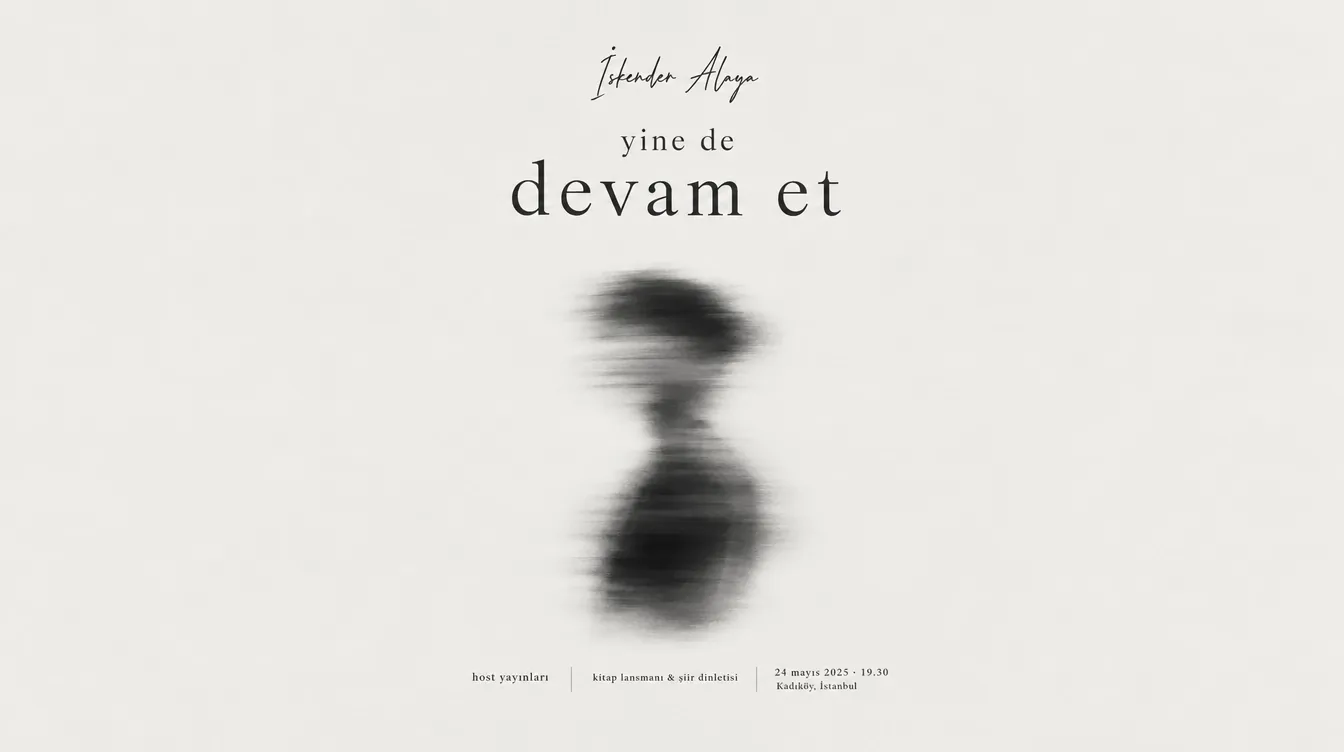
Kimi K3 Seedream 4.5 images can be planned as components of a larger layout, with visual emphasis and open areas defined in advance.
Plan for text without crowding the picture
An editorial header or cover concept may need calm space for a title added later. Ask Kimi K3 Seedream 4.5 to keep that area uncluttered and place the main subject elsewhere. When requesting visible lettering from Kimi K3 Seedream 4.5, keep the phrase short and check each character. Do not let an attractive image force important information into a busy corner where it becomes difficult to read.
Separate concept approval from final finishing
Use Kimi K3 Seedream 4.5 to establish the scene, balance, and visual mood, then inspect what remains before delivery. Essential copy, exact brand marks, and precise layout adjustments may need separate finishing. The goal is not to preserve every generated detail, but to retain the parts that support the final communication.

Example prompts
A reading room with a clear focal point
Create an imagined reading room viewed from a seated eye-level position. Place one moss-green armchair in the left foreground, a low oak table in the middle distance, and built-in shelves along the back wall. A large window on the right provides soft overcast daylight. Keep the perspective coherent and the room comfortably spacious. Restrained textures, no people, readable book titles, logos, or signage.
A seasonal setting around an existing bicycle
Edit the uploaded bicycle image by changing the surrounding setting to a quiet courtyard in early autumn. Keep the bicycle recognizable, including the frame shape, wheel count, handlebars, saddle, and visible components. Retain its original orientation and keep both wheels grounded. Add only a few scattered leaves away from the main subject. Do not add riders, labels, extra wheels, or dramatic lighting effects.
A wide editorial image with room for a heading
Create a wide editorial illustration of a small invented hillside neighborhood using layered paper shapes. Put the buildings mainly in the right half and leave a calm pale sky area on the left for a heading to be added later. Use muted terracotta, dusty blue, and cream, with simple consistent shadows. No existing landmarks, lettering, logos, border, or crowded foreground.
User reviews
Kimi K3 video creator feedback.
Kimi K3 creator reviews

Illustrative workflow: plan an original game title sequence with simple shapes, readable words and timed visual beats. Inspect the animation before adding it to a larger game presentation.

Illustrative workflow: turn a short explanation into a diagram that reveals one idea at a time. Compare Sketch and Motion treatments, then keep the version that communicates the subject clearly.

Illustrative workflow: place an approved product picture beside short benefit text. Assemble a simple graphic product story and review the composition at the intended screen size.

Illustrative workflow: create a portrait opening with one headline, a small set of colors and a quiet final hold. Export the selected scene and add separate sound during editing when needed.

Illustrative workflow: revise one visual decision in a saved animation, such as the closing pause or label placement. Compare saved versions before exporting the selected result.

Illustrative workflow: build a silent graphic sequence to explain the structure of a presentation. These examples describe possible uses; they are not verified customer testimonials or promised outcomes.
Kimi K3 Pricing and Credit Plans
Cancel anytime
Lite
50% off0.025 / credit
Billed $ yearly179· Save $179.8
Video Models



Image Models



- Includes Kimi K3.1 and all premium models
- Up to 1 batch generation task
- Standard generation speed
- Standard generation success rate
- Standard customer support
- Commercial Use License
Standard
50% off0.017 / credit
Billed $ yearly299· Save $299.8
Video Models
Image Models
- Includes Kimi K3.1 and all premium models
- Up to 4 batch generation tasks
- Priority processing speed
- High generation success rate
- Priority customer support
- Commercial Use License
Pro
50% off0.014 / credit
Billed $ yearly599· Save $599.8
Video Models
Image Models
- Includes Kimi K3.1 and all premium models
- Up to 10 batch generation tasks
- Fastest generation speed
- High generation success rate
- Dedicated account manager
- Commercial Use License
Max
50% off0.012 / credit
Billed $ yearly1,199· Save $1,199.8
Video Models
Image Models
- Includes Kimi K3.1 and all premium models
- Up to 10 batch generation tasks
- Fastest generation speed
- High generation success rate
- Dedicated account manager
- Commercial Use License
Pay safely and securely with























FAQ
Frequently asked questions
Ca Kimi K3 Seedream 4.5 create an image from text alone?
Yes. Choose text generation and describe the scene, subject, viewpoint, and lighting. No source image is required for that route. Keep the brief focused on the result you need to evaluate.
Can I edit my own picture with Kimi K3 Seedream 4.5?
Yes. Use editing mode and upload the relevant imagery. Explain what should change and what should remain recognizable. Compare the returned image with the source, especially around small details and object boundaries.
What resolution options does Kimi K3 Seedream 4.5 have on Kimi K3?
The workspace supports 2K and 4K for text generation and editing. Select the setting before submission and inspect the actual returned dimensions when preparing a crop or placing the image.
Does choosing 4K make Kimi K3 Seedream 4.5 output automatically accurate?
No. Resolution describes image size, not factual correctness or exact preservation. You still need to inspect lettering, repeated objects, perspective, and details that must match a real subject or supplied reference.
How can I use Kimi K3 Seedream 4.5 for related images?
Repeat a small set of visual decisions across your briefs, such as palette, medium, light direction, and camera distance. Compare the results together and revise inconsistencies rather than expecting automatic continuity.
Should I add all my final text through Kimi K3 Seedream 4.5?
Not necessarily. You can request short visible phrases, but inspect the spelling and arrangement. Reserve clean space and add critical final text separately when exact typography is important to the finished design.
Where can I check the cost of a Kimi K3 Seedream 4.5 request?
The workspace displays credits for the selected request. Review them after choosing the mode and output settings, and check again before submitting a changed configuration or another revision.
CTA
Develop Your Next Scene with Kimi K3 Seedream 4.5
Choose text generation or editing, define the composition, and review the selected size and credits. Give Kimi K3 Seedream 4.5 a visual task with a clear destination.
Open Image Workspace