 Kimi K3
Kimi K3 Seedream 5.0 Lite for Ideas You Can Develop
Give a visual idea somewhere to begin. Kimi K3 Seedream 5.0 Lite on Kimi K3 turns a written brief into an image or takes an existing image in a new direction. Use Kimi K3 Seedream 5.0 Lite to explore composition, revise a setting, and work toward a result that fits its intended placement.
Image workspace
Sample Image
 12 / 40
Introduction
What Is Kimi K3 Seedream 5.0 Lite?
Kimi K3 Seedream 5.0 Lite is a ByteDance image model with separate text generation and image editing routes available through fal.
Kimi K3 Seedream 5.0 Lite: A Lite variant for image creation
Kimi K3 Seedream 5.0 Lite accepts a written description when you need a new visual and image inputs when your starting point already exists. The name identifies a particular model variant, not a separate design application. Kimi K3 Seedream 5.0 Lite can therefore serve both an open brief and a directed revision, with the chosen mode determining whether an uploaded image participates in the request.
A practical starting point on Kimi K3
On Kimi K3, Kimi K3 Seedream 5.0 Lite supports text generation and editing at 2K or 3K. Start by deciding what must remain recognizable and what you are willing to explore. Kimi K3 Seedream 5.0 Lite provides another way to develop a visual direction, while you retain responsibility for checking the composition, written details, and suitability of the result before putting it to use.

How to use
How to Create with Kimi K3 Seedream 5.0 Lite
- PromptSTEP 1
Choose the starting material
Select Kimi K3 Seedream 5.0 Lite in Kimi K3. Use text generation for a new image, or switch to editing and upload the picture you want to revise.
- ModelSeedream 5 Lite2K1:1PromptSTEP 2
Write the visible outcome
Tell Kimi K3 Seedream 5.0 Lite what matters most: the subject, arrangement, lighting, and requested change. In an edit, explicitly name the details that should remain recognizable.
- Detail
 STEP 3
Set size and check credits
Choose 2K or 3K in the workspace. Recheck the selected mode, uploaded material, and displayed credits before you submit the request.
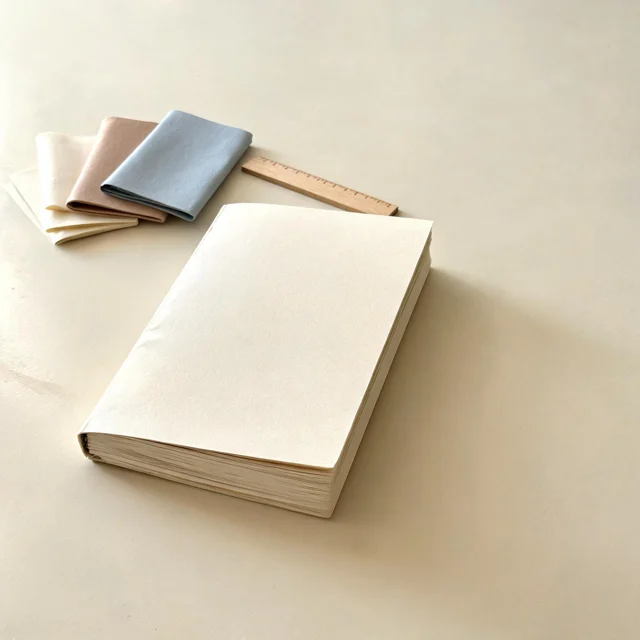
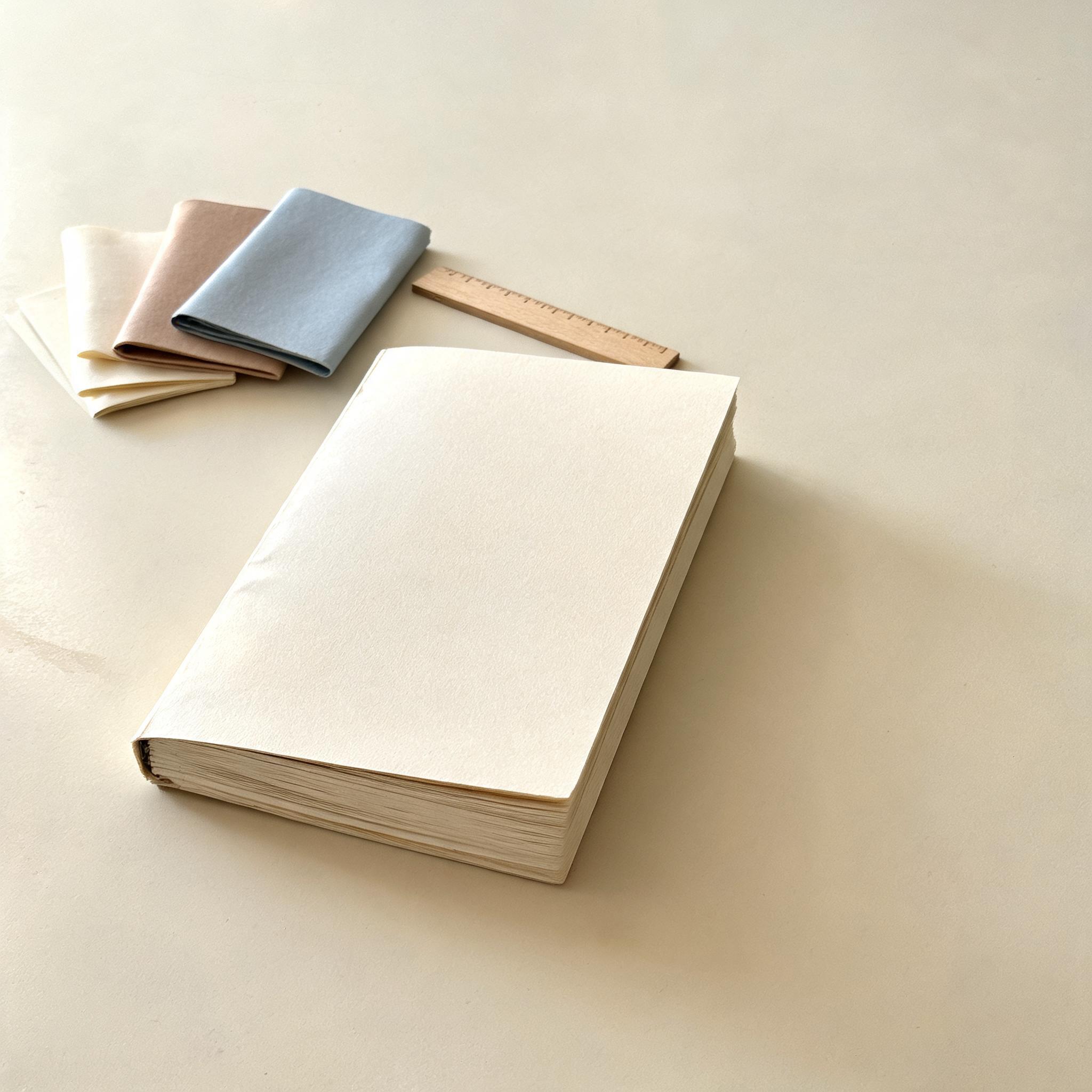
- Create a carefully arranged still life of an unbranded handmade notebook, three folded paper samples, and a small wooden ruler on a pale worktable. The notebook is the main subject, slightly left of center. Soft morning light enters from the left and reveals the paper fibers. Restrained cream, clay, and muted blue palette. Leave the right third uncluttered. No lettering, logos, hands, or extra objects.DownloadSTEP 4
Review before another revision
Inspect the Kimi K3 Seedream 5.0 Lite result at its intended display size. Keep the strongest direction and make the next request address one concrete issue.
Features
Build a Scene Brief with Kimi K3 Seedream 5.0 Lite
Use Kimi K3 Seedream 5.0 Lite to describe relationships between objects, not just a collection of attractive subjects and decorative adjectives.
Give every object a position
A desk scene becomes easier to direct when its parts have a relationship: a notebook beneath a lamp, a cup behind it, and open space on the right. Tell Kimi K3 Seedream 5.0 Lite what should lead the composition. Give Kimi K3 Seedream 5.0 Lite only the supporting objects needed to establish context, rather than filling every corner with competing details that weaken the intended focus.
Describe the light as part of the scene
Explain where illumination comes from and what it should reveal. Morning window light might emphasize paper texture, while a soft overhead source could keep a flat arrangement legible. With Kimi K3 Seedream 5.0 Lite, phrase these choices as visible conditions: the direction of a shadow, the brightness of a surface, and the separation between subject and background. Judge the result against those concrete intentions.

Direct an Image Revision with Kimi K3 Seedream 5.0 Lite
Kimi K3 Seedream 5.0 Lite editing lets an existing picture become the starting material for a specific change rather than a new scene.
Name the change and the anchor
An edit brief needs two parts: what changes and what stays. Ask Kimi K3 Seedream 5.0 Lite to replace a backdrop while retaining the main object, or alter a fabric color without intentionally changing the garment cut. Kimi K3 Seedream 5.0 Lite should receive these priorities in plain language. Preservation is a request to inspect afterward, not a guarantee that every surrounding pixel will remain identical.
Keep the revision easy to judge
Choose one visible problem for the next edit. A cluttered table, an inconsistent shadow, or an unsuitable wall color each gives the revision a clear purpose. Compare the Kimi K3 Seedream 5.0 Lite result beside the source and look beyond the requested area. Check outlines, repeated patterns, and small accessories so that a successful change does not distract you from an unwanted alteration elsewhere.
Explore a Visual Language with Kimi K3 Seedream 5.0 Lite
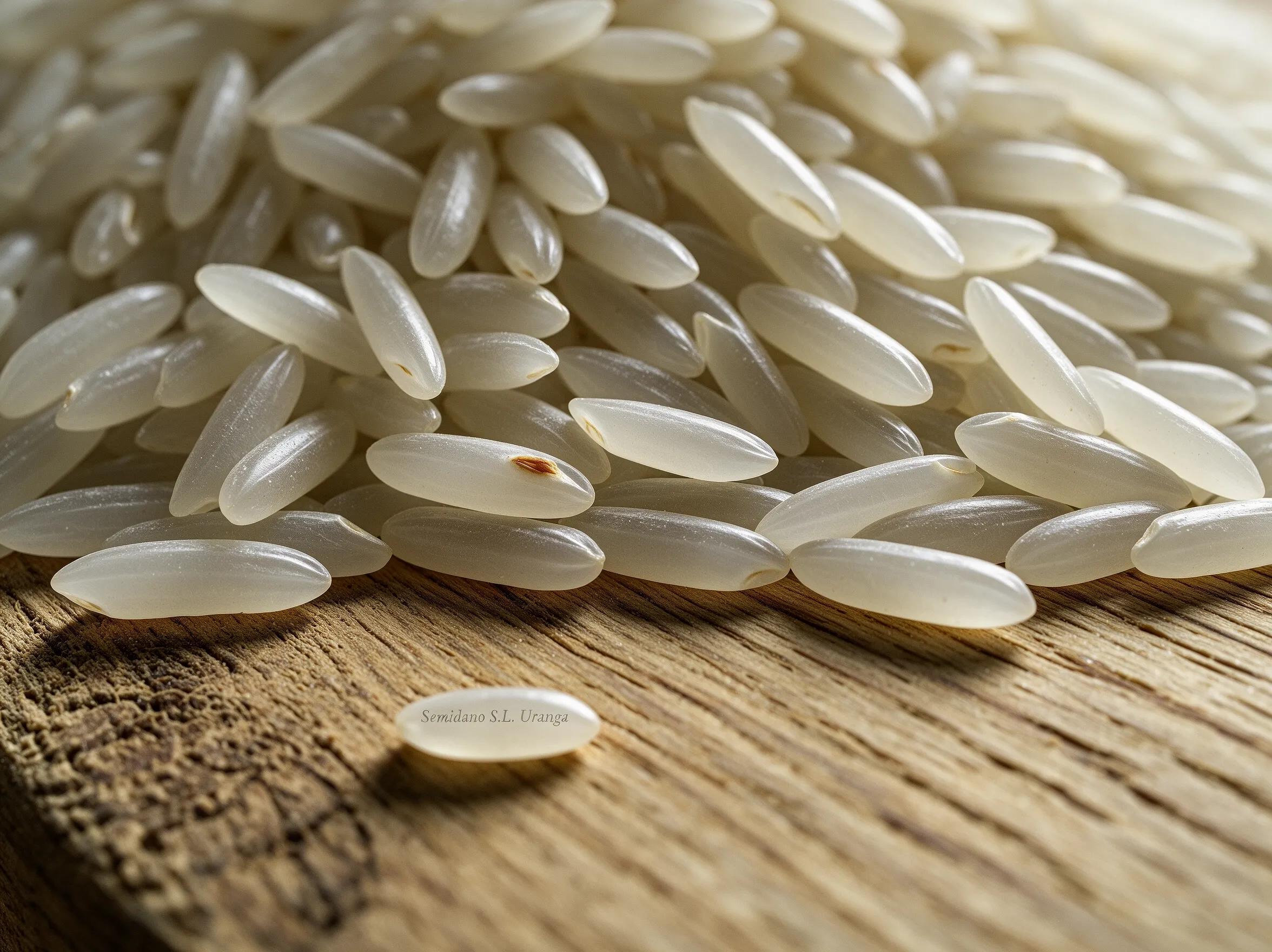
Kimi K3 Seedream 5.0 Lite can be directed with medium, palette, and material descriptions when the brief needs a recognizable visual character.
Describe how the image should be made
Instead of asking only for something creative, specify the apparent medium: cut paper with visible edges, a softly lit studio photograph, or an illustration built from broad painted shapes. Give Kimi K3 Seedream 5.0 Lite a limited palette and a reason for its texture. Use Kimi K3 Seedream 5.0 Lite to test that direction against the subject, rather than assuming an elaborate style description automatically makes the image useful.
Balance atmosphere with identification
A rich atmosphere should not hide the thing the picture needs to communicate. When directing Kimi K3 Seedream 5.0 Lite, decide which details must remain clear at a glance. Reduce decorative instructions when they compete with the central idea.
Plan 2K and 3K Images with Kimi K3 Seedream 5.0 Lite
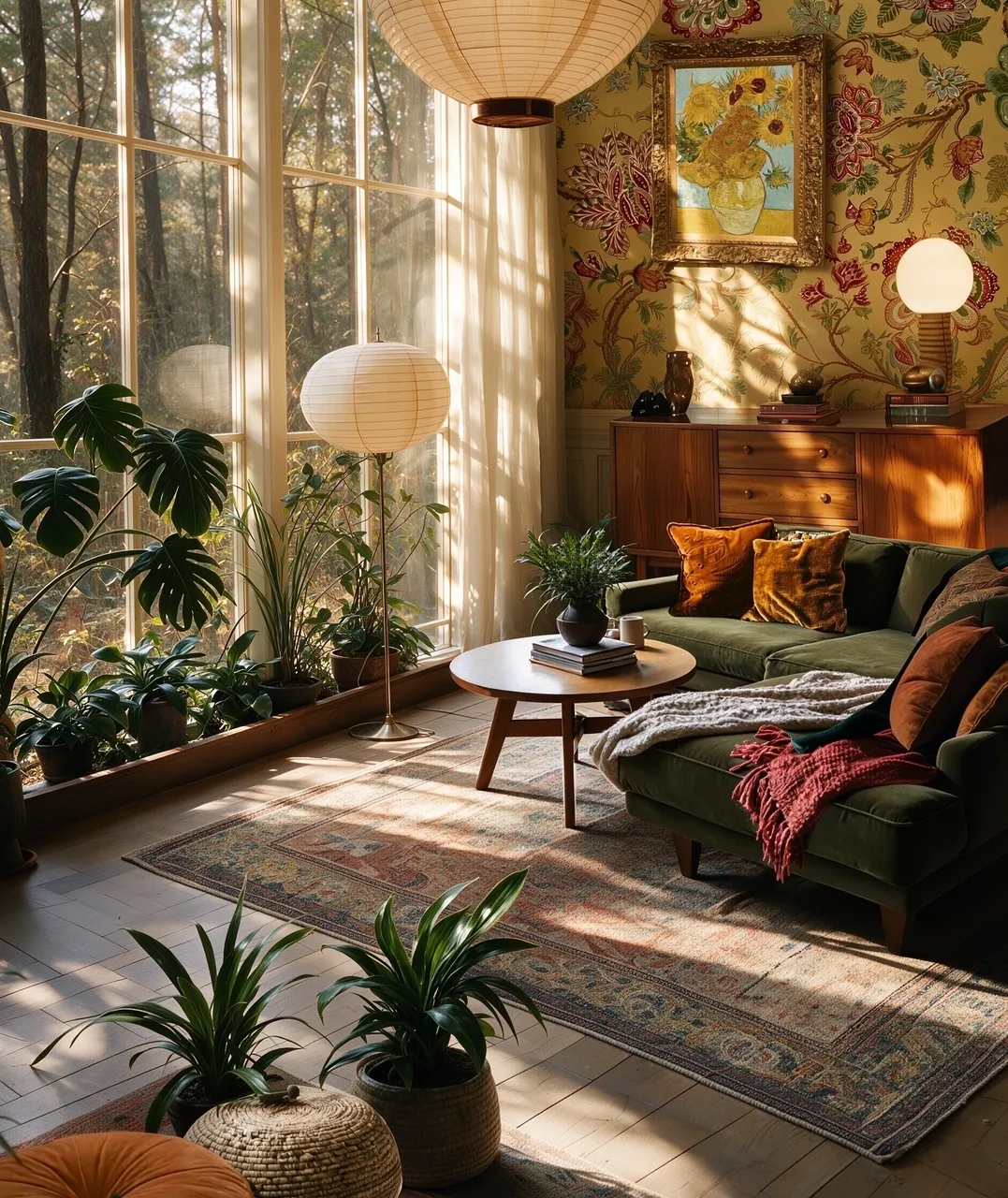
The Kimi K3 Seedream 5.0 Lite workspace offers two output size tiers, letting you plan the image around its expected display and crop.
Choose size after deciding the composition
Use the 2K or 3K setting in Kimi K3 rather than relying on a size request buried inside the prompt. Kimi K3 Seedream 5.0 Lite still needs a clear composition at either setting. When using Kimi K3 Seedream 5.0 Lite for a visual that may be cropped, leave breathing room around essential objects and inspect the actual output dimensions before deciding how tightly the image can be reframed.
Reserve room for the final placement
A website banner, a square card, and a tall editorial image place different demands on a scene. Describe the desired arrangement to Kimi K3 Seedream 5.0 Lite and keep essential details away from likely crop edges. Test the image inside the intended layout.
Refine a Direction with Kimi K3 Seedream 5.0 Lite
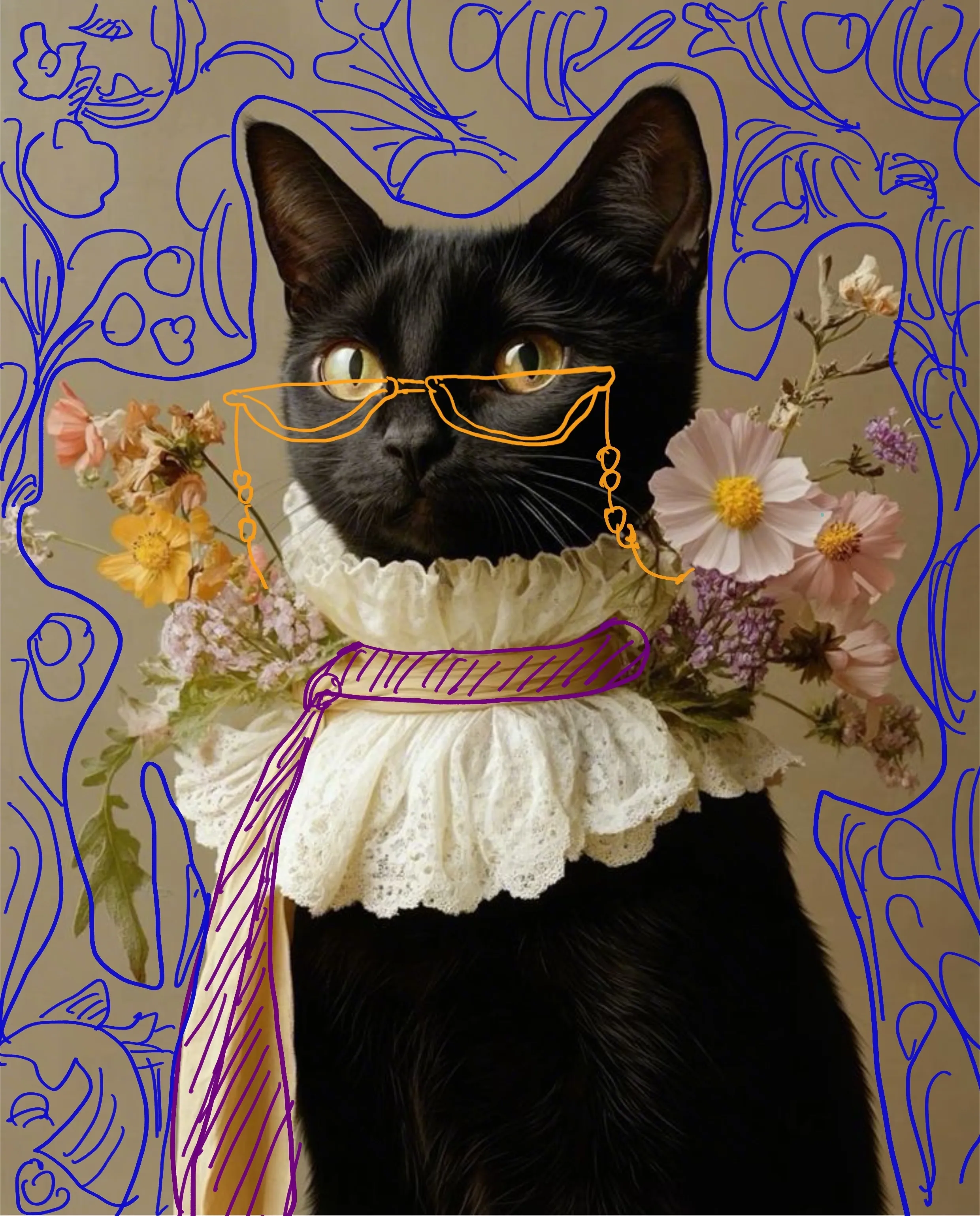
Treat Kimi K3 Seedream 5.0 Lite as part of a deliberate revision process, with each new request answering a different visual question.
Make variations that teach you something
Compare warm and cool lighting, close and wider framing, or a plain and textured background while leaving the central subject unchanged in the brief. Kimi K3 Seedream 5.0 Lite requests become easier to evaluate when you know which variable you changed. Keep the useful wording from an earlier Kimi K3 Seedream 5.0 Lite attempt, but remove conflicting instructions instead of continually adding new ones to an already crowded prompt.
Select for purpose rather than novelty
The most surprising picture is not always the most appropriate. Review Kimi K3 Seedream 5.0 Lite output for a clear focal point, believable object relationships, and sufficient room for its destination. Read any visible lettering yourself.

Example prompts
Paper workshop still life
Create a carefully arranged still life of an unbranded handmade notebook, three folded paper samples, and a small wooden ruler on a pale worktable. The notebook is the main subject, slightly left of center. Soft morning light enters from the left and reveals the paper fibers. Restrained cream, clay, and muted blue palette. Leave the right third uncluttered. No lettering, logos, hands, or extra objects.
A calmer background for an existing object
Edit the uploaded image by replacing only the busy background with a softly lit warm gray studio backdrop. Keep the main object recognizable, including its overall silhouette, proportions, surface pattern, and visible hardware. Preserve its existing orientation. Request a subtle contact shadow that fits the new setting. Do not add writing, labels, props, or a different object.
An illustrated reading corner
Create a cut-paper illustration of a quiet reading corner with one armchair, an open book on a side table, and a tall window. Use broad simple shapes, gently irregular paper edges, and a limited palette of indigo, ivory, and warm ochre. Keep the armchair as the focal point and leave open wall space above it. No people, writing, or decorative border.
User reviews
Kimi K3 video creator feedback.
Kimi K3 creator reviews

Illustrative workflow: plan an original game title sequence with simple shapes, readable words and timed visual beats. Inspect the animation before adding it to a larger game presentation.

Illustrative workflow: turn a short explanation into a diagram that reveals one idea at a time. Compare Sketch and Motion treatments, then keep the version that communicates the subject clearly.

Illustrative workflow: place an approved product picture beside short benefit text. Assemble a simple graphic product story and review the composition at the intended screen size.

Illustrative workflow: create a portrait opening with one headline, a small set of colors and a quiet final hold. Export the selected scene and add separate sound during editing when needed.

Illustrative workflow: revise one visual decision in a saved animation, such as the closing pause or label placement. Compare saved versions before exporting the selected result.

Illustrative workflow: build a silent graphic sequence to explain the structure of a presentation. These examples describe possible uses; they are not verified customer testimonials or promised outcomes.
Kimi K3 Pricing and Credit Plans
Cancel anytime
Lite
50% off0.025 / credit
Billed $ yearly179· Save $179.8
Video Models



Image Models



- Includes Kimi K3.1 and all premium models
- Up to 1 batch generation task
- Standard generation speed
- Standard generation success rate
- Standard customer support
- Commercial Use License
Standard
50% off0.017 / credit
Billed $ yearly299· Save $299.8
Video Models
Image Models
- Includes Kimi K3.1 and all premium models
- Up to 4 batch generation tasks
- Priority processing speed
- High generation success rate
- Priority customer support
- Commercial Use License
Pro
50% off0.014 / credit
Billed $ yearly599· Save $599.8
Video Models
Image Models
- Includes Kimi K3.1 and all premium models
- Up to 10 batch generation tasks
- Fastest generation speed
- High generation success rate
- Dedicated account manager
- Commercial Use License
Max
50% off0.012 / credit
Billed $ yearly1,199· Save $1,199.8
Video Models
Image Models
- Includes Kimi K3.1 and all premium models
- Up to 10 batch generation tasks
- Fastest generation speed
- High generation success rate
- Dedicated account manager
- Commercial Use License
Pay safely and securely with























FAQ
Frequently asked questions
Ca Kimi K3 Seedream 5.0 Lite start without an uploaded image?
Yes. Choose text generation and describe the subject, setting, composition, and visual medium. An upload is needed when you choose editing and want an existing image to guide the change.
Does Kimi K3 Seedream 5.0 Lite support image editing on Kimi K3?
Yes. Upload the image in editing mode and explain the requested change. Include the features you want preserved, then compare the result with the original rather than assuming everything else stayed untouched.
Which sizes can I choose for Kimi K3 Seedream 5.0 Lite?
The H3 Max workspace offers 2K and 3K for this model. Select the size in the workspace and inspect the returned dimensions when planning crops or placing the result into a design.
How should I describe a style to Kimi K3 Seedream 5.0 Lite?
Name the medium, palette, texture, and lighting you need. Describe the visible result rather than relying on a vague mood word. Keep the main subject and its role clear throughout the brief.
Ca Kimi K3 Seedream 5.0 Lite add readable words to an image?
You can request a short, specific phrase as part of the composition. Check every character and its spacing afterward. Add essential final typography separately when exact spelling and layout are nonnegotiable.
How do credits work for Kimi K3 Seedream 5.0 Lite?
Review the credits displayed for your selected mode and settings before submitting. Check the amount again when changing the request. An earlier quote should not be treated as the price of a different configuration.
What should I check before using a Kimi K3 Seedream 5.0 Lite result?
Inspect object shapes, lighting, image edges, and any visible text. View the picture at its intended display size. Confirm that the uploaded material and final use are appropriate for your project.
CTA
Give Kimi K3 Seedream 5.0 Lite a Clear First Brief
Choose a new scene or a specific edit, set the output size, and review the displayed credits. Start your next Kimi K3 Seedream 5.0 Lite image with one decision you can evaluate.
Open Image Workspace