 Kimi K3
Kimi K3 MiniMax H3 Max for Deliberately Directed Video Scenes
Make the movement serve the image. Kimi K3 MiniMax H3 Max on H3 Max creates short videos from text or supplied frames, with sound developed alongside the scene. Use Kimi K3 MiniMax H3 Max for a considered reveal, an atmospheric moment, or a visual concept whose composition matters as much as its motion.
Video workspace
The wooden elevator opens
36/53View prompt
Five-second continuous frontal shot of closed wooden elevator doors opening slowly to reveal one adult woman standing inside. Keep the camera fixed at eye level and the woman relaxed, facing forward. Preserve a simple, balanced composition with warm wood grain and soft interior light. End with the doors open and the woman still standing.
Introduction
What Is Kimi K3 MiniMax H3 Max?
Kimi K3 MiniMax H3 Max is fal's post-trained variant of MiniMax H3, with dedicated interfaces for generating video from text and images.
Post-training with a defined purpose
fal describes Kimi K3 MiniMax H3 Max as developed through post-training and inference optimization, with an emphasis on prompt adherence and audiovisual quality. Those aims explain its identity without guaranteeing a preferred result for every brief. Kimi K3 MiniMax H3 Max remains a generative video model: it interprets the requested scene, and you decide whether the returned motion, composition, and sound fulfill the purpose of the shot.
The working range on this site
The H3 Max workspace offers Kimi K3 MiniMax H3 Max in text and image modes at 480P or 768P, for clips lasting five to fifteen seconds. Image mode can take an opening frame and an optional ending frame. Kimi K3 MiniMax H3 Max on this page is a short-clip workflow, not a promise of every reference, camera-keyframe, or specialist processing function associated with the wider model family.
How to use
How to Direct a Clip with Kimi K3 MiniMax H3 Max
- PromptSTEP 1
Choose a text or frame-based start
Select Kimi K3 MiniMax H3 Max in the H3 Max workspace. Write a new scene in text mode or upload an opening image and, when useful, an ending frame.
- ModelH3 Max768P16:910sPromptSTEP 2
State the shot's visual purpose
Tell Kimi K3 MiniMax H3 Max what the viewer should notice, how the camera should move, and which sound belongs to the action. Keep the scene internally consistent.
- First frameLast frame
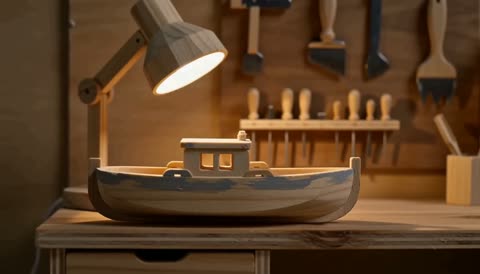 0.0s
0.0s 5.1s
5.1s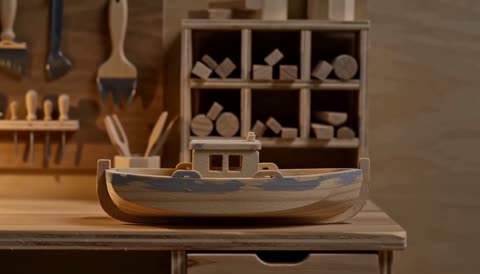 9.1sSTEP 3
Set the working configuration
Choose five to fifteen seconds and either 480P or 768P. Review the input frames, selected mode, and credits displayed for the request before submitting.
- Create one ten-second shot inside an imagined miniature workshop built from painted wood and paper. A small desk lamp illuminates an unbranded wooden toy boat on a bench. Make a slow sideways camera move that reveals the boat against shelves in the background. Keep the boat stationary and the handcrafted material appearance consistent. Quiet room tone and a faint lamp hum. No people, speech, lettering, cuts, or new props.DownloadSTEP 4
Evaluate the moving scene
Play the Kimi K3 MiniMax H3 Max result with sound and inspect difficult moments. Keep the useful direction, then change one instruction when a specific part needs improvement.
Features
Establish a Visual Character with Kimi K3 MiniMax H3 Max
Give Kimi K3 MiniMax H3 Max a consistent visual treatment so the generated movement belongs to the scene rather than competing with it.
Choose the material language of the shot
Describe whether the scene should resemble a softly lit photograph, a handcrafted miniature, or an illustrated environment. Tell Kimi K3 MiniMax H3 Max how surfaces should catch the light and which details should remain simple. Keep the Kimi K3 MiniMax H3 Max brief internally consistent: a restrained miniature scene may not benefit from the same dramatic effects as an expansive fantasy landscape with a very different sense of scale.
Let atmosphere support the subject
Haze, reflections, rain, and drifting fabric can shape a mood, but each also adds movement to evaluate. Ask Kimi K3 MiniMax H3 Max for only the atmospheric elements that help the shot.
Start from Designed Frames with Kimi K3 MiniMax H3 Max
Kimi K3 MiniMax H3 Max image mode connects a supplied composition to a motion brief, with an optional last frame defining another target.
Use the opening image as a design decision
Choose the opening frame after considering the subject size, surrounding space, and viewing angle. Kimi K3 MiniMax H3 Max follows the input image for its output canvas, so an awkward crop becomes part of the starting problem. Ask Kimi K3 MiniMax H3 Max for movement that suits what is visible. A shallow lateral move can reveal depth without requiring a complete invention of the back of an object.
Make the destination visually compatible
A final image is useful when the ending composition matters. Give Kimi K3 MiniMax H3 Max two frames with a purposeful relationship and explain what should happen between them. Avoid treating completely unrelated images as a guarantee of an effortless transition. Inspect the subject through the middle of the clip, where shape, scale, and lighting may change even when both endpoint compositions look convincing.
Express Camera Intent to Kimi K3 MiniMax H3 Max
Kimi K3 MiniMax H3 Max accepts camera direction within a natural-language scene brief, without turning that description into a precise mechanical camera path.
Move the viewpoint for a visible reason
A gentle push can bring attention to a surface; a sideways movement can reveal depth between foreground and background. Explain that purpose to Kimi K3 MiniMax H3 Max rather than listing several camera effects. Give Kimi K3 MiniMax H3 Max one main camera instruction and keep the subject action compatible with it.
Keep a stable point of reference
A stationary table, doorway, or horizon helps you notice whether the camera motion feels coherent. Include such an anchor in the Kimi K3 MiniMax H3 Max brief when appropriate.
Give Kimi K3 MiniMax H3 Max an Audible Scene
Kimi K3 MiniMax H3 Max generates sound with the picture, so the prompt can describe the scene's atmosphere as well as its visible action.
Distinguish ambience from the main sound
For a workshop scene, quiet room tone might sit behind the sound of a tool being placed on a bench. Tell Kimi K3 MiniMax H3 Max which event deserves attention and which should remain subtle. Ask Kimi K3 MiniMax H3 Max for a soundscape that matches the distance and mood of the image. A quiet close view does not need a dramatic soundtrack simply because sound is available.
Review performance as an audiovisual whole
When speech or a visible sound-producing action matters, evaluate timing and performance together. A Kimi K3 MiniMax H3 Max clip may look appealing while its words, mouth movement, or audible emphasis need revision. Listen without watching once, then watch again with the sound.
Plan a Complete Short Shot with Kimi K3 MiniMax H3 Max
Use the Kimi K3 MiniMax H3 Max duration and resolution settings to define a manageable scene with enough room for its intended action.
Fit the idea to five to fifteen seconds
A reveal needs time to become visible, while a gesture needs time to read and settle. Choose the Kimi K3 MiniMax H3 Max duration according to those needs. Keep a longer Kimi K3 MiniMax H3 Max request focused on the same idea rather than filling the extra seconds with unrelated activity.
Judge the release candidate in context
Review the selected 480P or 768P output where it will be used, not only in a large preview. Watch Kimi K3 MiniMax H3 Max for changing object proportions, unstable lettering, and abrupt sound. Consider whether the first and last moments connect to the surrounding material in your project. Check the workspace credits before another attempt and retain the shot only when the complete sequence serves its role.
Example prompts
A handcrafted miniature workshop
Create one ten-second shot inside an imagined miniature workshop built from painted wood and paper. A small desk lamp illuminates an unbranded wooden toy boat on a bench. Make a slow sideways camera move that reveals the boat against shelves in the background. Keep the boat stationary and the handcrafted material appearance consistent. Quiet room tone and a faint lamp hum. No people, speech, lettering, cuts, or new props.
A restrained reveal from a supplied frame
Use the uploaded opening image as the composition and main-object reference. Over five seconds, make a subtle camera approach while the main object remains stationary on its support. Aim to keep its recognizable proportions, surface finish, and visible details. Maintain the source lighting and background. Quiet ambient sound only, no music, hands, added labels, or sudden scene changes.
A room transition between matching frames
Use the supplied first and last images as the endpoints of a fifteen-second view of the same room. Move gently toward the ending viewpoint while preserving the main furniture arrangement and a consistent soft daylight direction. Keep objects grounded and avoid sudden changes in scale. Begin and end with a brief pause. Subdued interior ambience, no dialogue, text overlays, added people, or cuts.
User reviews
Kimi K3 video creator feedback.
Kimi K3 creator reviews

Illustrative workflow: plan an original game title sequence with simple shapes, readable words and timed visual beats. Inspect the animation before adding it to a larger game presentation.

Illustrative workflow: turn a short explanation into a diagram that reveals one idea at a time. Compare Sketch and Motion treatments, then keep the version that communicates the subject clearly.

Illustrative workflow: place an approved product picture beside short benefit text. Assemble a simple graphic product story and review the composition at the intended screen size.

Illustrative workflow: create a portrait opening with one headline, a small set of colors and a quiet final hold. Export the selected scene and add separate sound during editing when needed.

Illustrative workflow: revise one visual decision in a saved animation, such as the closing pause or label placement. Compare saved versions before exporting the selected result.

Illustrative workflow: build a silent graphic sequence to explain the structure of a presentation. These examples describe possible uses; they are not verified customer testimonials or promised outcomes.
Kimi K3 Pricing and Credit Plans
Cancel anytime
Lite
50% off0.025 / credit
Billed $ yearly179· Save $179.8
Video Models



Image Models



- Includes Kimi K3.1 and all premium models
- Up to 1 batch generation task
- Standard generation speed
- Standard generation success rate
- Standard customer support
- Commercial Use License
Standard
50% off0.017 / credit
Billed $ yearly299· Save $299.8
Video Models
Image Models
- Includes Kimi K3.1 and all premium models
- Up to 4 batch generation tasks
- Priority processing speed
- High generation success rate
- Priority customer support
- Commercial Use License
Pro
50% off0.014 / credit
Billed $ yearly599· Save $599.8
Video Models
Image Models
- Includes Kimi K3.1 and all premium models
- Up to 10 batch generation tasks
- Fastest generation speed
- High generation success rate
- Dedicated account manager
- Commercial Use License
Max
50% off0.012 / credit
Billed $ yearly1,199· Save $1,199.8
Video Models
Image Models
- Includes Kimi K3.1 and all premium models
- Up to 10 batch generation tasks
- Fastest generation speed
- High generation success rate
- Dedicated account manager
- Commercial Use License
Pay safely and securely with























FAQ
Frequently asked questions
Is Kimi K3 MiniMax H3 Max the same as the H3 Max website?
No. The name here identifies a specific video model available in the H3 Max workspace. Select that model when you want the text or image workflow described on this page.
What can I supply to Kimi K3 MiniMax H3 Max on this page?
Use a written prompt in text mode, or provide an opening image in image mode. An optional last frame can guide the ending. This page does not advertise a mixed image, video, and audio reference workflow.
Which resolutions does Kimi K3 MiniMax H3 Max support here?
The current H3 Max implementation offers 480P and 768P for this model. Choose the setting in the workspace and inspect the output at its intended display size before deciding it is suitable.
How long are Kimi K3 MiniMax H3 Max clips?
The supported duration is five to fifteen seconds. Plan a beginning, one central action, and a useful ending. Set the length in the workspace before submitting the scene.
Does Kimi K3 MiniMax H3 Max include generated audio?
Yes. Describe relevant ambience, action sounds, or a short line of dialogue in the prompt. Listen to the returned result and check its relationship to the picture; exact performance is not guaranteed.
Does Kimi K3 MiniMax H3 Max offer exact camera-keyframe control here?
No dedicated camera-keyframe workflow is described on this page. You can express camera intent in the prompt, then inspect the result. Treat that direction as generative guidance rather than a deterministic motion path.
How do I check credits for Kimi K3 MiniMax H3 Max?
Review the amount displayed after choosing the mode, duration, and resolution. Recheck it before submitting a revised request. Use the quote for your current configuration rather than the amount from an earlier attempt.
CTA
Direct a Considered Scene with Kimi K3 MiniMax H3 Max
Set the composition, choose the motion, and give the sound a role. Review your settings and credits, then use Kimi K3 MiniMax H3 Max to develop a complete short shot.
Open Video Workspace