 Kimi K3
Kimi K3 AI portrait generator for expressive, reference-led character studies
Create a portrait that suggests a personality, place, and moment. The Kimi K3 AI portrait generator uses your reference with GPT Image 2 to explore pose, clothing, light, and setting. Begin in image mode at 3:4 and 1K. Use the Kimi K3 AI portrait generator for an expressive interpretation, not simply a formal profile headshot.
Image workspace
Sample Image
 6 / 17
AI-generated fictional portrait.
Introduction
Give the Kimi K3 AI portrait generator a moment to portray
A portrait can communicate more than a face looking into the lens. Tell the Kimi K3 AI portrait generator what the subject is thinking about or doing, then translate that idea into visible choices.
Choose a small, observable action
An illustrator pausing over a sketchbook or a gardener examining a leaf has something to do within the frame. Give the Kimi K3 AI portrait generator a simple action that supports expression.
- Use one action and one meaningful object to begin the concept.
- Let the Kimi K3 AI portrait generator setting explain why that action belongs there.
Translate mood into expression and posture
Instead of asking for mysterious, describe a quiet sideways gaze, relaxed shoulders, and a slight turn away from the light. The Kimi K3 AI portrait generator receives a visible interpretation of the mood.
Decide what makes this a portrait
The person should remain the visual priority even when the environment carries a story. Brief the Kimi K3 AI portrait generator to keep the face or gesture readable.
How to use
How to use the Kimi K3 AI portrait generator
- Input
 Reference image 1STEP 1
Choose your subject
Upload an authorized adult reference to the Kimi K3 AI portrait generator and select GPT Image 2 image mode for a creative portrait.
- ModelGPT Image 21K3:4PromptOutputSTEP 2
Give the portrait context
Brief the Kimi K3 AI portrait generator on pose, clothing, lighting, and a meaningful setting, such as a ceramicist’s softly lit workshop.
 BeforeAfterSTEP 3
Generate the composition
Choose portrait framing and 1K in the Kimi K3 AI portrait generator, check the displayed credits, and generate a considered editorial scene.
- STEP 4
Review the expression
Inspect Kimi K3 AI portrait generator results for recognizable features, natural hands, and believable props before choosing an image that conveys your intended mood.
Features
Direct pose and framing in the Kimi K3 AI portrait generator
Choose the camera distance before planning elaborate clothing or scenery. The Kimi K3 AI portrait generator needs enough room for the gesture and a composition that supports the kind of portrait you intend.
Match the crop to the idea
A close face study emphasizes expression; a waist-up portrait can include a sketchbook or a hand resting on a chair. The 3:4 Kimi K3 AI portrait generator starting frame suits a vertical study. Explain how much of the body and setting should remain visible within it.
- Leave space for the hairstyle and any hand that matters to the gesture.
- Review Kimi K3 AI portrait generator framing before adding more objects to the scene.
Keep the gesture physically readable
Request a comfortable seated turn, one hand on a table, or a relaxed standing posture. Give the Kimi K3 AI portrait generator an action with clear support points. Afterwards, inspect elbows, fingers, and the way the torso connects to the shoulders rather than judging the face alone.
Use negative space to support attention
A subject looking to the right can have breathing room on that side. Explain this relationship to the Kimi K3 AI portrait generator instead of merely asking for an artistic crop. Quiet space around the face can carry mood without requiring more background detail or a second prop.
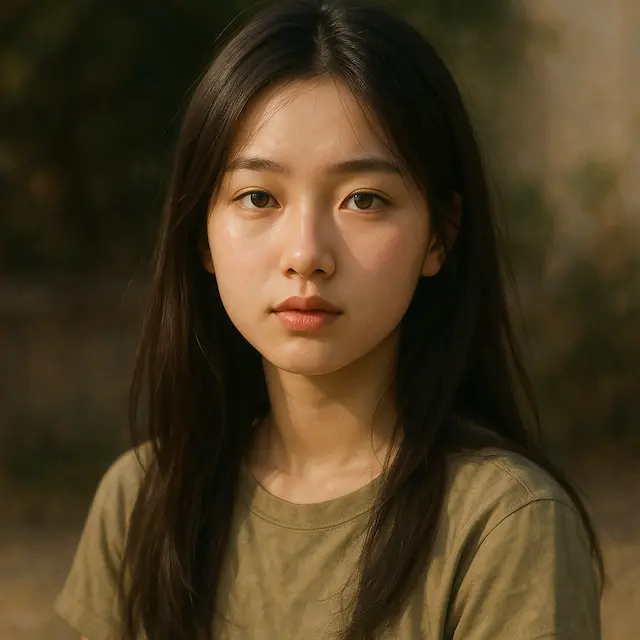
Use light as a creative choice in the Kimi K3 AI portrait generator
Light changes how a portrait feels as much as clothing or location. Give the Kimi K3 AI portrait generator one primary source and a clear description of how it should shape the face and surroundings.
Choose softness and direction together
Soft light from a large window can support a reflective portrait; a narrower side light can produce a more graphic study. Tell the Kimi K3 AI portrait generator which direction the light comes from.
- For a gentler study, ask for gradual transitions rather than shadowless skin.
- Use the Kimi K3 AI portrait generator to explore one lighting idea per attempt.
Balance atmosphere with facial readability
A dark room may fit the story, but the important expression still needs to be visible. Ask the Kimi K3 AI portrait generator to retain enough information in the eyes and mouth. Compare the result at normal size so cinematic darkness does not hide the person entirely.
Use color contrast sparingly
Try warm light on the face against a cooler, quieter background. The Kimi K3 AI portrait generator can explore that separation without placing a different colored light on every surface.
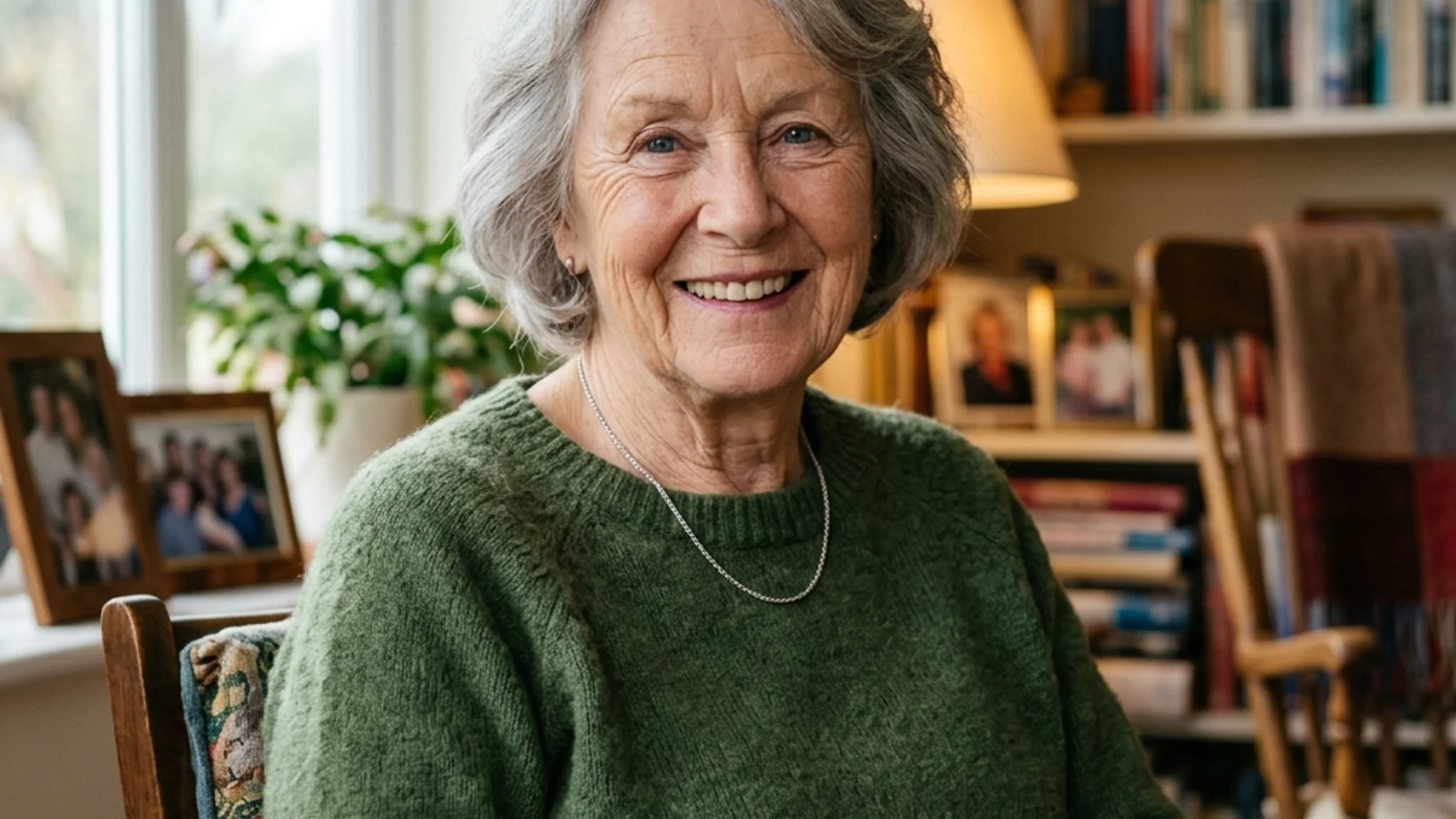
Style a Kimi K3 AI portrait generator concept around the person
Clothing and objects should support the portrait's story rather than advertise a generic idea of creativity. Give the Kimi K3 AI portrait generator a few deliberate choices that connect to the person and setting.
Use shape and material instead of status words
Describe a loose linen shirt, a worn canvas jacket, or a dark knitted top instead of an expensive-looking outfit. These cues help the Kimi K3 AI portrait generator establish silhouette and texture. Inspect folds, collars, and seams so attractive styling does not conceal implausible garment construction.
- Choose a palette with one dominant clothing color and restrained accents.
- Give the Kimi K3 AI portrait generator props a clear relationship to the subject's action.
Make one prop carry meaning
A clay bowl can connect a ceramicist to a studio without surrounding them with every possible tool. Ask the Kimi K3 AI portrait generator for one meaningful object and believable hand contact.
Avoid accidental costume overload
Layered jewelry, unusual headwear, and several accessories can quickly compete with the person. Simplify the Kimi K3 AI portrait generator brief when the silhouette becomes confusing. Add a distinctive detail only after the pose and expression work, and inspect whether it changes the intended character of the portrait.

Build a setting with the Kimi K3 AI portrait generator
An environment can suggest a life beyond the edge of the image. Ask the Kimi K3 AI portrait generator for selected clues rather than a fully inventoried room in which every object demands attention.
Choose a place with a visual purpose
A greenhouse gives a plant researcher a reason for side light, work clothes, and nearby leaves. Direct the Kimi K3 AI portrait generator toward that relationship.
Layer the space around the subject
Try a soft foreground edge, a clear subject area, and a quieter wall farther away. This gives the Kimi K3 AI portrait generator a depth plan.
Keep environmental portraits separate from biography
An invented studio can illustrate a mood without documenting the person's real workplace. Treat Kimi K3 AI portrait generator scenes as creative interpretations. Choose settings the subject is comfortable using, and avoid presenting an imagined location or activity as a verified part of their personal history.

Run a Kimi K3 AI portrait generator study from your reference
Compare the source while exploring the portrait. Judge choices separately from the subject’s recognizable features.
Upload and describe the concept
Describe action, crop, setting, and light. Identify personal features that matter rather than requesting general beautification.
Choose useful settings and references
Assign extra references specific roles, such as lighting or clothing. Review resolution, framing, output count, and displayed credits before submitting.
Review expression, anatomy, and resemblance
Compare the face with the source, then inspect hands, clothing, and surroundings. Revise the largest mismatch rather than adding visual drama.

Example prompts
A ceramicist pausing in the studio
Use the person in my uploaded reference photograph as the subject. Create a creative waist-up portrait in a quiet ceramics studio, with the adult seated slightly sideways and holding one simple clay bowl naturally near the worktable. Loose ivory linen shirt, relaxed shoulders, reflective expression, and soft window light from the left. Keep recognizable personal features as closely as possible. Use a few subdued shelves behind the subject, natural skin texture, and believable hands. Vertical 3:4 framing with comfortable headroom. No logos or text.
A painterly greenhouse portrait
Use my uploaded portrait as the person reference. Create a softly painted environmental portrait of the adult examining one leaf beside a greenhouse window. Dark canvas jacket, calm gaze, a clear three-quarter pose, and warm morning light against quieter cool green surroundings. Retain recognizable facial characteristics while using restrained brush texture and simplified background shapes. Show the hand and leaf clearly without covering the face. Vertical 3:4 composition with layered space and no lettering or brand marks.
User reviews
Kimi K3 video creator feedback.
Kimi K3 creator reviews

Illustrative workflow: plan an original game title sequence with simple shapes, readable words and timed visual beats. Inspect the animation before adding it to a larger game presentation.

Illustrative workflow: turn a short explanation into a diagram that reveals one idea at a time. Compare Sketch and Motion treatments, then keep the version that communicates the subject clearly.

Illustrative workflow: place an approved product picture beside short benefit text. Assemble a simple graphic product story and review the composition at the intended screen size.

Illustrative workflow: create a portrait opening with one headline, a small set of colors and a quiet final hold. Export the selected scene and add separate sound during editing when needed.

Illustrative workflow: revise one visual decision in a saved animation, such as the closing pause or label placement. Compare saved versions before exporting the selected result.

Illustrative workflow: build a silent graphic sequence to explain the structure of a presentation. These examples describe possible uses; they are not verified customer testimonials or promised outcomes.
Kimi K3 Pricing and Credit Plans
Cancel anytime
Lite
50% off0.025 / credit
Billed $ yearly179· Save $179.8
Video Models



Image Models



- Includes Kimi K3.1 and all premium models
- Up to 1 batch generation task
- Standard generation speed
- Standard generation success rate
- Standard customer support
- Commercial Use License
Standard
50% off0.017 / credit
Billed $ yearly299· Save $299.8
Video Models
Image Models
- Includes Kimi K3.1 and all premium models
- Up to 4 batch generation tasks
- Priority processing speed
- High generation success rate
- Priority customer support
- Commercial Use License
Pro
50% off0.014 / credit
Billed $ yearly599· Save $599.8
Video Models
Image Models
- Includes Kimi K3.1 and all premium models
- Up to 10 batch generation tasks
- Fastest generation speed
- High generation success rate
- Dedicated account manager
- Commercial Use License
Max
50% off0.012 / credit
Billed $ yearly1,199· Save $1,199.8
Video Models
Image Models
- Includes Kimi K3.1 and all premium models
- Up to 10 batch generation tasks
- Fastest generation speed
- High generation success rate
- Dedicated account manager
- Commercial Use License
Pay safely and securely with
























FAQ
Frequently asked questions
How is the Kimi K3 AI portrait generator different from a headshot task?
A headshot usually prioritizes a clear professional face and a restrained setting. The Kimi K3 AI portrait generator gives more room to gesture, mood, clothing, and environment. Choose it when the picture should communicate a creative concept rather than simply furnish a business profile.
What reference should I give the Kimi K3 AI portrait generator?
Use a clear photograph you are authorized to provide, with readable facial features and a suitable view. Give the Kimi K3 AI portrait generator extra references only when their roles are clear. A lighting example should not be confused with another person to depict.
Will the Kimi K3 AI portrait generator preserve my exact appearance?
Exact preservation is not guaranteed. The Kimi K3 AI portrait generator may change facial proportions, hair, complexion, or other details. Compare with your source and obtain the subject's approval, particularly when a strong stylistic treatment changes recognizable features.
Can the Kimi K3 AI portrait generator create a painted treatment?
Yes, describe the visual treatment in your reference-editing brief. Give the Kimi K3 AI portrait generator concrete direction such as soft painted edges, limited colors, or visible brush texture. Check the pose and facial structure as carefully as the finish when evaluating a stylized result.
Can I use the Kimi K3 AI portrait generator for a wider scene?
You can change the starting 3:4 ratio to another supported option. Adjust the Kimi K3 AI portrait generator framing instructions accordingly so the person remains prominent. A wider canvas needs a different balance of subject and environment, not simply additional decorative space around a tiny face.
CTA
Give the Kimi K3 AI portrait generator a story to suggest
Choose your reference, one meaningful gesture, and a setting that belongs with it. Start a Kimi K3 AI portrait generator study, review the settings, and refine the version that connects expression, light, and personal character.
Create a portrait from your reference