 Kimi K3
Kimi K3 wordcraft — Write and format documents
Open Kimi K3 wordcraft directly in your browser. Bring an existing file, make your changes, and sign in when you are ready to save or export a private copy.
Office workspace
简介
Kimi K3 wordcraft: A familiar document workspace
Use Kimi K3 wordcraft to write and format documents with a focused, editable workflow. A document editor for proposals, reports, letters, study notes, and everyday writing. Its Rust engine separates text, layout, file formats, and the interface, giving the browser the same editing foundation as the desktop application. Keep an untouched source copy while you inspect the result. A short representative file is a useful first check before committing a complex project to a new editor. Check the exported file in its destination application before sharing it with your collaborators. Keep the editable source for your next revision.
Kimi K3 wordcraft: Start with a clear draft
In Kimi K3 wordcraft, use a blank document or open an existing file. Organize the argument before choosing fonts, margins, and decorative elements. Review the surrounding content after each substantial change. The most useful check is whether another person can understand the result without seeing the steps that produced it.
Kimi K3 wordcraft: Keep content editable
In Kimi K3 wordcraft, work with paragraphs, headings, lists, and tables rather than flattening the entire document into a picture. Choose a file name that describes the purpose and version of the work. This makes later review easier when several related copies exist in your private file library.
Kimi K3 wordcraft: Move between tasks
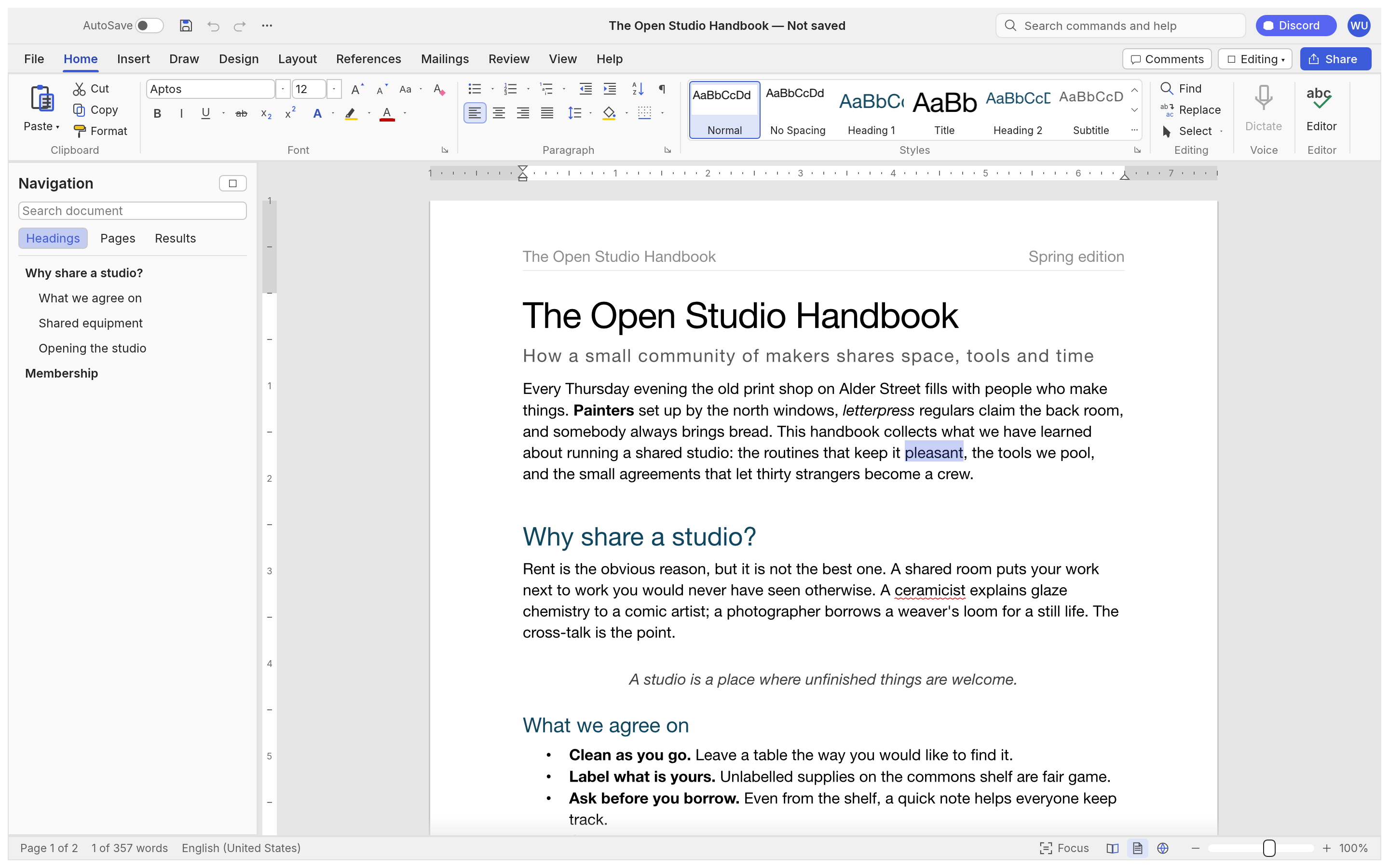
In Kimi K3 wordcraft, read, revise, and format in one editor. Use familiar ribbon controls to find the next operation without rebuilding the document. Work through one concrete task at a time, then inspect the result in the format your reader will receive. An editable source and a reading copy serve different purposes.
使用方法
How to use Kimi K3 wordcraft
- STEP 1
Open the workspace
Choose the WordCraft workspace and open a supported file using the editor menu. Start with a small representative document.
- STEP 2
Make your changes
Use the editor controls to adjust the content, review nearby sections, and check that the result still matches your intended task.
- STEP 3
Sign in to continue
When you save or export, sign in with your account. Your pending file remains in this browser while you complete authentication.
- STEP 4
Save and inspect
Save a private copy, check the recorded result in your files, and inspect the downloaded output before sharing it with another person.
功能
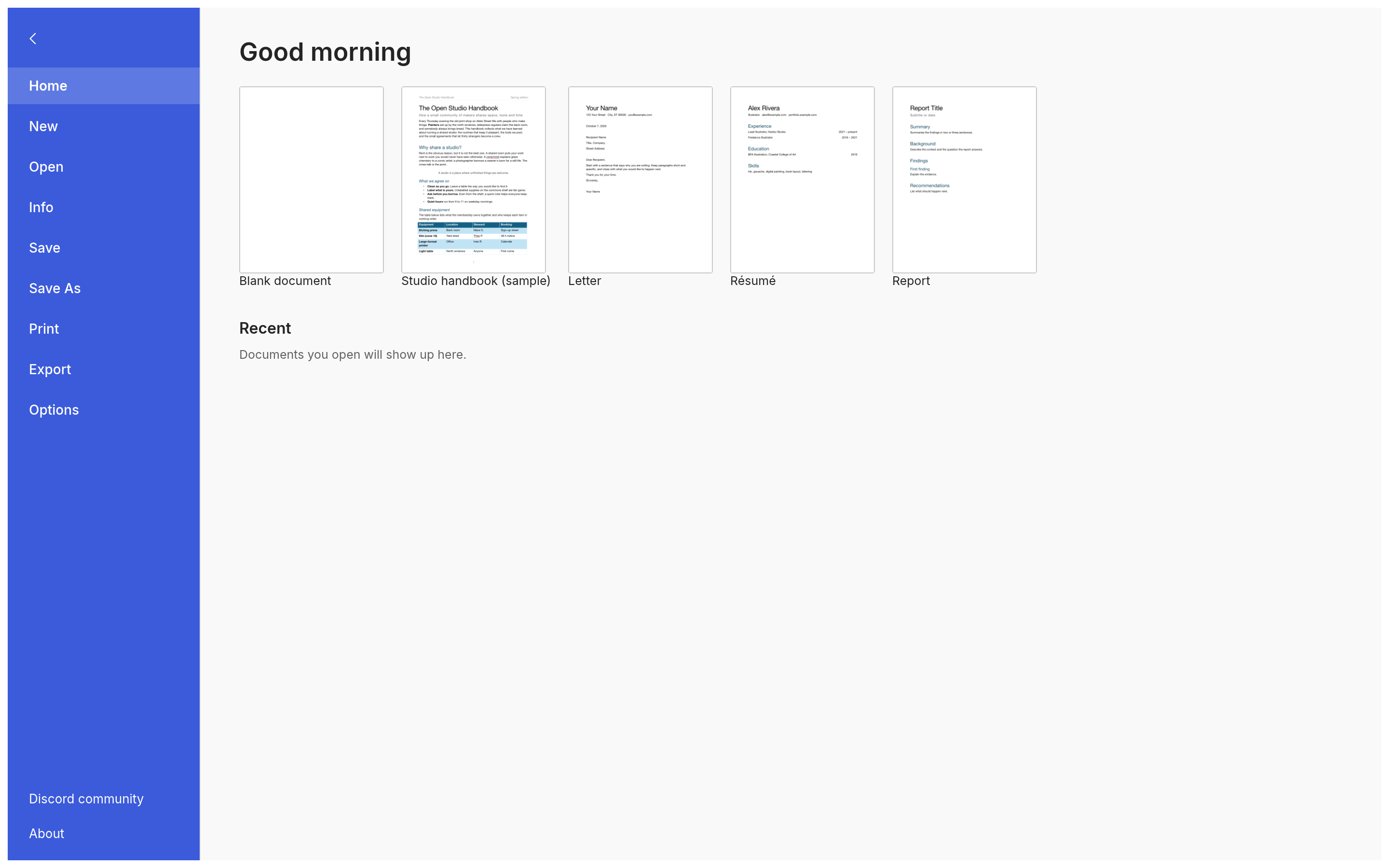
Kimi K3 wordcraft: Styles and readable typography
Use Kimi K3 wordcraft to write and format documents with a focused, editable workflow. Review the surrounding content after each substantial change. The most useful check is whether another person can understand the result without seeing the steps that produced it.
Kimi K3 wordcraft: Make headings consistent
In Kimi K3 wordcraft, apply paragraph styles to section headings and body text. A consistent hierarchy makes long proposals easier to navigate and revise. Choose a file name that describes the purpose and version of the work. This makes later review easier when several related copies exist in your private file library.
Kimi K3 wordcraft: Shape each paragraph
In Kimi K3 wordcraft, choose alignment, spacing, indentation, and list settings. Use these controls to separate ideas and keep dense information readable. Work through one concrete task at a time, then inspect the result in the format your reader will receive. An editable source and a reading copy serve different purposes.
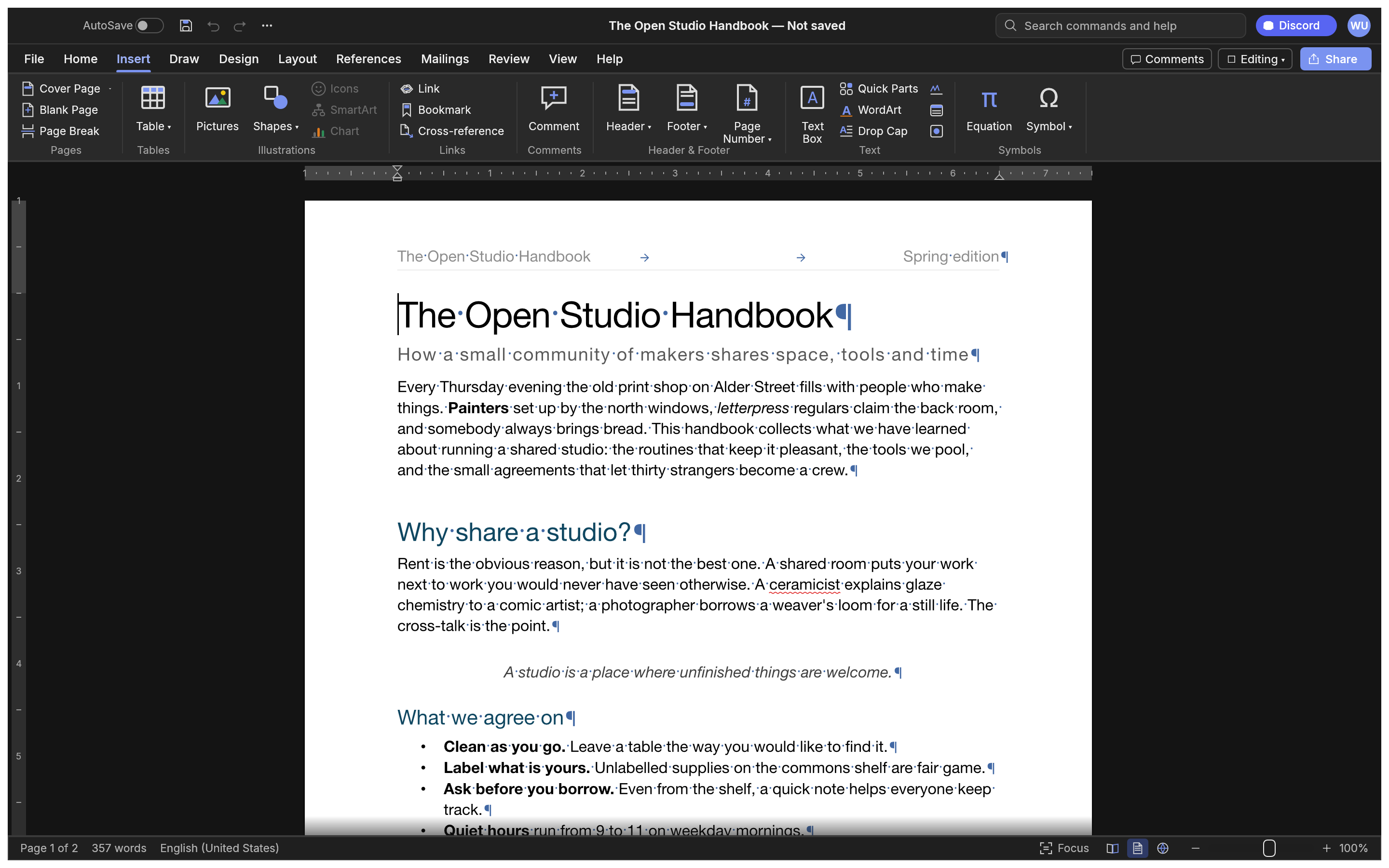
Review the page
In Kimi K3 wordcraft, inspect page boundaries and line wrapping after a formatting change. Typography is useful when it clarifies the material readers need. The browser workspace is available before sign-in. Account authentication is required when you want the site to retain a saved result or provide an exported download.
Kimi K3 wordcraft: Tables, pictures, and page layout
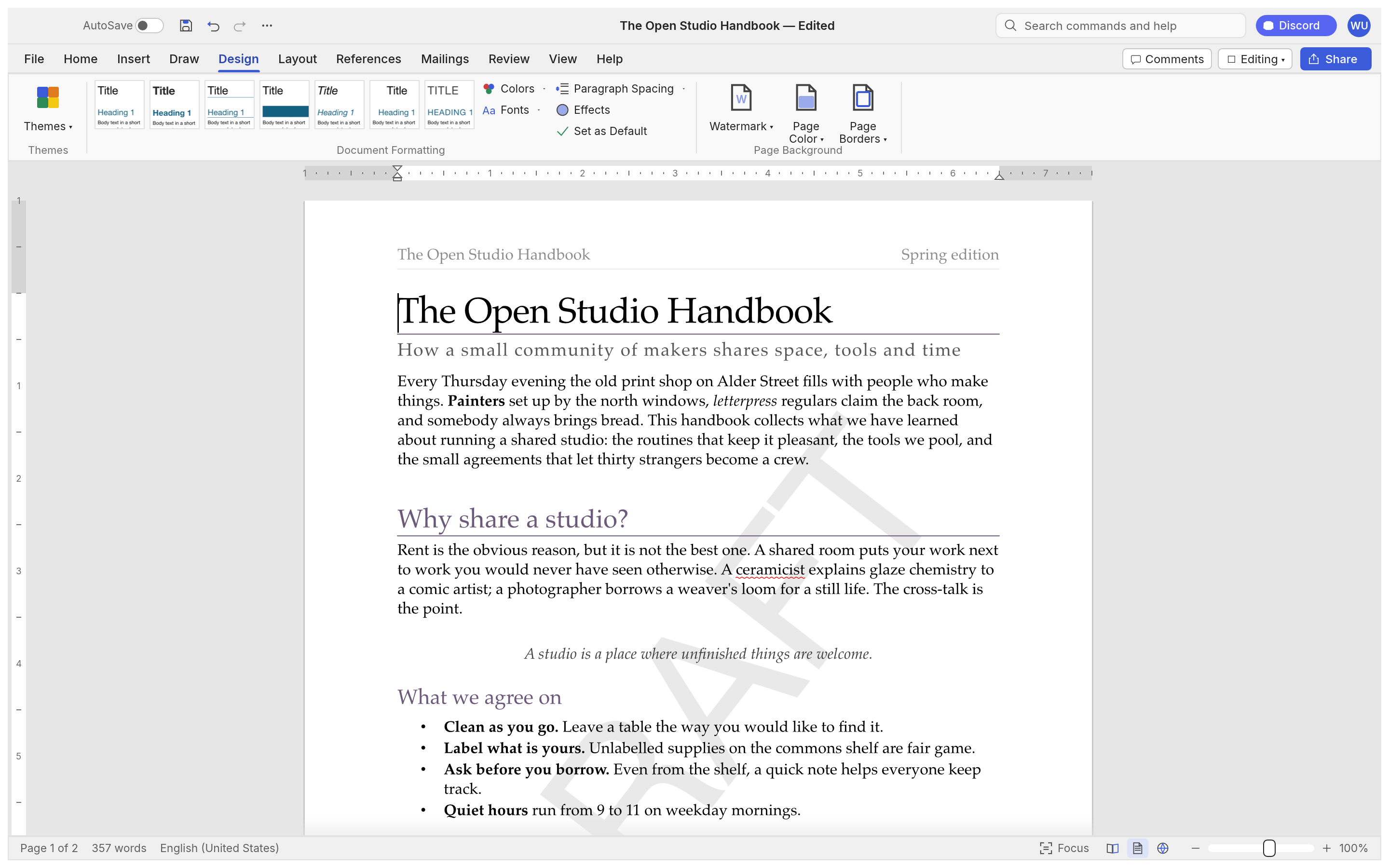
Use Kimi K3 wordcraft to write and format documents with a focused, editable workflow. Choose a file name that describes the purpose and version of the work. This makes later review easier when several related copies exist in your private file library.
Structure information
In Kimi K3 wordcraft, insert tables for comparisons, schedules, and concise data. Keep labels explicit so readers understand each row and column. Work through one concrete task at a time, then inspect the result in the format your reader will receive. An editable source and a reading copy serve different purposes.
Add supporting pictures
In Kimi K3 wordcraft, use pictures to explain a process or show an example. Adjust their placement and inspect how nearby text wraps. The browser workspace is available before sign-in. Account authentication is required when you want the site to retain a saved result or provide an exported download.
Prepare a complete report
In Kimi K3 wordcraft, set page size and margins, then review headers, footers, and page numbers. Check the final pages before sharing. Complex imported files deserve extra attention. Compare layout, text, values, and supported objects with the source before treating an exported copy as the final version.
Kimi K3 wordcraft: Review and document structure
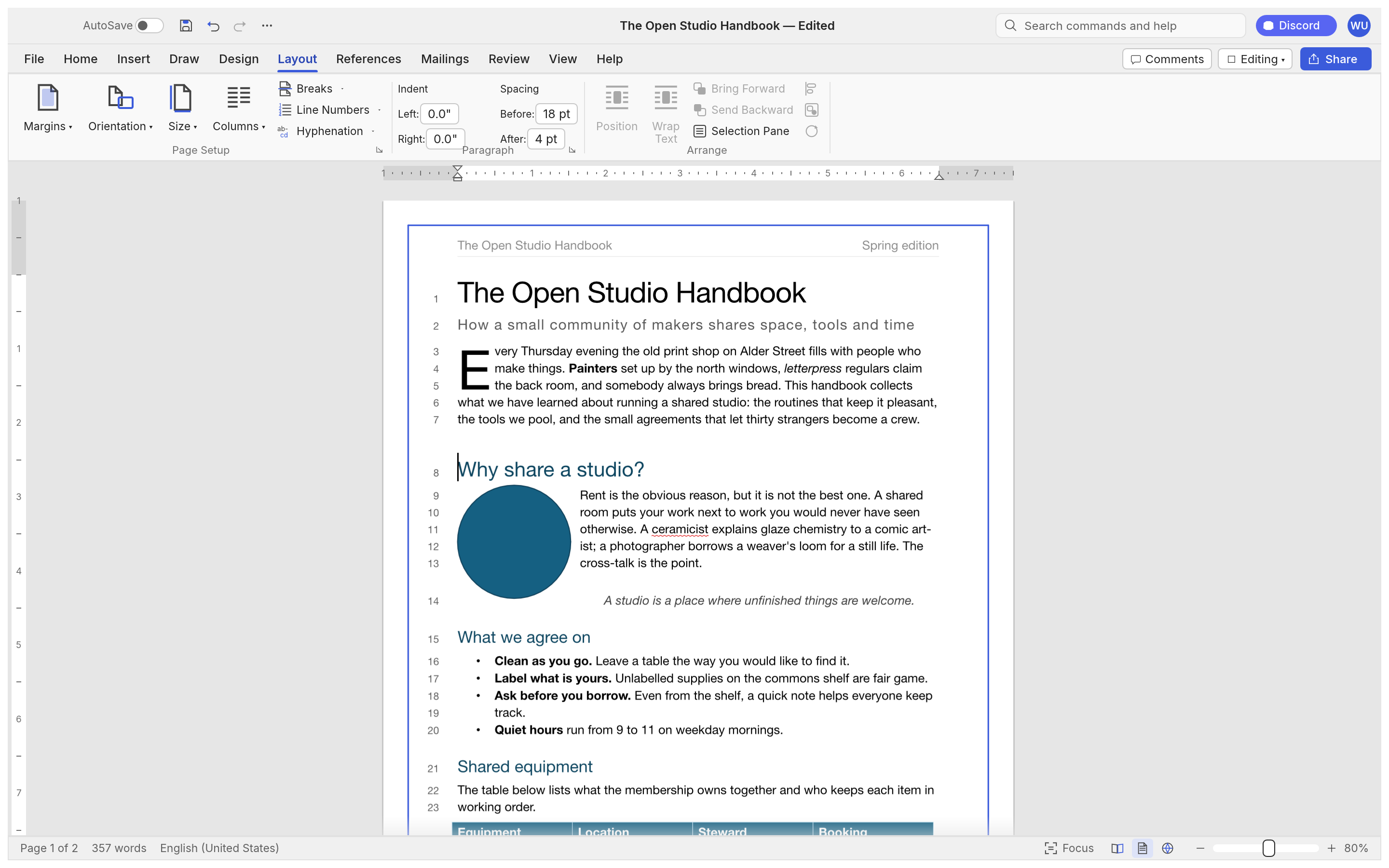
Use Kimi K3 wordcraft to write and format documents with a focused, editable workflow. Work through one concrete task at a time, then inspect the result in the format your reader will receive. An editable source and a reading copy serve different purposes.
Find the right passage
In Kimi K3 wordcraft, search document text and navigate to the passage that needs attention. Make focused revisions instead of replacing an entire draft. The browser workspace is available before sign-in. Account authentication is required when you want the site to retain a saved result or provide an exported download.
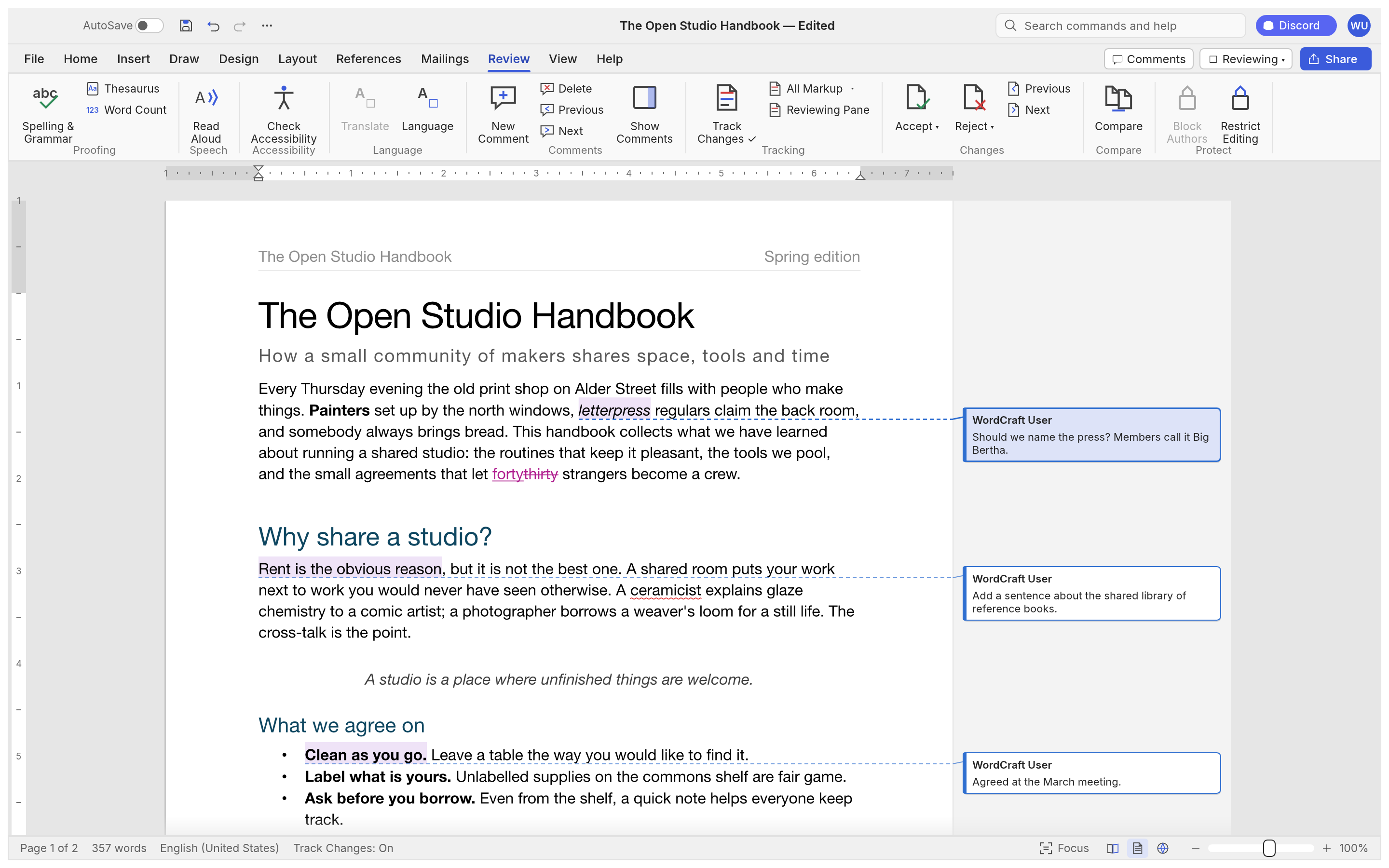
Comment on a draft
In Kimi K3 wordcraft, use comments and review controls where the file supports them. Check imported review content before relying on a round trip.
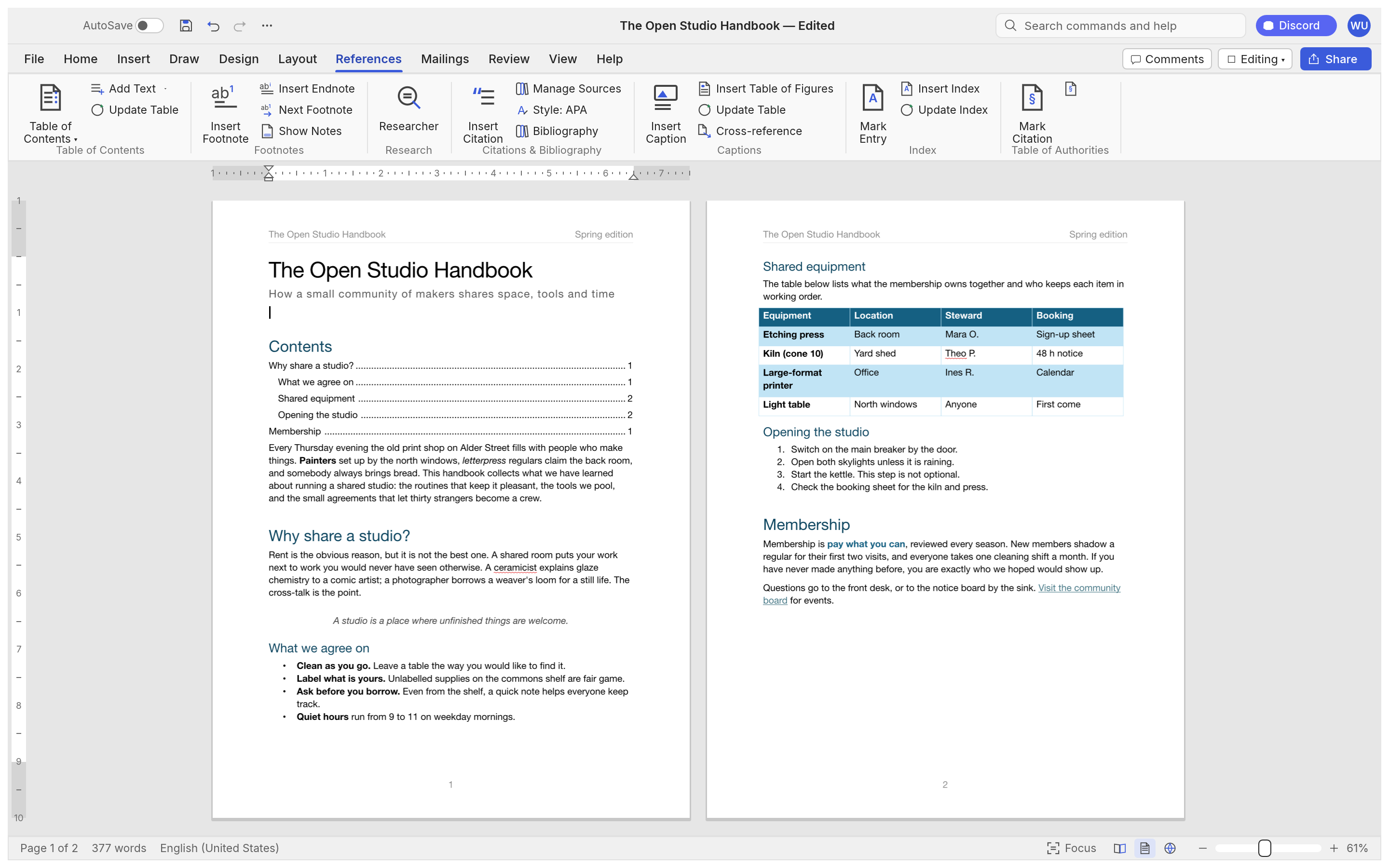
Organize longer writing
In Kimi K3 wordcraft, use headings and supported reference tools to connect sections. Verify generated references and page locations in the exported document.
Kimi K3 wordcraft: Open, save, and export
Use Kimi K3 wordcraft to write and format documents with a focused, editable workflow. The browser workspace is available before sign-in. Account authentication is required when you want the site to retain a saved result or provide an exported download.
Bring an existing document
In Kimi K3 wordcraft, dOCX import and export are central to the upstream editor. Complex files still need a careful comparison with their source.
Make a readable PDF
In Kimi K3 wordcraft, export a PDF for readers who need a fixed page layout. Open the result and check text, pictures, and page breaks.
Keep a private saved copy
In Kimi K3 wordcraft, sign in before saving or exporting. The site stores the result privately and records the completed operation in AI Tasks.
Kimi K3 wordcraft: Practical writing workflows
Use Kimi K3 wordcraft to write and format documents with a focused, editable workflow. Complex imported files deserve extra attention. Compare layout, text, values, and supported objects with the source before treating an exported copy as the final version.
Draft a proposal
In Kimi K3 wordcraft, begin with the problem, scope, schedule, and expected result. A document with clear sections is easier to discuss and maintain.
Revise a working report
In Kimi K3 wordcraft, open a report, edit a specific section, and inspect nearby pages. Keep the original file available while checking compatibility.
Share the finished version
In Kimi K3 wordcraft, choose an editable document for further revision or a PDF for reading. Name the file so its purpose is clear.
用户评价
Kimi K3 视频创作者反馈。
Kimi K3 creator reviews

示例工作流:用原创图形、清晰文字和分镜节奏制作游戏标题动画,检查结果后再放入演示。

示例工作流:让简短解释按顺序展开为动画图解,比较 Sketch 与 Motion 两种风格。

示例工作流:将授权产品图片与简短卖点排在一起,检查实际屏幕尺寸下的构图。

示例工作流:用一句标题和少量颜色制作竖屏片头,导出后可在剪辑中另配声音。

示例工作流:对已保存动画提出一项明确修改,比较版本后导出。

示例工作流:制作静音图形片段解释演示结构。这些是用途示意,不是真实客户评价或效果承诺。
Local editing and document saves use no AI generation credits. Sign in to save or export.
Kimi K3 价格与积分套餐
随时取消
Lite
50%折扣0.025/积分
每年计费$179· 节省$179.8
视频模型



图像模型



- 包含 Kimi K3.1 及所有高级模型
- 最多1个批量生成任务
- 标准生成速度
- 标准生成成功率
- 标准客户支持
- 商业使用许可
Standard
50%折扣0.017/积分
每年计费$299· 节省$299.8
视频模型
图像模型
- 包含 Kimi K3.1 及所有高级模型
- 最多4个批量生成任务
- 优先处理速度
- 高生成成功率
- 优先客户支持
- 商业使用许可
Pro
50%折扣0.014/积分
每年计费$599· 节省$599.8
视频模型
图像模型
- 包含 Kimi K3.1 及所有高级模型
- 最多10个批量生成任务
- 最快生成速度
- 高生成成功率
- 专属客户经理
- 商业使用许可
Max
50%折扣0.012/积分
每年计费$1,199· 节省$1,199.8
视频模型
图像模型
- 包含 Kimi K3.1 及所有高级模型
- 最多10个批量生成任务
- 最快生成速度
- 高生成成功率
- 专属客户经理
- 商业使用许可
通过以下方式安全支付























常见问题
Frequently asked questions
What is Kimi K3 wordcraft?
Kimi K3 wordcraft is the WordCraft browser workspace on kimik3ai.com, built from the open-source storytold project. It helps you write and format documents. The site adds account-based saving and file records around the editor.
Do I need an account to try Kimi K3 wordcraft?
You can open Kimi K3 wordcraft and work with local files before signing in. Saving to the site or exporting a result requires authentication. A pending save is kept in this browser while you sign in.
Where does Kimi K3 wordcraft save my files?
Kimi K3 wordcraft saves results in the site’s private user storage. Each completed operation creates an AI Tasks record with the file name and output reference. Access to the saved file is checked against the owning account.
Ca Kimi K3 wordcraft open every DOCX file?
Kimi K3 wordcraft uses an upstream editor that is still in alpha. Supported files can be opened and edited, but complex layouts and advanced features need a comparison with the source. Keep the original and inspect exports.
Does Kimi K3 wordcraft charge credits for local editing?
Kimi K3 wordcraft runs editing in your browser. These document saves are recorded as zero-credit operations. The site’s separate AI image and video tools keep their own displayed pricing and generation workflow.
行动入口
Start working with Kimi K3 wordcraft
Bring a file to Kimi K3 wordcraft, make a focused change, and inspect the result. Sign in when you are ready to save your private copy.
Open the workspace